
TABLE OF CONTENTS
- What You Will Need
- Do I Need to Upgrade?
- Identify Your CPU or Wall Display
- Upgrade Your DAKOS
- Frequently Asked Questions
- Can I Run sudo apt-get upgrade to Upgrade DAKOS?
- Does DAKOS Update Automatically?
- Will Upgrading Delete My Screens?
- Do I Need to Enter My WiFi Details Again?
- What Size Micro SD Card Do I Need?
- I Bought a Second-Hand Display, and It Is Registered to Someone Else. What Do I Do?
- We Replaced the SD Card, but the Display No Longer Connects. Why?
- Can I Just Update the Browser on My DAKOS Device?
- Helpful Articles
DAKOS is the operating system on DAKboard CPUs and Wall Displays. It does not update itself, so to upgrade it you install the latest version on the Display's Micro SD card, or replace the card with a preloaded one from our Shop. Upgrading fixes many connection and display problems, adds support for newer features, and lets an older or second-hand Display be set up as a new device.
Your Screens and the settings in your DAKboard account are not affected. You only reconnect the Display. This article helps you find which device you have, where its SD card is, and how to upgrade it.
What You Will Need:
- Your DAKboard CPU or Wall Display.
- A laptop or PC with a Micro SD card reader.
- A Micro SD card. DAKOS installs on any card of 8 GB or larger, including the one already in your Display. If you are buying a new card, we recommend 16 GB.
- Or, for Raspberry Pi models, a preloaded SD card from our Shop instead of installing DAKOS yourself.
Do I Need to Upgrade?
Check your version: go to Displays & Devices, click the three dots to the right of the Display, and select Settings. Your DAKOS version is listed under Version. If the Display is not connected to your account, see Finding Your DAKOS Version.
We support DAKOS 3.55 and above. If your Display runs an older version, please upgrade it. Even if an older version still seems to work, newer versions include many improvements to stability, network handling, and Screen display.
We also recommend upgrading if:
- The Display will not connect to your network or keeps losing its connection.
- You see startup or error messages when the Display turns on.
- The Display is second-hand or still registered to another account.
- A feature or fix in one of our articles needs a newer version of DAKOS.
Identify Your CPU or Wall Display:
Over the years, DAKboard CPUs and Wall Displays have been built in several designs and with several monitors. Use the photos below to find your model, and the quick reference table to see which computer it uses and where its SD card is.
Raspberry Pi or Orange Pi?
Which computer is inside your Display decides which version of DAKOS to install:
- Before December 2022, every DAKboard CPU and Wall Display was built on a Raspberry Pi.
- From December 2022 to December 2025, when Raspberry Pi computers were hard to get, the CPU v3 was built only on the Orange Pi 3LTS, and a small number of V2 Plus Wall Displays also used it.
- The Orange Pi models are now discontinued. They cannot run the newer system that DAKOS uses to support the Raspberry Pi 5, so DAKOS 3.55 is the last version for Orange Pi.
- All other DAKboard CPUs and Wall Displays use a Raspberry Pi.
Tip: an Orange Pi model shows an orange slice image when it starts, before the DAKboard loading screen.
Every Raspberry Pi model uses the same DAKOS download. When the Display starts, DAKOS sets itself up for the model of Raspberry Pi inside it, so you only need to know whether you have a Raspberry Pi or an Orange Pi.
Quick Reference:
| Model | Computer inside | Where the SD card is |
|---|---|---|
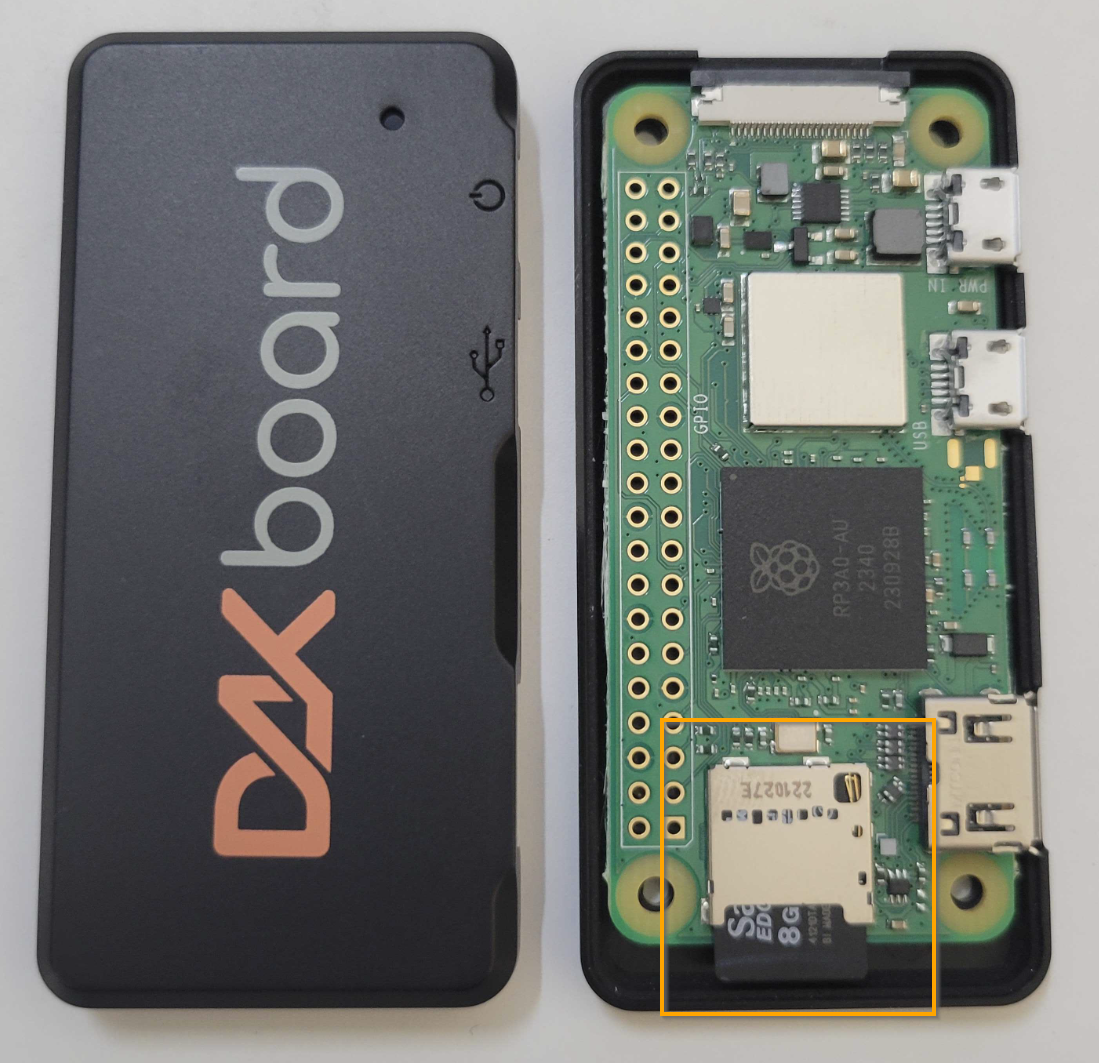
| CPU Mini | Raspberry Pi Zero 2 W | Inside the case (snaps open at the HDMI port) |
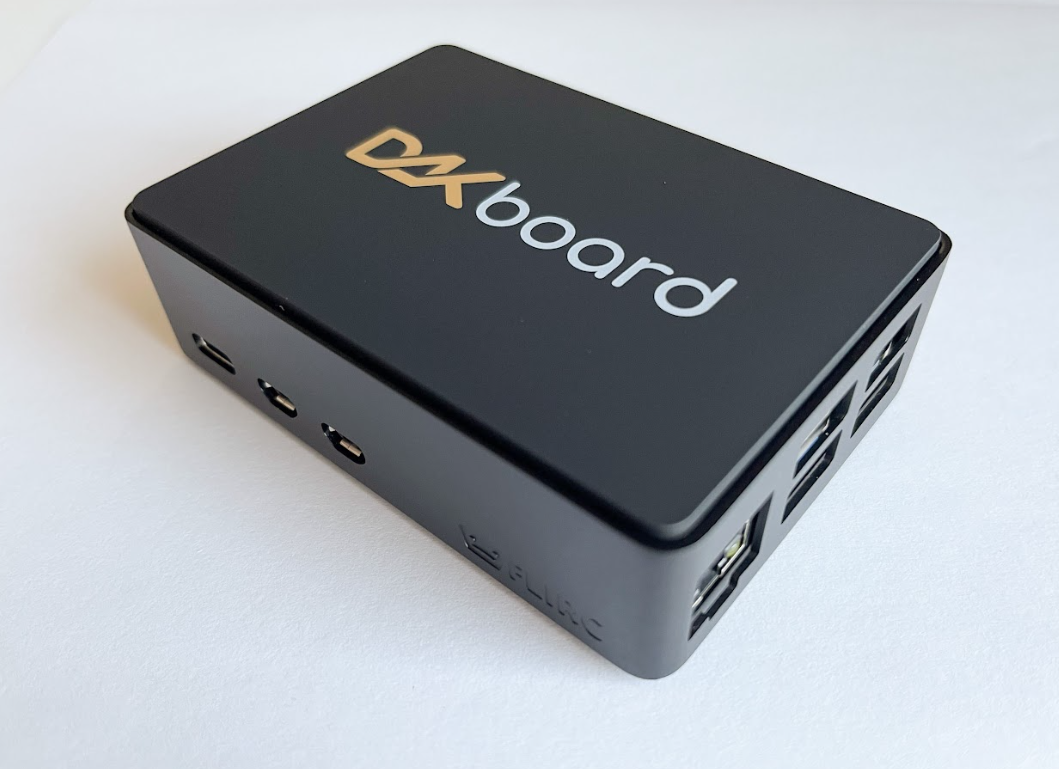
| CPU v4 | Raspberry Pi 4B | Bottom edge, opposite the USB ports |
| CPU v5 | Raspberry Pi 5 | Bottom edge, opposite the USB ports |
| Original Mini | Raspberry Pi Zero 2 W | Behind a door (Phillips screwdriver) |
| CPU v3 (Orange Pi Edition) | Orange Pi 3LTS | Bottom edge, opposite the USB ports (push to release) |
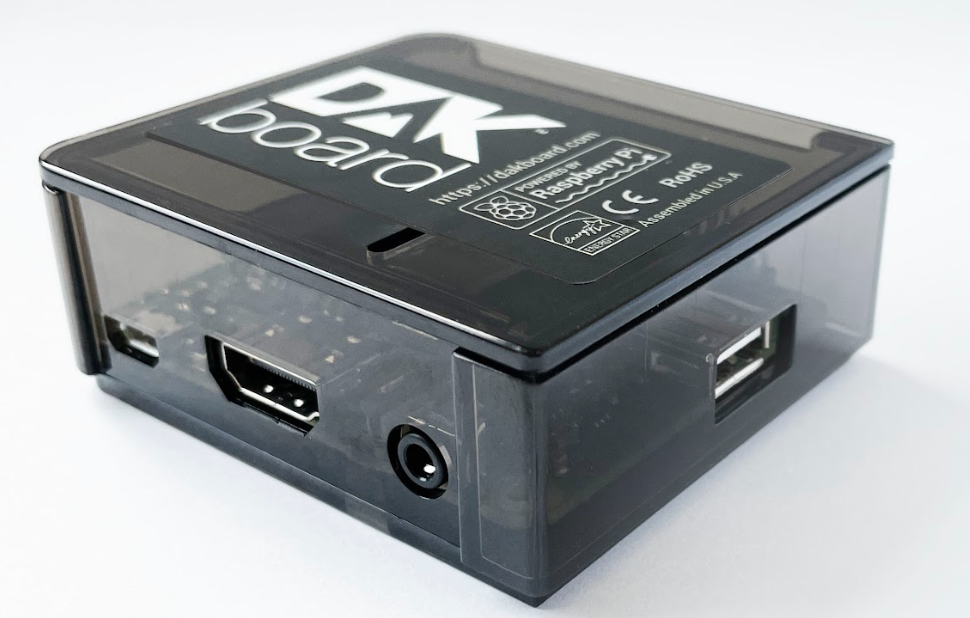
| CPU v3 (Raspberry Pi) | Raspberry Pi 3A, 3B, or 3B+ | Bottom edge, opposite the USB ports |
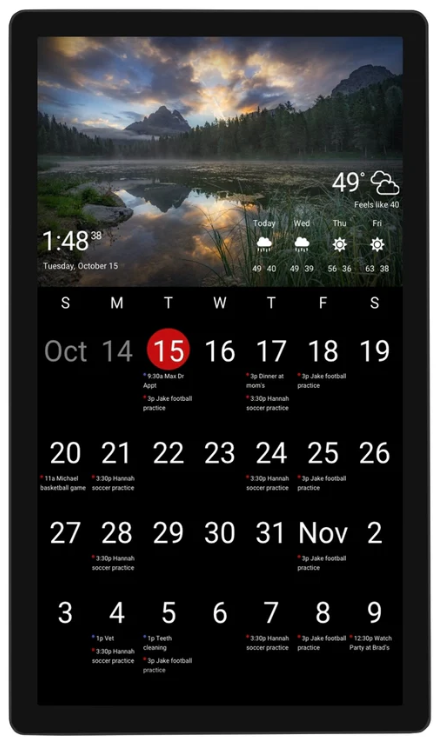
| Wall Display Touch 22 and Touch 27 | Touch 22: Raspberry Pi 4 or Raspberry Pi 5 Touch 27: Raspberry Pi 5 | Inside the back of the Display |
| Wall Display 27 | Raspberry Pi | Under a sticker on the back |
| V2 and V2 Plus | Raspberry Pi (about 100 V2 Plus: Orange Pi 3LTS) | Inside the back, or under a sticker on mid-2022 and newer models |
| AOC Wall Display | Raspberry Pi | Back of the Display |
| Dell Wall Display (27") | Raspberry Pi | Back of the Display |
| Mirror Display | Raspberry Pi | Behind a door on the back |
| Reseller models | Raspberry Pi or Orange Pi 3LTS | Ask your reseller |
Current CPUs:
CPU Mini:
Built on a Raspberry Pi Zero 2 W. The case is snapped together: pry it open at the HDMI port to reach the SD card.

The image below shows where the SD card is once the case is open. You can upgrade or replace it using the steps in Upgrade Your DAKOS below.
CPU v4:
Built on a Raspberry Pi 4B. The SD card is on the bottom edge, opposite the USB ports, and can be pulled straight out. You can upgrade or replace it using the steps in Upgrade Your DAKOS below.

CPU v5:
Built on a Raspberry Pi 5. The SD card is on the bottom edge, opposite the USB ports, and can be pulled straight out. You can upgrade or replace it using the steps in Upgrade Your DAKOS below.
Previous CPU Models:
Original Mini:
Built on a Raspberry Pi Zero 2 W. Use a Phillips screwdriver to open the door; the SD card is behind it. You can upgrade or replace it using the steps in Upgrade Your DAKOS below.

CPU v3 (Orange Pi Edition):
Built on the Orange Pi 3LTS (December 2022 to December 2025). The SD card is on the bottom edge, opposite the USB ports. Press it in until it clicks, then let go, and it pops out. Install DAKOS with Legacy Orange Pi - Download and Install DAKOS. You can upgrade or replace it using the steps in Upgrade Your DAKOS below.

CPU v3 (Raspberry Pi 3A):
Built on a Raspberry Pi 3A. The SD card is on the bottom edge, opposite the USB ports, and can be pulled straight out. You can upgrade or replace it using the steps in Upgrade Your DAKOS below.
CPU v3 (Raspberry Pi 3B):
Built on a Raspberry Pi 3B. The SD card is on the bottom edge, opposite the USB ports, and can be pulled straight out. You can upgrade or replace it using the steps in Upgrade Your DAKOS below.

CPU v3 (Raspberry Pi 3B+):
Built on a Raspberry Pi 3B+. The SD card is on the bottom edge, opposite the USB ports, and can be pulled straight out. You can upgrade or replace it using the steps in Upgrade Your DAKOS below.

Current Wall Displays:
Wall Display Touch 22 and Touch 27:
The Touch 22 is built on a Raspberry Pi 4 or Raspberry Pi 5, and the Touch 27 on a Raspberry Pi 5. The SD card is inside the Display, so you need to open the back. DAKboard Touch 22 and Touch 27 SD Card Replacement shows you how. You can upgrade or replace it using the steps in Upgrade Your DAKOS below.
Previous Wall Display Models:
Wall Display 27:
On the Wall Display 27, and on V2 Plus models built in mid-2022 or later, the SD card is under a sticker on the back. See Wall Display 27 and V2 Plus (Mid-2022 and Newer) SD Card Replacement. You can upgrade or replace it using the steps in Upgrade Your DAKOS below.

AOC Wall Display:
Our original Wall Display. See AOC SD Card Replacement to reach the SD card. You can upgrade or replace it using the steps in Upgrade Your DAKOS below.

Dell Wall Display:
The original 27" Wall Display, built with Dell monitors. See Dell 27" Wall Display SD Card Replacement to reach the SD card. You can upgrade or replace it using the steps in Upgrade Your DAKOS below.

V2 and V2 Plus Wall Displays:
Sold from 2018 until September 2023, when the monitor manufacturer ended production. For most of these, use V2 Plus SD Card Replacement. For models built in mid-2022 or later, use Wall Display 27 and V2 Plus (Mid-2022 and Newer) SD Card Replacement instead. About 100 V2 Plus Displays have an Orange Pi 3LTS (look for the orange slice at startup). You can upgrade or replace it using the steps in Upgrade Your DAKOS below.

DAKboard Mirror Display:
A Mirror Display we made for a short time. A door on the back opens to the Raspberry Pi and its SD card. See DAKboard Mirror Display SD Card Replacement. You can upgrade or replace it using the steps in Upgrade Your DAKOS below.

Reseller Models:
Reseller models usually have a wooden frame. We do not have details for them: some use a Raspberry Pi and some use an Orange Pi 3LTS, and you may need to open the back of the Display to reach the computer and its SD card. Please contact your reseller for instructions.
Upgrade Your DAKOS:
- Find your model and whether it uses a Raspberry Pi or an Orange Pi, using Identify Your CPU or Wall Display above.
- Unplug the power, then remove the Micro SD card.
- Install the latest DAKOS on the card with your laptop or PC:
Raspberry Pi: follow Raspberry Pi - Download and Install DAKOS, or buy a preloaded SD card from our Shop and skip this step.
Orange Pi: follow Legacy Orange Pi - Download and Install DAKOS. We no longer sell SD cards for Orange Pi models, so if you need a new card, buy any 8 GB or larger Micro SD card from a local store. - Put the card back into the Display's built-in Micro SD card slot (not a USB card reader), then plug in the power.
- Connect the Display to your WiFi network until it shows a link code, following Setup - DAKboard CPU/Micro SD Card or Setup - DAKboard Wall/Mirror Display.
- If it was on DAKOS 3.0 or above before the upgrade: on Displays & Devices, click the three dots to the right of the Display, select Link with Device or TV, and enter the link code shown on the Display. It stays in your Displays & Devices list.
- If it was on a version older than 3.0, or you are not sure: click the three dots to the right of the old Display, select Remove Device, then add it as a new device with the link code, as shown in the setup article. Removing a Display does not affect your Screens.
Frequently Asked Questions:
Below are the most frequently asked questions about upgrading your DAKOS device.
Can I Run sudo apt-get upgrade to Upgrade DAKOS?
No. DAKOS does not support upgrading with commands like sudo apt-get upgrade. Updating parts of the system this way can stop DAKOS from starting and disconnect the Display from your account. To upgrade, install the latest DAKOS on the SD card as described in Upgrade Your DAKOS.
Does DAKOS Update Automatically?
No, DAKOS cannot update automatically yet. Automatic updates would need a way for us to deliver updates to your devices, which we have not developed yet. To see if your Display needs an upgrade, see Do I Need to Upgrade?.
Will Upgrading Delete My Screens?
No. Your Screens and settings are saved in your DAKboard account, not on the Display. After upgrading, you only reconnect the Display to your account.
Do I Need to Enter My WiFi Details Again?
Yes. A fresh install of DAKOS has no WiFi details saved, so you connect it to your network again during setup.
What Size Micro SD Card Do I Need?
DAKOS installs on any Micro SD card of 8 GB or larger. If you are buying a new card, we recommend 16 GB.
I Bought a Second-Hand Display, and It Is Registered to Someone Else. What Do I Do?
Upgrading DAKOS removes the old registration, so you can set the Display up on your own account. Follow Upgrade Your DAKOS and add it as a new device on your account.
We Replaced the SD Card, but the Display No Longer Connects. Why?
Why this happens: the SD card may not be fully seated, the Display may be having trouble connecting to your network, or DAKOS may not have installed correctly.
How to fix it:
- Unplug the power, remove the SD card, and push it firmly back into the built-in Micro SD card slot.
- Make sure you linked the Display to your account (see step 6 of Upgrade Your DAKOS).
- Check your network connection with DAKOS Troubleshooting: Offline and Network Issues and Trouble Connecting To A WiFi Network.
- If it still does not connect, install DAKOS on the card again. If the install keeps failing, try a new 16 GB card.
Can I Just Update the Browser on My DAKOS Device?
No. The browser in DAKOS was chosen to work with the rest of the system, and changing it can make your Display unstable or stop it from connecting to your account. Upgrading DAKOS updates the browser along with everything else and fixes the same problems a browser update would.
Helpful Articles:
Having trouble? See if these articles help.
Raspberry Pi - Download and Install DAKOS
Legacy Orange Pi - Download and Install DAKOS
Setup - DAKboard CPU/Micro SD Card
Setup - DAKboard Wall/Mirror Display
DAKboard Touch 22 and Touch 27 SD Card Replacement
Wall Display 27 and V2 Plus (Mid-2022 and Newer) SD Card Replacement
Dell 27" Wall Display SD Card Replacement
DAKboard Mirror Display SD Card Replacement
DAKboard Troubleshooting: Start Here
DAKOS Troubleshooting: Startup and Error Messages