
Use this guide if your Display was set up and working, and now goes offline, freezes, partially loads, loads a blank screen, flickers, or stops updating.
Even when it looks like a hardware problem, the cause is most often the WiFi signal reaching the Display, so start by checking your signal strength.
TABLE OF CONTENTS
- Check Your WiFi Signal Strength
- Improve Your WiFi Signal
- No Internet Message After Reboot
- DAKboard Device is Offline Message
- Helpful Articles
Check Your WiFi Signal Strength:
Why this happens: Most of these issues are caused by a weak WiFi signal at the Display. Your phone may show a strong signal when you stand next to the Display, but that does not mean the DAKboard can use that signal. The only reliable way to judge the signal is to check what the DAKboard itself reports.
WiFi signal strength is measured in dBm. The values are negative, and numbers closer to 0 are stronger:
| Signal strength | What to expect on DAKOS |
|---|---|
| 0 to -50 dBm | Good. A strong enough signal to nearly guarantee a reliable connection. |
| -50 to -67 dBm | May cause intermittent problems, such as freezing, partial loading, or going offline. |
| Weaker than -67 dBm (for example -70 or -80) | Will cause constant problems until the signal is improved. |
NOTE: General WiFi standards treat anything from 0 to -67 dBm as a usable signal. DAKOS devices need a stronger signal than that, which is why we recommend 0 to -50 dBm.
To check your Display's signal (DAKOS 3.0 and above): go to Displays & Devices, click the three dots to the right of the Display, click Settings, then hover over the WiFi symbol. The Display reports its signal when it starts up and connects to your account, and each time it is refreshed, either automatically or by you.
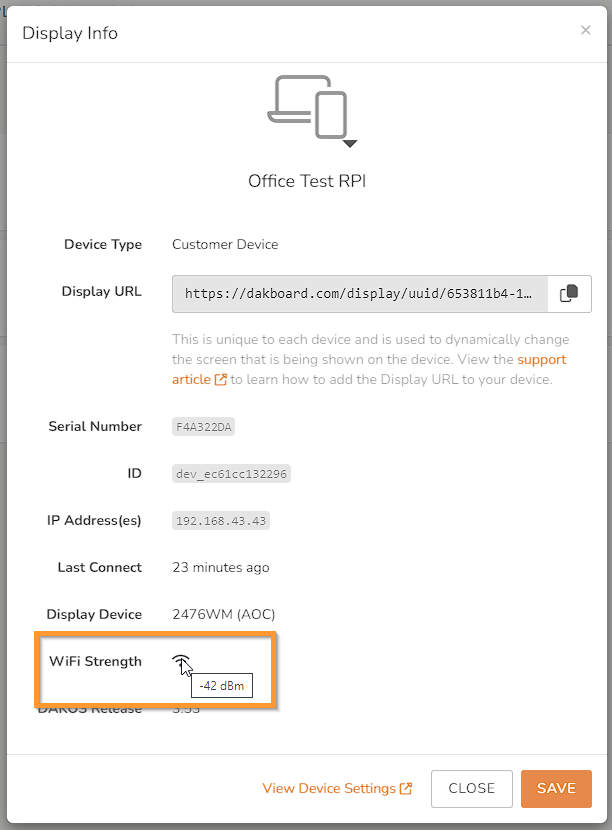
If your signal is weaker than -50 dBm, see Improve Your WiFi Signal below.
Improve Your WiFi Signal:
Why this happens: The small computers inside DAKboard Displays are easily drowned out by other devices on your network, so they need a stronger signal than your phone or laptop.
How to fix it: Try one or more of the following:
- Move the Display closer to your router, or move a Mesh node, Access Point, or WiFi Extender closer to the Display. Use the signal reading above to check each new position.
- Reboot your network equipment. Restart your router, Mesh nodes, Access Points, and WiFi Extenders, then reboot the DAKboard once they are back online.
- Use Ethernet. Connecting with a cable removes the need for WiFi altogether. If your router is far away, check whether a Mesh node or WiFi Extender near the Display has an Ethernet port, or use Ethernet Over Power (EOP) adapters, which use your home's electrical wiring to carry the connection.
- Upgrade DAKOS. Versions 3.50 and above support Mesh nodes, Access Points, and WiFi Extenders, and version 4.11 and above connects better on weaker signals. If your Display runs an older version, we strongly recommend upgrading it with Upgrading your DAKOS Device.
For more on WiFi bands, Mesh networks, and router settings, see Trouble Connecting To A WiFi Network.
No Internet Message After Reboot:
Why this happens: A No Internet message does not always mean your internet is down. It can mean the DAKboard cannot reach the internet through your network, because of a weak signal or a problem communicating with your router. For example, after a power outage the DAKboard may finish starting up before your router has reconnected to the internet.
How to fix it:
- Make sure your router is online and connected to the internet.
- Reboot the DAKboard by unplugging the power and plugging it back in.
- If the message comes back, check the signal your Display last reported (see Check Your WiFi Signal Strength).
- If the signal is weaker than expected, reboot your router, Mesh nodes, Access Points, and WiFi Extenders. Once they are back online, reboot the DAKboard again.
- If the issue continues, follow Improve Your WiFi Signal.
DAKboard Device is Offline Message:
Why this happens: If your Display shows the message "DAKboard Device is Offline - Please check network connectivity!", it has been offline for more than 6 hours. DAKboard sends an automatic refresh and connection check to your Display every 6 hours. If the Display has not been able to reach our service during that whole time, DAKOS adds this message to your Screen.
How to fix it:
- DAKOS 3.50 and above tries to reconnect to your network every 30 minutes. If it cannot connect, it starts the DAKboard Hotspot so you can check or update your WiFi details. See Connect to the DAKboard Hotspot.
- Versions older than 3.50 need to be restarted: unplug the power and plug it back in. If you then see a No Internet message, see No Internet Message After Reboot.
Not sure which version you have? See Finding Your DAKOS Version.
Still stuck? See Report a Bug, Request a Feature, or View DAKOS Release Notes to report the issue to our team.
Helpful Articles:
Having trouble? See if these articles help.
DAKOS Troubleshooting: Start Here
DAKOS Troubleshooting: Setup Issues
DAKOS Troubleshooting: Startup and Error Messages
Trouble Connecting To A WiFi Network
Updating Your WiFi Credentials on Your DAKOS Device