
Use this guide if your DAKOS device has trouble during first-time setup: connecting to your WiFi, using the DAKboard Hotspot, or linking the Display to your account.
If your Display was working and has since gone offline, see DAKOS Troubleshooting: Offline and Network Issues. If your Display shows error text or code, see DAKOS Troubleshooting: Startup and Error Messages. For a list of every issue we cover, start at DAKOS Troubleshooting: Start Here.
TABLE OF CONTENTS
- Reaching Your Display's Settings Page
- DAKboard Loops Back to the Welcome Page
- Intelligent WiFi Keeps Dropping You off the Hotspot
- DAKboard Goes to a Blank or Black Screen
- DAKboard Fails to Register With the Link Code
- DAKboard Hotspot Fails to Start or Connect
- DAKboard Hotspot Says the Password Is Incorrect
- Helpful Articles
Reaching Your Display's Settings Page:
Most setup fixes start on your Display's Settings page, where you choose your WiFi network and enter its password. There are two ways to reach it.
Option 1 - Connect to the DAKboard Hotspot:
When your DAKOS device is first set up, or whenever it cannot join your network, it creates its own WiFi network called the DAKboard Hotspot.
- On a phone, tablet, or laptop, scan the QR code on your Display, or join the WiFi network named DAKboard (DAKboard-<Display Serial Number> on versions older than 3.0) using the password dakb5142.
- Your device may warn that this network has no internet. This is normal. Choose Always Connect or Stay Connected so your device does not switch away (see Intelligent WiFi if it keeps switching).
- On that same device, open a browser and go to http://10.0.0.5. This is the Settings page on your Display.
- Select your home network's Name/SSID, enter its password, and click Save Changes at the bottom of the page.
NOTE: If you enter your network name or password using Copy & Paste or Autofill, hidden spaces may be added. These will make the password fail, so check that none were added.
Option 2 - Use a USB Keyboard and Mouse:
Use this when the Hotspot will not start, or your phone or tablet will not stay connected to it.
- Connect a USB keyboard and mouse to one of the CPU's USB-A ports. If you have a CPU Mini, you will need an adapter with a Micro-USB male plug on one end and a USB-A female socket on the other (often sold as a "Micro-USB OTG adapter").
- Reboot the CPU by unplugging the power cable and plugging it back in.
- Once it has fully started, the Settings page will load automatically if you have the latest DAKOS. If it does, skip to step 6. If not, press ALT+F4 on your keyboard and continue with step 4.
- Click the Raspberry icon in the top left of the screen.
- Select Help, then click Device Configuration.
- On the Settings page, update or verify your network credentials.
- Click Save at the bottom of the page.
- Once the settings are saved, reboot by unplugging the power cable and plugging it back in.
For more detail, including screenshots, see How to Access Your DAKOS Settings Page.
DAKboard Loops Back to the Welcome Page:
Why this happens: Your Display will not advance to the Registration page if it cannot join your home network with the details you entered, if the WiFi signal is too weak where the Display is placed, or if it cannot confirm a connection to the internet.
How to fix it: Work through these in order. After each one, check whether the Display moves on to the Registration page.
- Check your WiFi details. Go to your Settings page (see Reaching Your Display's Settings Page), make sure your home network is selected and its password is correct, then click Save Changes.
- Improve the signal. Move the Display closer to your router and reboot it. Other devices in your home may connect fine while the DAKboard does not, because the small computer inside it is easily drowned out by other devices. See Improve Your WiFi Signal for more ways to fix this, including Mesh Networks, Range Extenders, and Ethernet.
- Make sure ping is allowed (DAKOS 3.54 and below). DAKOS 4.01 and above checks for internet in several ways and connects as long as you have internet access. Versions 3.54 and below confirm the connection by sending a ping to 8.8.8.8 (Google's DNS server). If ping is disabled on your network, the Display cannot connect. If you manage your network, enable ping in your router or firewall. If your Internet Service Provider manages it, ask them to enable it for you.
- Upgrade DAKOS. Version 4.11 and above greatly improved how DAKOS connects to WiFi, including on weaker signals and on networks with other connection issues. See Upgrading your DAKOS Device.
Intelligent WiFi Keeps Dropping You off the Hotspot:
Why this happens: Most current phones and tablets have Intelligent WiFi, which automatically switches away from any WiFi network without internet access (like the DAKboard Hotspot) to a saved network that has it.
How to fix it:
- Open your phone or tablet's WiFi settings and find the network called DAKboard.
- Open its settings and select Always Connect or Stay Connected. This keeps your device on the Hotspot while you finish setup.
- If that option is not available, turn off Intelligent WiFi instead. Where to find this varies by device, so you may need to search for instructions for your model.
If your device still will not stay connected, use Option 2 - Use a USB Keyboard and Mouse instead.
DAKboard Goes to a Blank or Black Screen:
Why this happens: The Chromium browser that shows your Screen was slow to start after the Display connected to your network. This happens most often on smaller CPUs with less than 1 GB of RAM, like the CPU Mini or the Raspberry Pi 3B or 3A.
How to fix it:
- Reboot the Display by unplugging the power and plugging it back in. This restarts the browser and usually lets it load.
- If the screen is still blank or black, reset the Display using Reset Your Device to Factory Settings.
- If that does not work, reinstall DAKOS completely using Upgrading your DAKOS Device.
DAKboard Fails to Register With the Link Code:
Why this happens: You see an error saying your Display was unable to link, the link code seems not to work, or linking fails with no message. This is usually caused by a weak WiFi signal at the Display. On smaller CPUs (the CPU Mini, Raspberry Pi 3B, or 3A), the code can also be accepted by our service but lost on the CPU because it did not have enough free memory to store it.
How to fix it:
- Move the CPU closer to your router or access point, or move your Mesh node or WiFi Extender closer to the DAKboard while you complete linking. See Improve Your WiFi Signal.
- On smaller CPUs, reboot the CPU to free up memory, then use the new link code it shows.
DAKboard Hotspot Fails to Start or Connect:
Why this happens: The Hotspot can fail to start when there is a lot of WiFi traffic in your home, or when another device is using the same WiFi band the Hotspot uses. It can also seem to fail when your phone or tablet's Intelligent WiFi keeps switching you away from it.
How to fix it: If your phone or tablet keeps dropping off, see Intelligent WiFi. Otherwise, reach the Settings page directly with Option 2 - Use a USB Keyboard and Mouse.
DAKboard Hotspot Says the Password Is Incorrect:
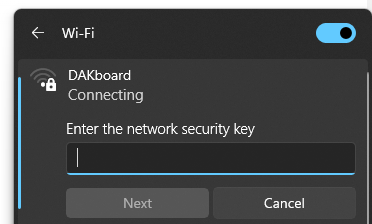
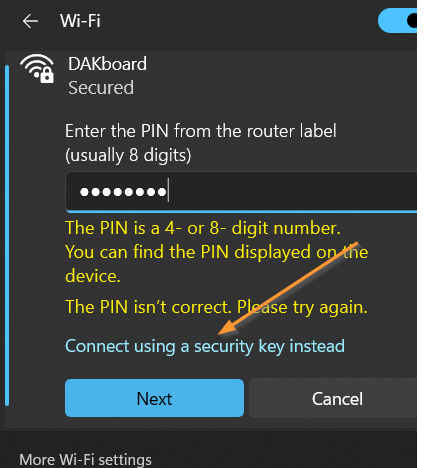
Why this happens: This message comes from the computer you are connecting with, not from the Hotspot. Your computer is trying to connect using a PIN (WPS) instead of a password (WPA2). The DAKboard Hotspot only accepts a password.
How to fix it: When your computer asks for a PIN, it looks like this:
Click Connect using a security key instead, then enter the password dakb5142:
Still stuck? See Report a Bug, Request a Feature, or View DAKOS Release Notes to report the issue to our team.
Helpful Articles:
Having trouble? See if these articles help.
DAKOS Troubleshooting: Start Here
DAKOS Troubleshooting: Offline and Network Issues
DAKOS Troubleshooting: Startup and Error Messages
How to Access Your DAKOS Settings Page
Updating Your WiFi Credentials on Your DAKOS Device
Trouble Connecting To A WiFi Network