
TABLE OF CONTENTS
- Displays & Devices Page:
- Display Info (Settings):
- Non-DAKOS Devices:
- DAKOS Devices:
- Frequently Asked Questions:
- Helpful Articles:
The Displays & Devices page is where you add, organize, and remove your linked Displays and choose what each one shows. If you have DAKOS devices, you can also see their WiFi signal strength and IP address, open their settings page, and much more. This article introduces the Displays & Devices page and explains everything you can do with it.
Displays & Devices Page:
Log in to your DAKboard account and click Displays & Devices in the menu on the left.
When it opens, it should look something like this:
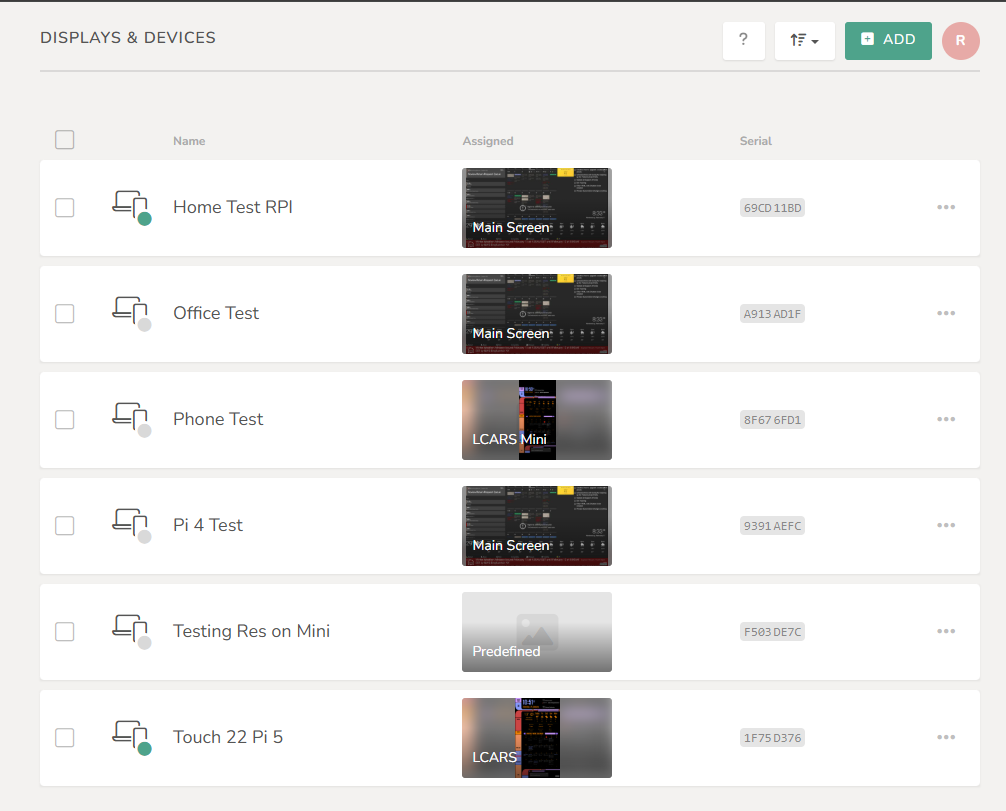
Each part of the page is explained below.
The Help Button:
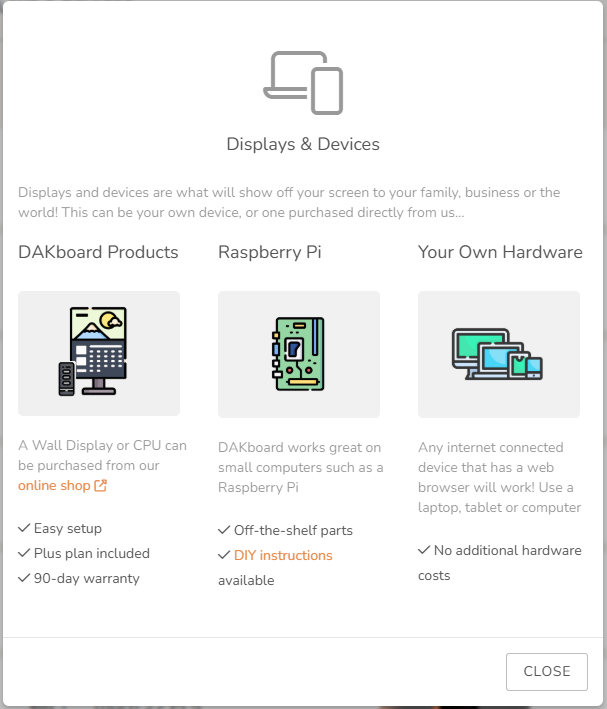
The button with the ? on it opens the Displays & Devices help window, which compares DAKboard products, Raspberry Pi devices, and your own hardware (any internet-connected device with a web browser).
The Add Button:
The green Add button at the top right adds a new Display. If you do not have any Displays yet, the page shows an Add a Display button instead.
This opens Add a Display or Device:
- Enter a Name for the Display, for example "Kitchen".
- Enter the Link Code shown on your device, or leave it blank to link it later.
- Under Assigned Content, choose what it should show.
- Click Save.
The Link Code or Serial # field also accepts a serial number. This is only for legacy DAKOS devices running version 2.32 or older, which are no longer supported (see Legacy Setup for DAKOS version 2.17 to 2.32). All current devices use the Link Code.
To set up a new Display, see Setup - DAKboard Wall/Mirror Display, Setup - DAKboard CPU/Micro SD Card, Setup - DAKboard Touch Wall Displays, or How to use a non-DAKOS Device as a Display.
Name, Assigned, and Serial Columns:
These columns show the name you gave each Display (with its device type below it), what it is currently showing (Assigned), and the serial number generated for it when it was linked. Once you have more than four Displays, a Sort button lets you sort by Name or Created Timestamp.
Online Status:
A green dot next to a Display means it has checked in with DAKboard recently. A grey dot means it is offline or does not report its status. Hover over the icon to see its status and when it last connected.
Changing What a Display Shows:
- Click the picture in the Assigned column for the Display.
- Choose a tab (Screens, Loops, Schedules, or TouchHub), select what you want to show, and click Save.
On the Plus plan, connected Displays update almost immediately. On the Essential plan, they update within 1 to 2 minutes. On the Free plan, Displays show the Predefined Screen. See How to Assign a Screen to Your Display for more ways to assign a Screen.
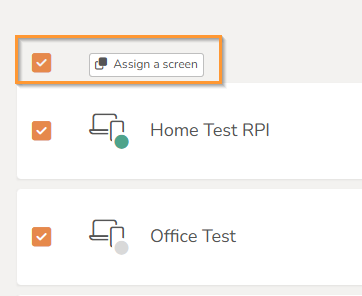
Assigning One Screen to Multiple Displays:
On the Plus plan, once you have two or more Displays, checkboxes appear next to them. Tick the Displays you want to change, then click Assign a screen and choose a Screen, Loop, Schedule, or TouchHub for all of them at once.
The More Action (Three Dots) Menu:
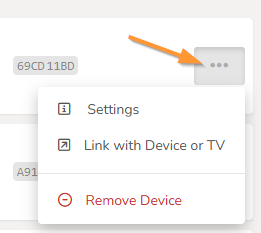
The three dots to the right of each Display open a menu with more options:
| Option | What it does |
|---|---|
| Settings | Opens Display Info (see below). |
| Link with Device or TV | Links a device to this existing Display using the code it shows, for example after a reset or when replacing a device. For a TV, tablet, or computer, open a web browser on it and go to dakboard.com/link. Enter the code and click Link Device. |
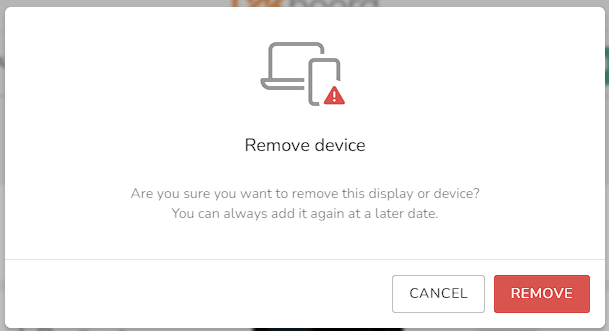
| Remove Device | Removes the Display from your account. Nothing on the device itself is changed or reset. The name, assigned content, and sleep schedule for the Android and Fire TV Apps saved for it in your account are cleared. To use the device again, add it with a new link code. |
Display Info (Settings):
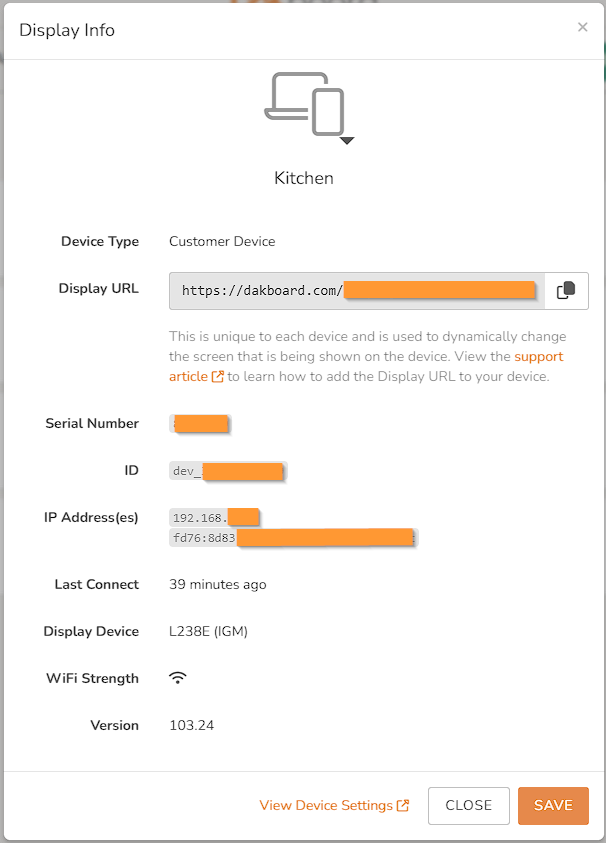
Choosing Settings opens Display Info. Which details you see depends on the type of device.
| Field | What it shows |
|---|---|
| Icon and name | Click the icon to change it, or click the name to rename the Display. Click Save to keep your changes. |
| Device Type | The kind of device, for example a Wall Display or the DAKboard Android app. |
| Display URL | This Display's own web address, with a copy button. Use it on devices that cannot use a link code (see Using DAKboard Private URLs). |
| Serial Number and ID | Useful when you contact support. |
| IP Address(es) | DAKOS devices: the address of the device on your network. |
| Last Connect | When the device last checked in. |
| Display Device | DAKOS devices: the monitor model the device detected. |
| WiFi Strength | DAKOS devices: hover over the icon to see the signal strength (see Trouble Connecting To A WiFi Network). |
| Version | DAKOS devices: the software version (see Upgrading Your DAKOS Device). |
| On/Off Schedule | Android and Fire TV apps: when the screen turns on and off. DAKOS devices set this on their own settings page (see How to Set the On/Off (Sleep) Schedule). |
| View Device Settings | DAKOS devices: opens the device's settings page from a computer on the same network, if the device was online in the last few hours. Otherwise, the button reads Device Settings Unavailable (see How to Access Your DAKOS Settings Page). |
Non-DAKOS Devices:
Non-DAKOS devices, like Smart TVs, tablets, and computers, can be added to your Displays & Devices page. Once added, you can change their Screens from this page instead of typing a new address on the device.
Linking a non-DAKOS device also hides your Screen's address behind a Display URL. If that address is ever shared or compromised, you can remove the Display and link the device again, instead of rebuilding your Screen. See How to use a non-DAKOS Device as a Display to link your device. Some devices cannot use link codes; for those, you can enter a Screen URL directly (see Using DAKboard Private URLs).
The DAKboard Android app and DAKboard Fire TV app link the same way: open the app, then add a Display here with the link code the app shows. The apps also have their own sleep schedule. See The New DAKboard Android APP and The New DAKboard Fire TV App.
DAKOS Devices:
DAKOS devices, such as DAKboard Wall Displays and CPUs, and DIY Raspberry Pi devices running DAKOS, have all the benefits above. You can also see whether they are connected and when they last checked in, their IP address on your network, the monitor they are connected to, their WiFi signal strength, and open their settings page from a computer on the same network.
Frequently Asked Questions:
Below are the most Frequently Asked Questions about the Displays & Devices page:
Why Is My Display's Dot Grey?
The Display has not checked in recently or is a Non-DAKOS device and does not report this data to us. Hover over its icon to see when it last connected, then see DAKOS Troubleshooting: Offline and Network Issues.
Why Does It Say Device Settings Unavailable?
If your Display is a Non-DAKOS device, or the device has not checked in for a few hours the Settings Unavailable message will show. For DAKOS devices, it means that its settings page cannot be reached from here. Make sure it is online, and open the settings page from a computer on the same network (see How to Access Your DAKOS Settings Page).
Why Don't I See the Checkboxes to assign Multiple Displays?
Assigning one Screen to several Displays at once needs the Plus plan and at least two Displays.
Why Do I Get Unable to Link With Device?
The link code was entered incorrectly or has expired. Refresh the device (or restart it) to get a new code and enter it again.
How Long Until My Display Shows the New Screen?
On the Plus plan, almost immediately. On the Essential plan, within 1 to 2 minutes. See Content and Display Refresh Rates for how often the content inside your Blocks updates.
What Happens When I Remove a Display?
The Display is removed from your account, along with its name, assigned content, and sleep schedule if it is an Android or Fire TV App. Nothing on the device itself is reset. To use it again, add it with a new link code; DAKOS devices running version 3.0 or newer get a new ID and serial number each time they are linked.
Do I Need My Display's Serial Number?
No. All current devices link with a link code. Serial numbers are only needed for legacy DAKOS devices running version 2.32 or older, which are no longer supported (see Legacy Setup for DAKOS version 2.17 to 2.32).
Helpful Articles:
Having trouble? See if these articles help.
How to Assign a Screen to Your Display
How to use a non-DAKOS Device as a Display
Setup - DAKboard Wall/Mirror Display
Setup - DAKboard CPU/Micro SD Card
Setup - DAKboard Touch Wall Displays
DAKOS Troubleshooting: Offline and Network Issues