
For DAKOS devices running versions older than 2.17, you will need to upgrade your Display if you wish to reconnect it. This is because these older versions cannot access our Security Certificates and will most likely fail to connect. If you need to know which version you are on, see our article Finding Your DAKOS Version. To upgrade your Display, see our article Upgrading your DAKOS Device to learn which device you have and how to upgrade it.
For versions 2.17 to 2.32, the steps below are needed to set up your DAKOS display. NOTE: These steps may not work, and you will need to upgrade your display if they do not.
Network Connection:
When you first set up your DAKOS device, or when it cannot join the network, it will create a local Hotspot to join to make changes. You will see this network available on your phone/tablet/computer:
Name/SSID: DAKboard-Your Serial #
Password: dakb5142
Connect to it using the Name/SSID and Password as above. Your Computer/Tablet/Phone may indicate that this connection has no internet. This is normal, and make sure to stay on the DAKboard wifi until the configuration is completed. Use the option to Always Stay Connected to prevent your device from kicking you off the DAKboard Hotspot. While on this hotspot, open a browser, type http://10.0.0.5 to access the settings page to update the wireless network configuration.
Once on the Settings page, add your home network WiFi credentials. When entering your network Name/SSID and/or password, if you use Autofill or copy and paste, you may add hidden characters such as spaces to the password. This will fail to connect to your Network. Double-check your credentials do not contain these hidden characters.
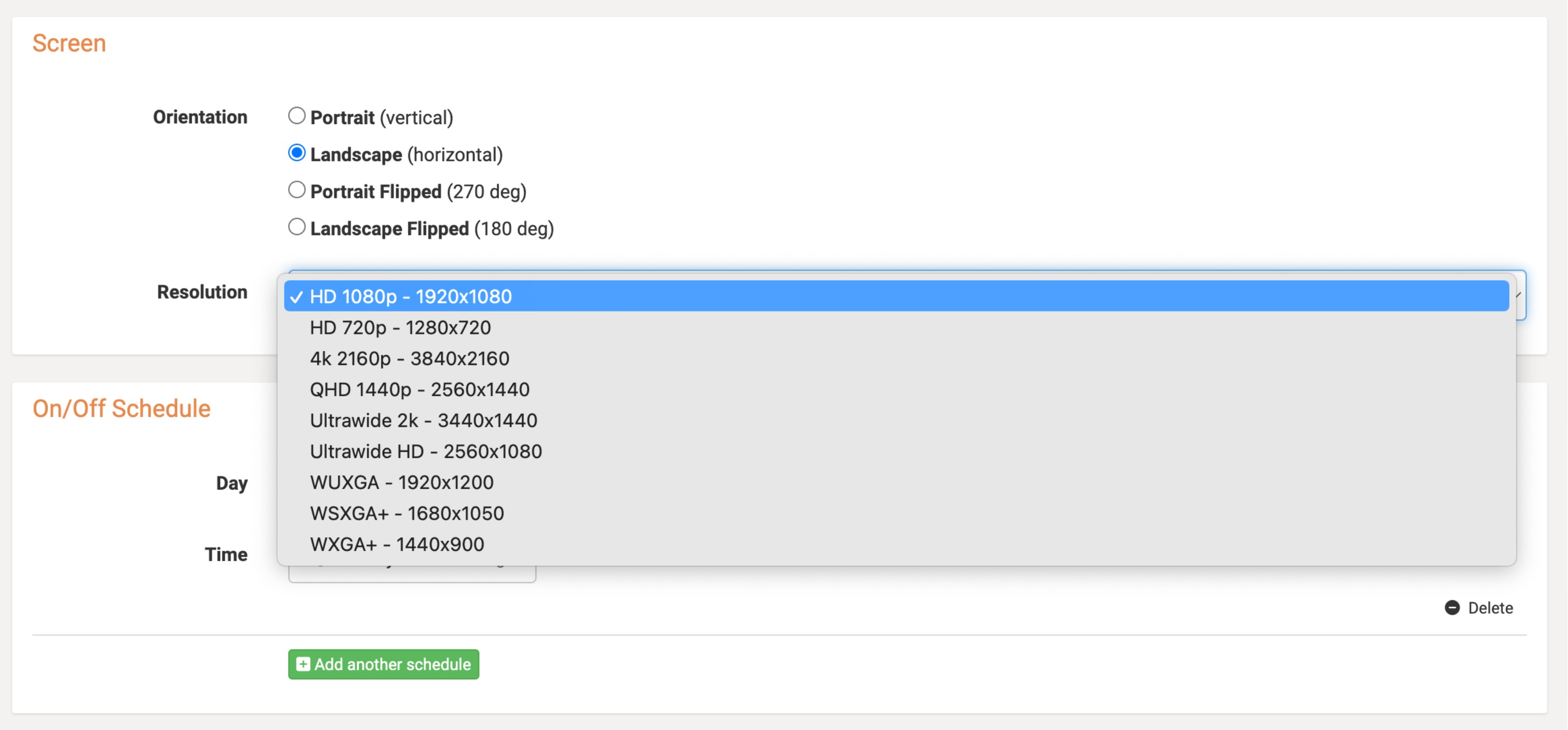
Use this time to also set your resolution and other settings of your display as well, and click save:
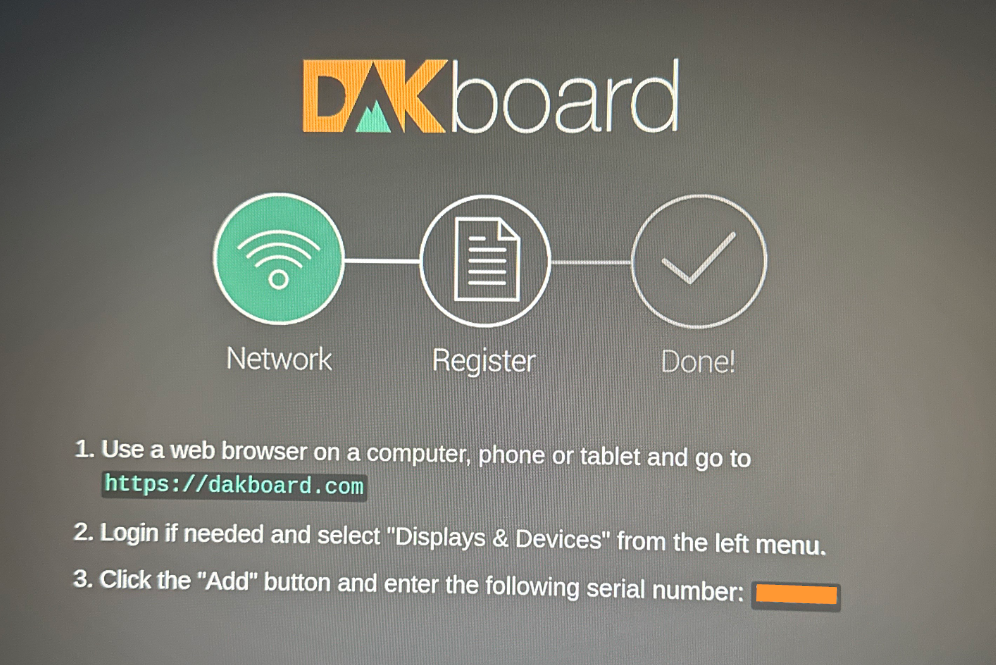
When the following page is displayed, your device is connected to your network and ready to be linked to your dakboard.com account:
Hotspot Fails to Start or Connect:
If you are unable to access the DAKboard Hotspot, see our article DAKOS General Troubleshooting for details on how to manually access the settings page.
Linking Your Display:
To link your device, visit the Displays & Devices page and click the green ADD button. Type in your Serial # in the Link Code or Serial # space (the serial number should be printed on your Display, or in the image above, it would be under the orange block), add a name, select the screen you would like to display, and you're done!

If you receive an error saying your Display was unable to link, this may be a sign of a weak WiFi signal to your display. Try moving it closer to your Router to improve this while completing your initial linking. Please note that these versions do not support Mesh Nodes, 5 GHz WiFi bands, Band Steering, or WiFi Extenders. They can only link to your Router so they must be in range.