
TABLE OF CONTENTS
- Add a Microsoft 365 Account to Access your Calendars:
- Add Events From Your Touchscreen:
- Add a Microsoft 365 calendar via Publishing/ICS Link:
- Troubleshooting:
- Frequently Asked Questions:
- Can you add a Microsoft 365 Group Calendar to DAKboard?
- Why can't I see the shared calendars from another Microsoft account on DAKboard?
- Why am I not seeing the Microsoft Account Selection Page when adding a New Account?
- What do I do when I get an invalid authentication token error?
- Can I add a Private or locally hosted Microsoft Account?
- Why am I getting a Request Authorization pop-up when trying to add this?
- Helpful Articles:
With DAKboard, adding your Calendars is easy. This article is to help you set up your Microsoft 365 Calendar with your account. See our article How to Add a Calendar Block to your DAKboard Screen for more details on navigating the new Calendar Block Editor.
Add a Microsoft 365 Account to Access your Calendars:
In a Custom Screen, add a calendar block, then edit the calendar block. In a Predefined screen, click the calendar tab, enable the calendar, and scroll to the Connected Calendar section. Next, click the Link a New Account dropdown, and select Microsoft Calendar to link your Microsoft 365 Account:

Follow the prompts on Microsoft to allow DAKboard access to your calendars. When complete, edit your screen again on DAKboard and select the desired calendar(s) to show:

Save your changes, and preview your screen to see your Microsoft calendars.
Add Events From Your Touchscreen:
Available with your DAKboard Paid Subscription and the Custom Screens, your Microsoft Calendars can now enter events from your Touchscreen. This works with either a Touchscreen or a connected USB mouse. Here is how to add this feature to your account and use it.
Add the Ability to Edit Your Calendar:
To use this feature, you must have a Microsoft-Authenticated Account, a Paid Subscription to DAKboard, and a Calendar from said account linked to your Custom Screen and Display. To add the Edit functionality, open your calendar Block Editor, then in the My Calendar Section, click the pencil icon next to the calendar you want to edit. See below:

This will redirect you to Microsoft to modify your permissions to allow editing. Select your account, click Continue, and select Allow to grant this permission to DAKboard. See below:
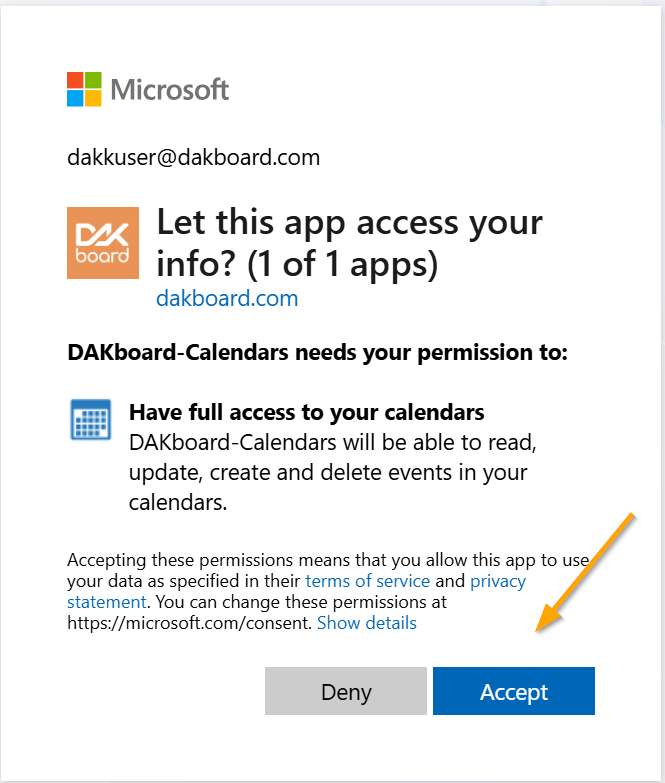
Once you grant permissions, close the authentication Tab and return to your Calendar Block Editor. Then you must click the Pencil Icon again on each calendar from that approved account to enable the Add Event feature for them. All Microsoft Calendars on that same account will now be able to be edited when you enable them this way.
NOTE: This ability only works with Microsoft Calendars created in the Microsoft Account and does not extend to linked Calendars.
Using the Event Editor:
To add a New Event to your Calendar, click the Plus sign in the lower right corner of your Calendar block, as seen below:

This will expand when you mouse over it to show Add Event, as seen below:

Or, to modify an event that is already on the calendar, simply click the event itself. Once you have clicked the Add Event button or the Event you wish to modify, the Add Event tool will open. See below:
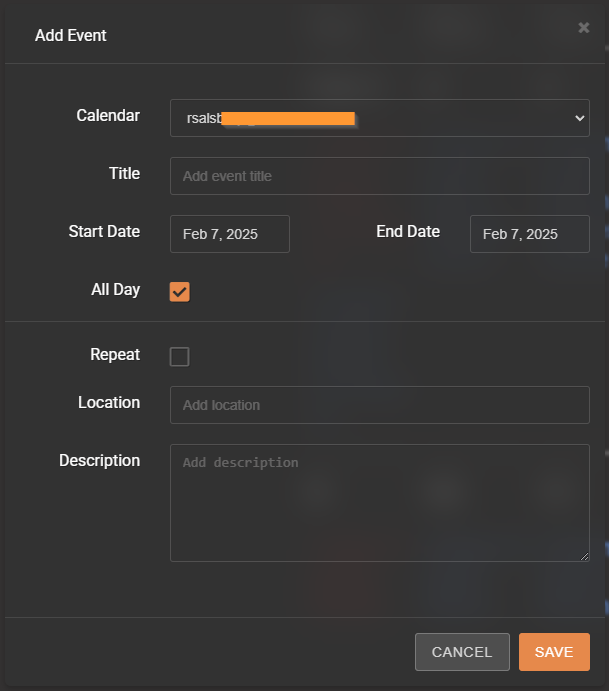
This tool replicates the Microsoft Event tool. Below are all the Event Entry options:
- Calendar: Select the Calendar in your Microsoft Account that you want to enter the event in. This will only allow you access to those calendars that have been enabled on this account.
- Title: This is where you add the Name of your event.
- Start/End Date: In this section, you can set the start and end dates for your event.
- All Day: This toggle allows you to set the event to be all day or opens the Time option to set your Start and End times. By default, this is toggled to All Day.
- Repeat: This toggle allows you to open the Repeating Event tool to add a New Repeating Event. See below:
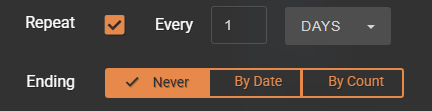
Note: Due to the complexity of some repeating Microsoft-created calendar events, changing existing repeating events is not supported. The repeating event may be deleted and recreated on the screen as a workaround if necessary.
- Location: This allows you to enter the Location of the event.
- Description: This allows you to enter the event Description.
Once your Event is updated or added, make sure to save your changes. This will then enter the event into your Microsoft Calendar and into your Display.
Add a Microsoft 365 calendar via Publishing/ICS Link:
Log in to your Microsoft 365 account. To get to the calendar publishing settings, click on your Outlook app, then click the calendar on the left side of the screen. On the calendar page, click on the gear icon in the upper right, click Calendar, and then click Shared Calendar as seen below:

In the Shared Calendars block, under the Publish a Calendar section, use the dropdowns to select the Calendar you want to publish, then select the permission Can view all details, then finally click Publish to generate your ICS file. See below:

From here, you need to highlight and copy the ICS URL that appears, and the calendar MUST remain published for this to work. See below:

NOTE: If you unpublish this calendar, you will need to publish it again and copy the ICS URL again to put it into your DAKboard account, as the old ICS file will be invalidated.
Back in DAKboard, under your calendar settings on a Predefined screen, or in a calendar block on a Custom screen, select an iCal/ICS link calendar type and paste in the link copied from the previous step into the iCal URL field:

Click Save Changes at the bottom and enjoy seeing your calendar on DAKboard.
Troubleshooting:
For more information, please visit the Microsoft support site here: https://support.microsoft.com/en-us/office/share-your-calendar-in-outlook-on-the-web-7ecef8ae-139c-40d9-bae2-a23977ee58d5
You may need to create a sharing policy for the ICS link to show up. More information on this is here: https://docs.microsoft.com/en-us/exchange/sharing/sharing-policies/create-a-sharing-policy
If you use Microsoft Entra ID (formerly Azure AD), you may need to consult the following link to adjust these controls as well:
https://learn.microsoft.com/en-us/appcenter/general/configuring-aad-conditional-access
Frequently Asked Questions:
Below are the most Frequently Asked Questions about Microsoft Calendars:
Can you add a Microsoft 365 Group Calendar to DAKboard?
No. This is because the Group calendar allows multiple accounts to connect to a single calendar point. You can share these calendar permissions through Microsoft authenticated accounts; those permissions cannot be shared with a third-party app like DAKboard.
Why can't I see the shared calendars from another Microsoft account on DAKboard?
As with the Group calendar, this has to do with the permissions granted. Another user can grant you the various permissions you need to see the calendar from their Microsoft account on your Microsoft account, but these permissions are not transferable to third-party apps like DAKboard.
Why am I not seeing the Microsoft Account Selection Page when adding a New Account?
If you are trying to add multiple Microsoft accounts to your DAKboard and you are not seeing the Account Selection Page, this is due to you being logged into a Microsoft account in your browser already. If you did not log out of your Microsoft account the last time you used it, you will already be logged into that account, so it will assume this is the account you want to add. To correct this, you can either log out of your Microsoft account so that the DAKboard will take you to the Account Selection page, or you can log into your DAKboard Account from an incognito browser, as these will not leave open login cookies active in your Browser.
What do I do when I get an invalid authentication token error?
This occurs when Microsoft revokes your Authentication Token, or an error has corrupted your current token. To correct this, you will need to reauthenticate your account. See our article Remove or Reauthorize External Apps to see how to do this.
Can I add a Private or locally hosted Microsoft Account?
Because DAKboard generates your Screens in the cloud, you will need to have a Public ICS file or an authenticated web-facing Microsoft account to use this service.
Why am I getting a Request Authorization pop-up when trying to add this?
This message comes from Microsoft Entra ID (formerly Azure AD), and not from DAKboard itself. It appears because Microsoft requires modern authentication (OAuth 2.0) for third-party apps accessing calendar data. This is often triggered by organizational policies requiring IT admin approval for new app integrations. Check with your IT team for your organization and see if they have any Azure AD access controls in place, as they will need to approve access first.
Helpful Articles:
Having trouble? See if these articles help.
How to Add a Calendar Block to your DAKboard Screen
How to Use the Predefined Screen Editor
How to Use the Custom Screen Live Editor
Assign a Unique Calendar Color to Each Calendar
Custom Screen Calendar Layouts and Settings