
TABLE OF CONTENTS
- Setting up Your Family Chores Manager:
- Points and Rewards:
- Customizing the App:
- Tips for Families:
- Frequently Asked Questions:
- Helpful Articles:
The Family Chores Manager is a shared chore chart that runs right on your DAKboard screen, where each person gets their own column of jobs and ticking a job off earns points that can be traded for rewards you decide on. We will cover the main screen, adding family members and chores, points and rewards, customising the look, and the Child Lock feature. There is nothing to install, and once the app has been added to your TouchHub, it appears on your device automatically. See our article The TouchHub to learn more.
Setting up Your Family Chores Manager:
Family Chores is added to your DAKboard through The TouchHub settings. Once it has been added there and you have assigned your TouchHub to a Display, it appears on your DAKboard device by itself. There is nothing to install and no separate sign-in just for the app.
Adding Your Family Members:
When the board is empty, the app helps you straight away: it pops open the Add Member box so you can add your first person. See below:
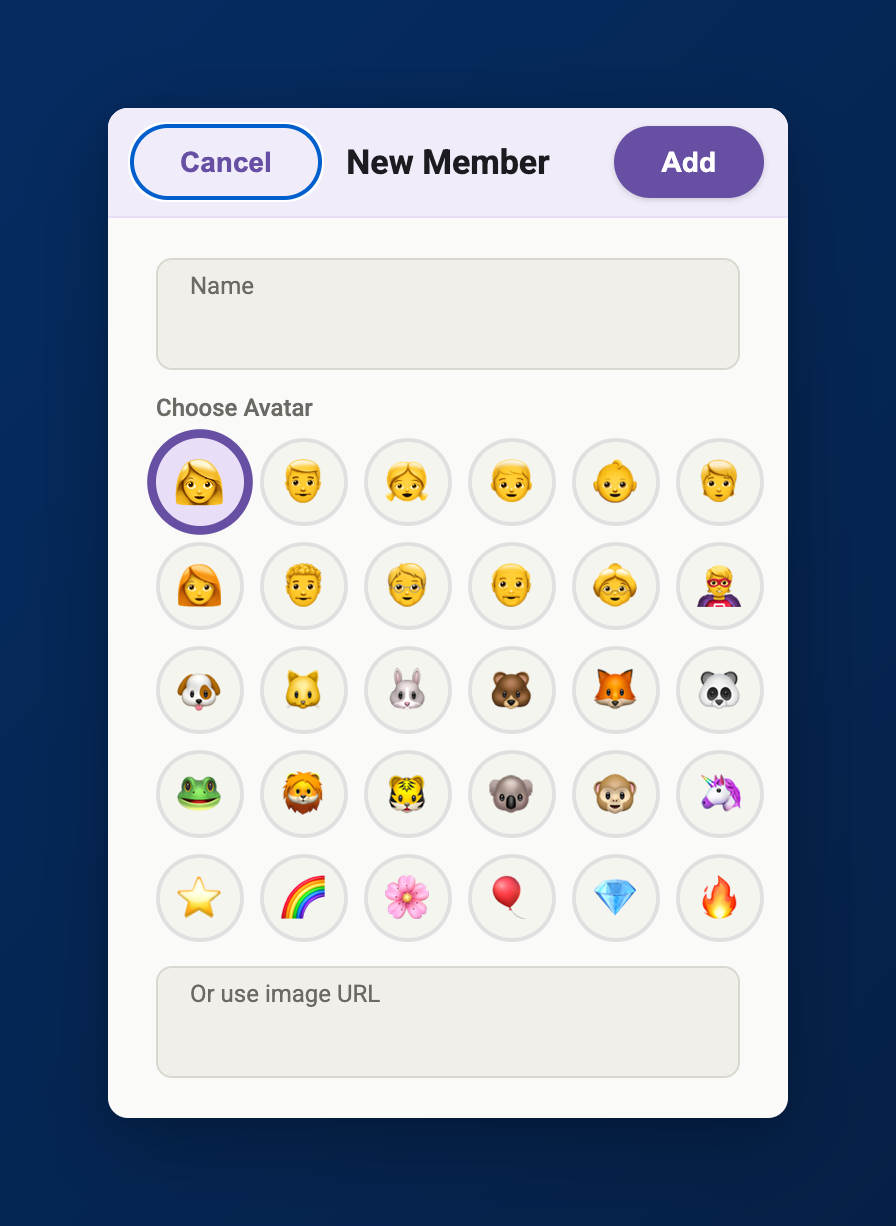
- Enter the name.
- Pick an avatar by tapping a face from the grid.
- Or paste a photo link in the Or use image URL box to use a real picture instead.
- Tap Add.
Additional members can be added by pressing the Add Member button, seen below:
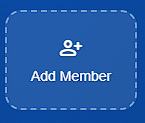
The board holds a maximum of six people. Once you reach six, the Add Member tile steps aside until you remove someone.
Editing or Removing a Member:
Tap a person's name and face at the top of their column. A short menu appears. See below:
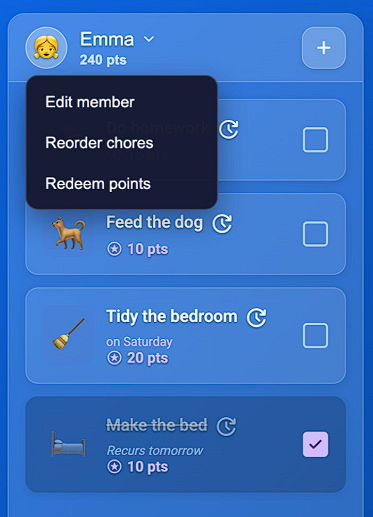
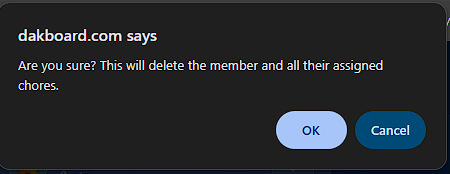
From this menu, Edit member lets you rename the person, change their face, or remove them with the red Delete member button. Deleting a person removes their chores too. When you delete a member, the app asks you to confirm first. See Below:
Adding a Chore:
Tap the + button at the top of a person's column. While a column is empty, it reads + Add chore. The chore box opens, already pointed at that person. See below:
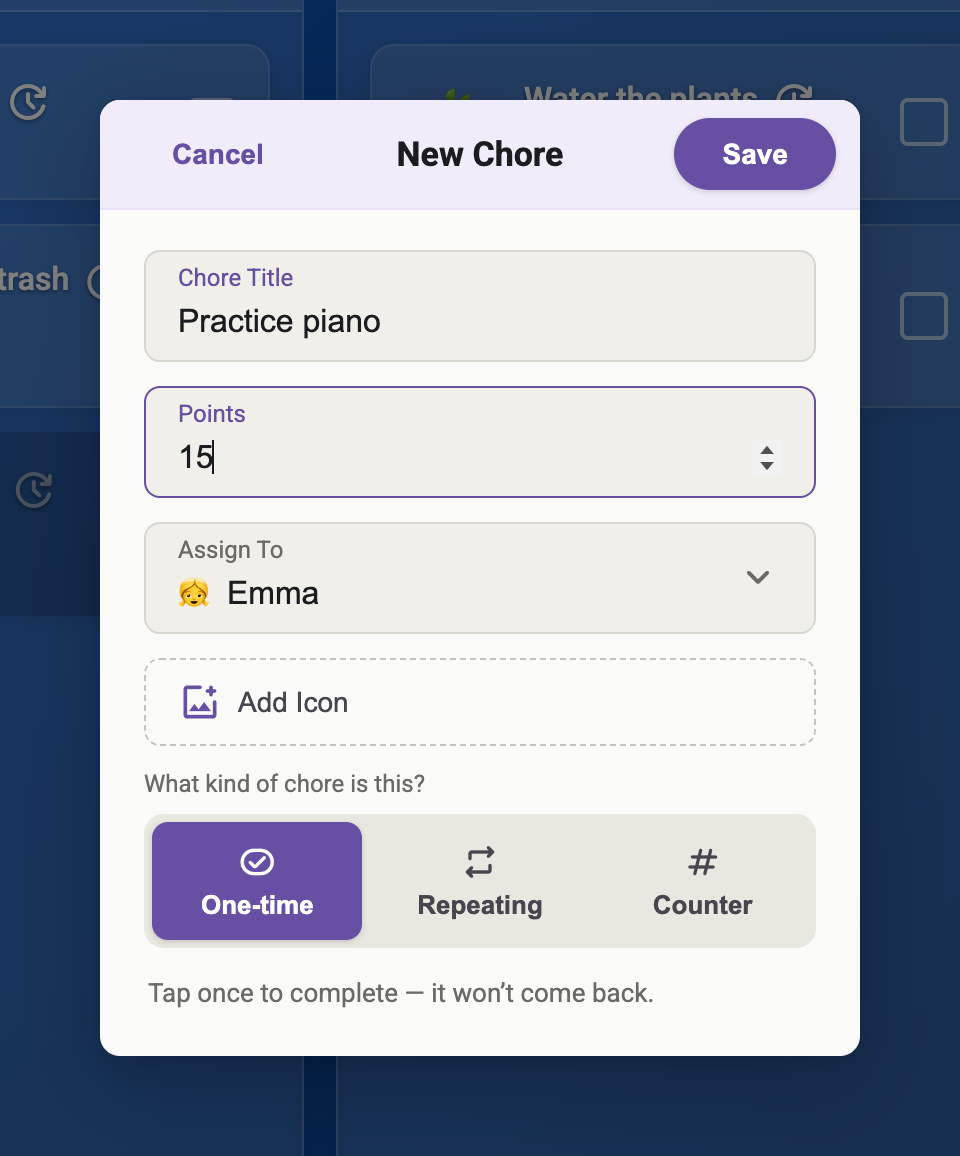
Fill in the Chore Title (a short description like "Wash the dishes"), the Points it earns (10 to start), and the Assign To family member. Then choose what kind of chore it is, and the box shows only the settings that type needs:
- One-time is done once and then gone.
- Repeating comes back on a schedule (see Repeating Chores below).
- Counter is done several times before it is complete, like "drink 5 glasses of water" (see Counter Chores below).
You can also add an optional Icon. Tap Save, and the chore appears at the bottom of that person's list. Cancel and Save are always at the top of the box, so they stay in reach even when the on-screen keyboard slides up over the bottom of the screen.
Giving a Chore an Icon:
A picture makes a chore easy to recognize at a glance, which is handy for children who are not reading yet. In the chore box, tap Add Icon. See below:
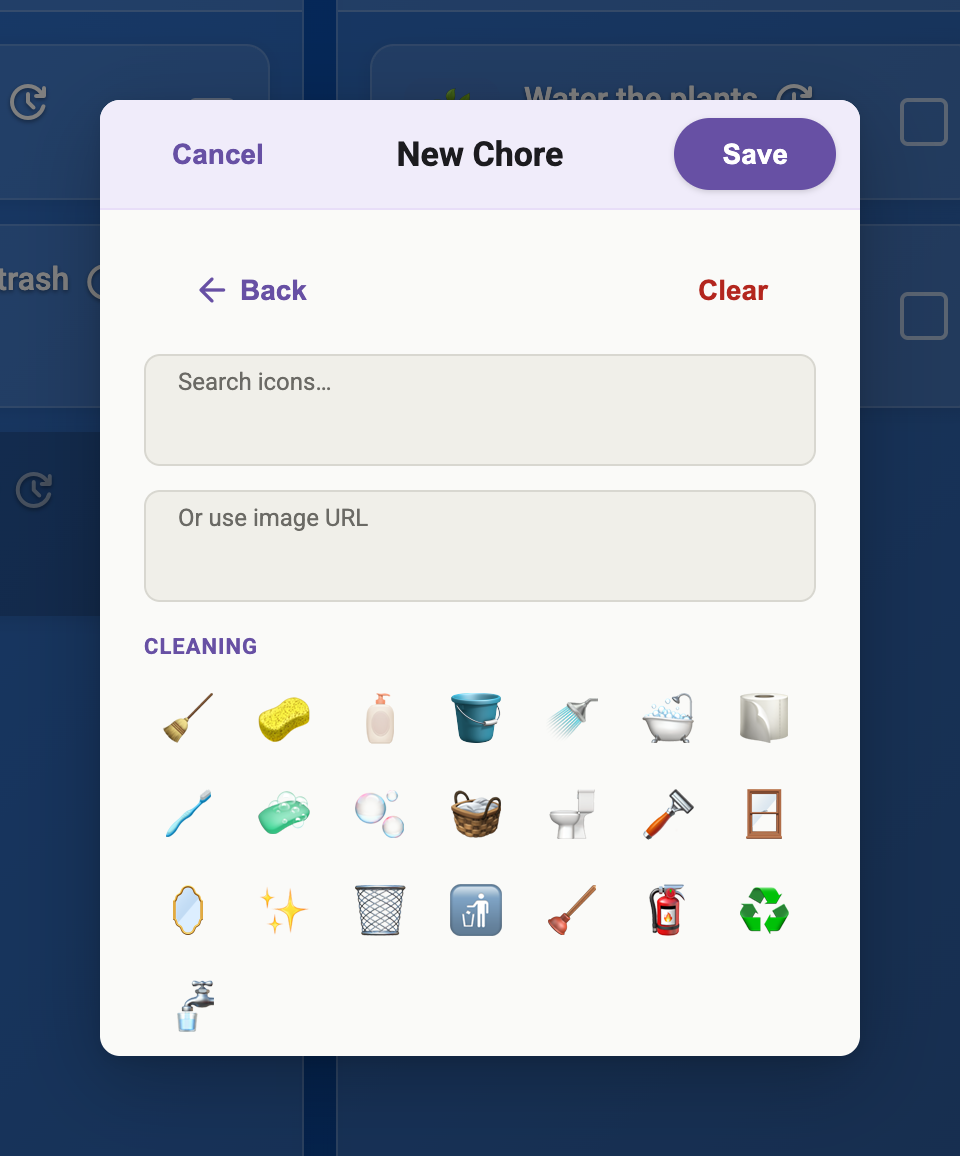
Browse the categories or search by typing a word, then tap any icon to choose it. The box slides back and shows a preview. If you prefer your own image, paste a link in or use an image URL. Clear removes the icon, and Back returns without changing it.
Completing a Chore:
To mark a chore done, tap it or swipe it to the right. The person earns their points, and a burst of confetti celebrates the win. See below:
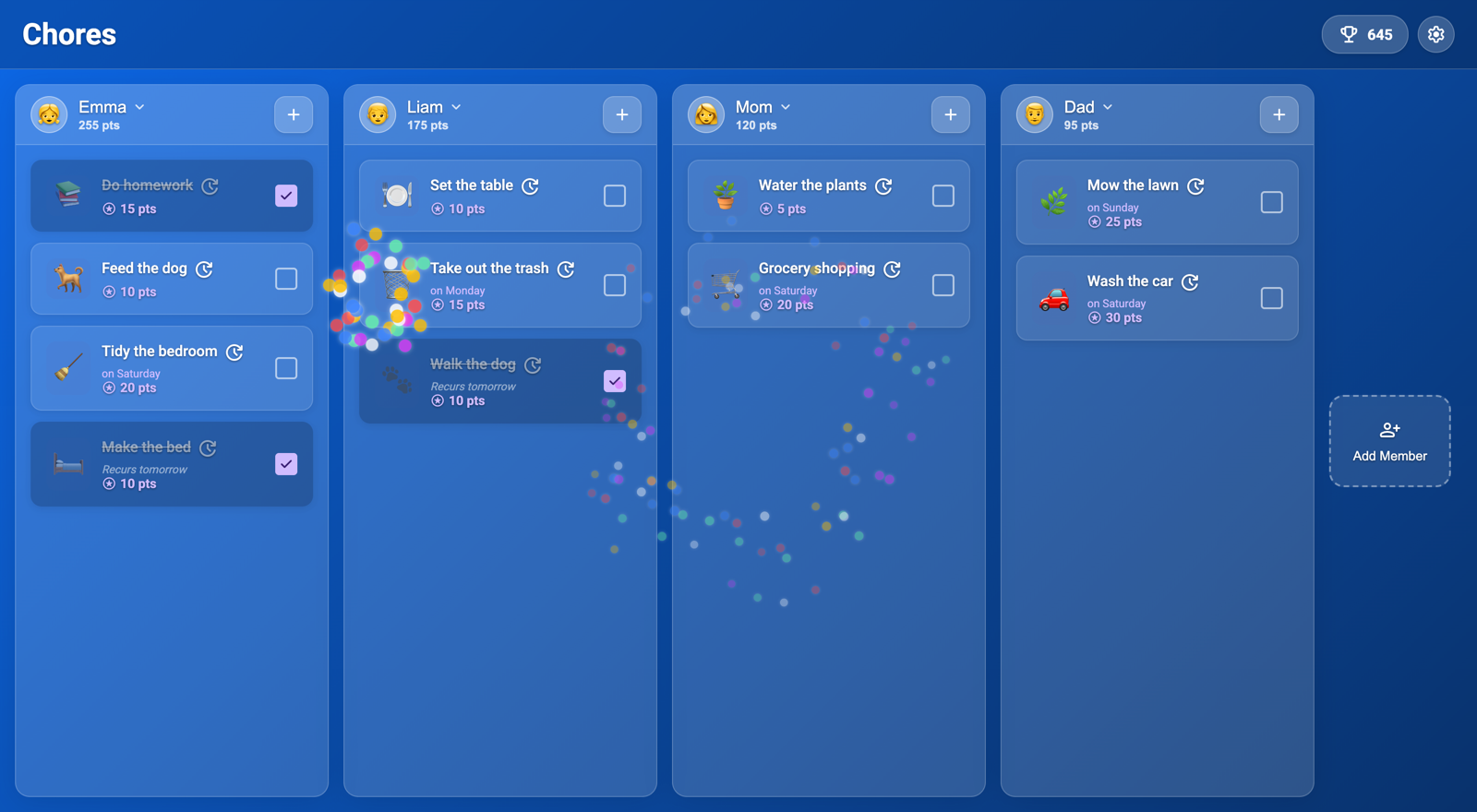
A finished chore gets a tick, dims, and slides down to the bottom of the list so the remaining jobs stay on top. A Counter chore is a little different, since each tap adds one to its tally rather than finishing it in a single go (see Counter Chores below). If you tick something off by accident, just tap the finished chore again to un-finish it, and the points are taken back automatically.
Editing a Chore:
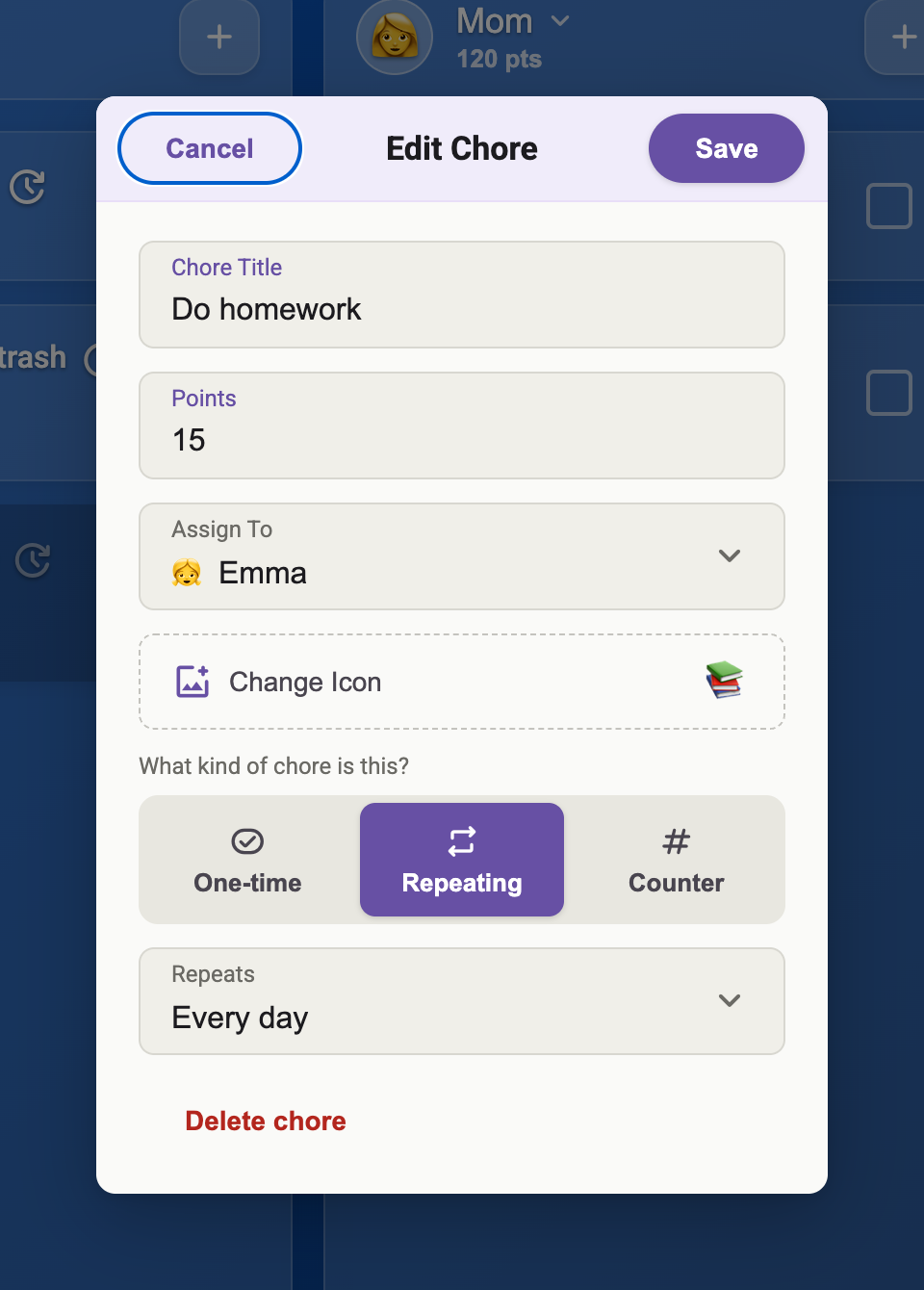
Press and hold a chore for about a second. It opens for editing with everything filled in, so you can change the name, points, who it is for, how often it repeats, or its icon, then tap Save.
Deleting a Chore:
The quickest way to delete a chore is to swipe the chore to the left to reveal a confirmation, then tap the red Delete button. If you change your mind, tap Cancel or swipe back to the right. See below:
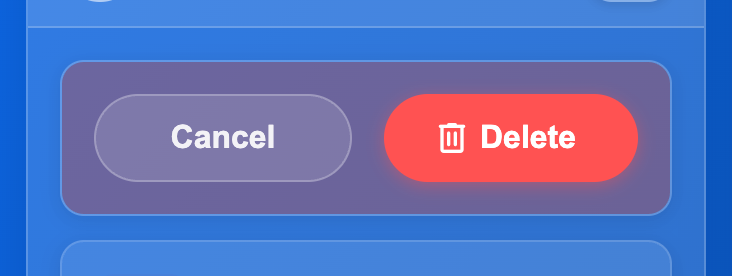
You can also delete a chore from the Edit box by pressing and holding the chore for a few seconds, then tapping the red Delete chore button at the bottom of the editing tool.
Repeating Chores:
Most chores are not one-offs, since the dishes come back every night. Choosing Repeating the chore's type, then picking how often it should return will set up a repeating chore. There are seven rhythms: Every few hours, Daily, Weekdays (Monday to Friday), Every other day, Weekly, Bi-weekly, and Monthly.
Some choices ask for a little more detail. Pick Weekly or Bi-weekly and the app asks which day of the week it is due. Pick Monthly, and it asks which day of the month.
Need something more often than once a day? Pick Every few hours and say how many hours. The chore then comes back that many hours after you finish it, so "walk the dog every 3 hours" returns three hours after each walk rather than at a fixed clock time. Once a repeating chore is finished, its card shows when it will be back. See below:
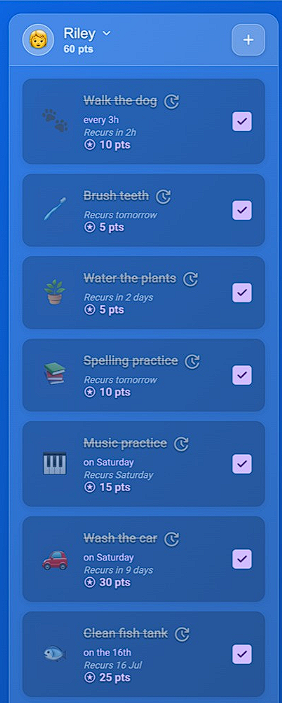
The handy table below will explain how each of these options work:
| Repeats | Comes back | Example |
|---|---|---|
| One-time | Never; it is gone once done (a chore type, not a repeat) | "Tidy the garage" |
| Every few hours | A set number of hours after it is done, a cooldown rather than a clock time | "Every 3h", done 2 pm, back 5 pm |
| Daily | The start of the next day | Done tonight, back tomorrow morning |
| Every other day | Two days after it is done (skips a day) | Done Monday, back Wednesday |
| Weekdays (Mon to Fri) | The next weekday; never on weekends | Done Friday, back Monday |
| Weekly | On its chosen day, next week | "Wednesday", back next Wednesday |
| Bi-weekly | On its chosen day, after two weeks | Done, back about a fortnight later |
| Monthly | On its chosen day of the month, next month | "16th", back on the 16th each month |
Repeating chores reappear on their own when their next turn comes around, so you never have to reset them in the morning. If you pick a monthly day like the 31st, shorter months such as February simply bring the chore back on their last day, so you never miss a month.
Counter Chores:
Some things are not done until you have done them several times, such as five glasses of water, ten minutes of reading, or three trips to carry in the shopping. Choose Counter as the chore's type, then set how many times and how often it starts over. See below:
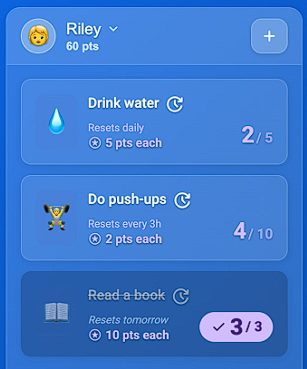
Tap the chore to add one count. The whole chore is the button, so each tap bumps the tally and earns the points, and the cards read "N pts each". When the tally reaches its goal, the chore gets a tick and slides down with the finished chores. The count starts over by itself on the schedule you chose. A counter only goes up, so to fix a miscount or change the goal, press and hold the chore to edit it.
Reordering Chores:
New chores join the bottom of the list, and finished ones sink to the bottom. However, you can also arrange a person's chores into any order you like. See below:
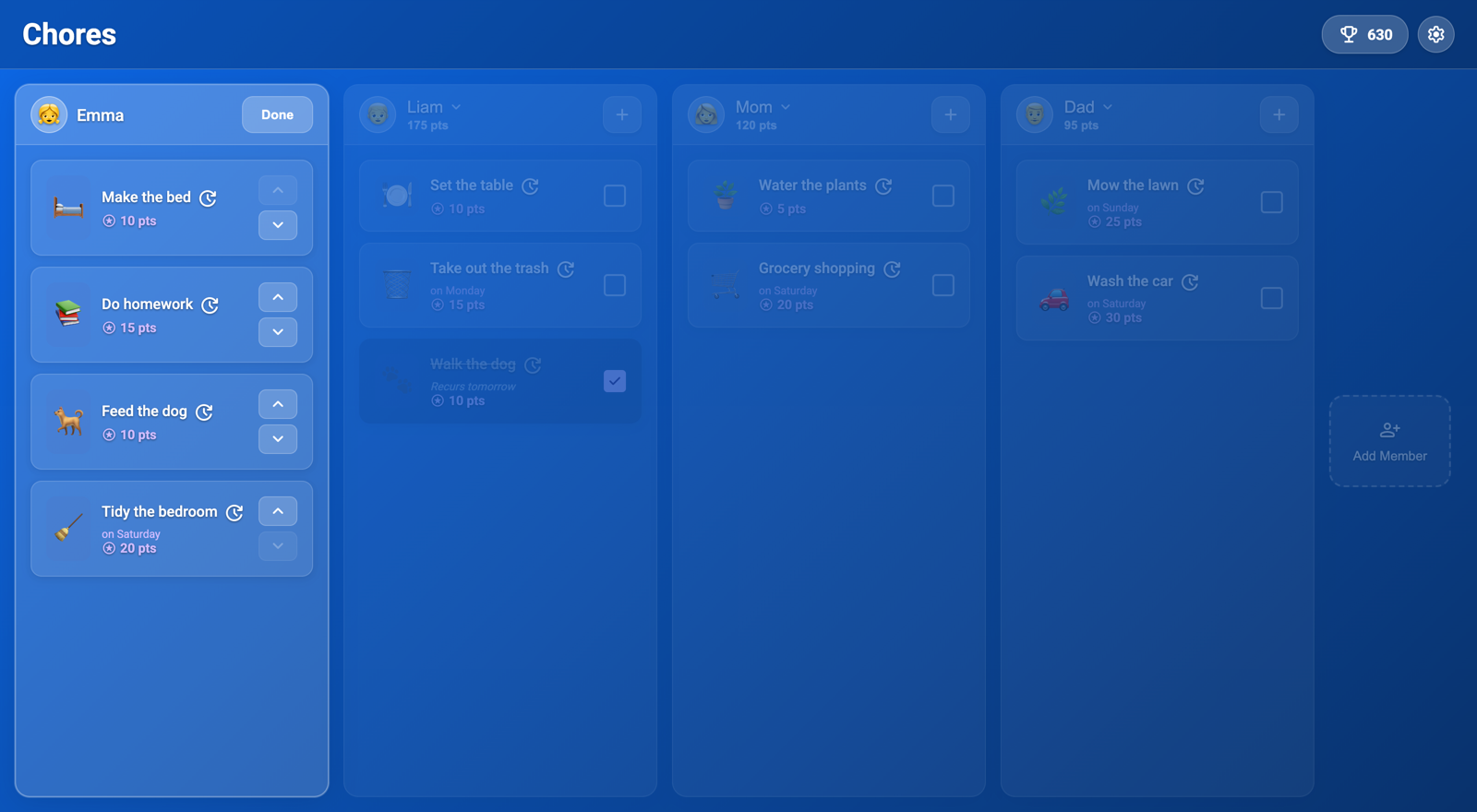
To do this:
- Tap the person's name and choose Reorder chores.
- Use the up and down arrows to move each chore. It saves as you go.
- Tap Done when you are happy. It also finishes on its own after a minute if you wander off.
Your order is saved for everyone and shows on every device.
How the Screen Arranges Itself:
You do not have to set anything up. The app looks at the shape of your screen and arranges itself to fit. On Landscape Display, the columns sit side by side, and you swipe sideways for more. On a Portrait Display, you get multiple columns per row, and multiple rows per screen. The rows stack on top of each other. On a phone, you see one column at a time and scroll down for the rest. With devices like Tablets or Phones that have accelerometers to determine its oreintation, when you turn the device, it will rearrange the Chore List automatically.
Points and Rewards:
With the Points and Rewards tool, you can set up each Chore to have a set number of points that can be earned and used on rewards you set up. This is how to use this tool.
The Leaderboard:
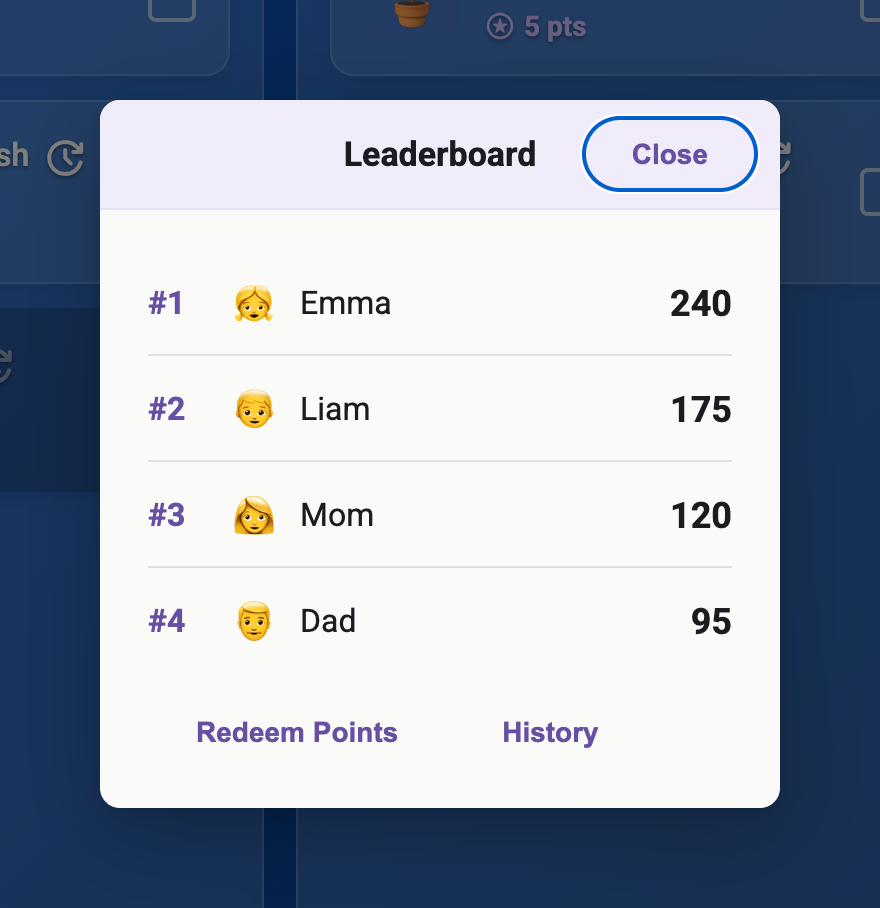
Tap the trophy in the top-right corner. The leaderboard ranks everyone by the points they have earned, highest first. The number on the trophy itself is the family's total. See below:
Redeeming Points for Rewards:
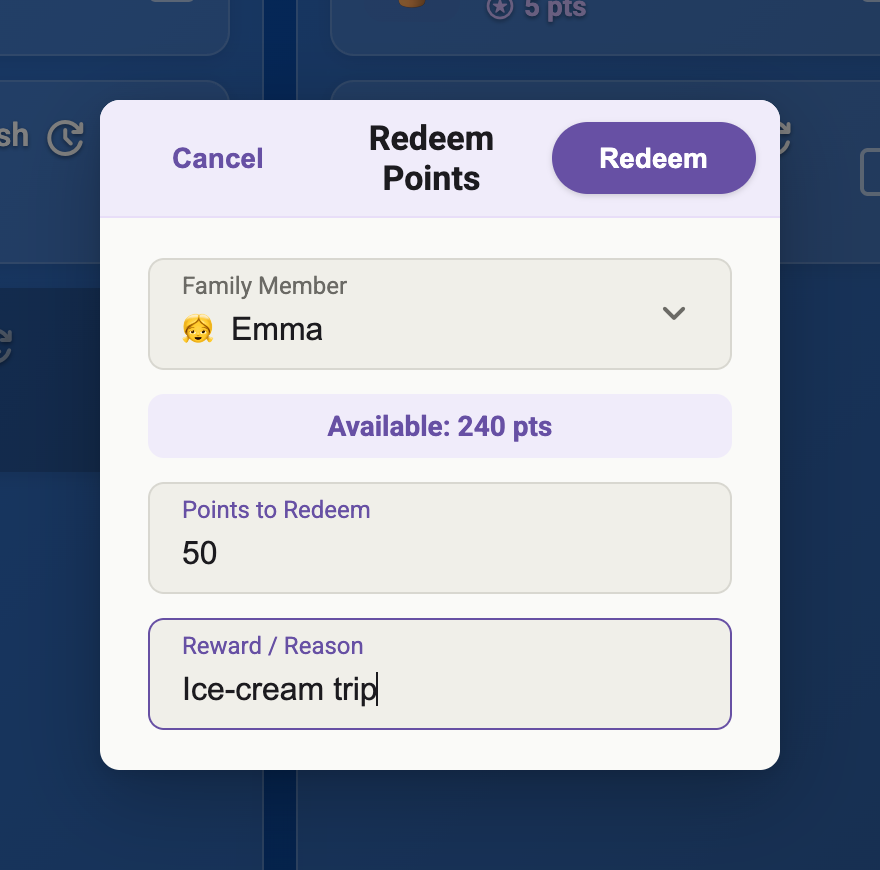
Points are meant to be spent. Decide together what they are worth, such as screen time, a treat, or a day out, then cash them in here. See below:
To Redeem the points:
- Open the leaderboard, then tap Redeem Points.
- Choose the family member. Their available balance shows automatically.
- Enter the points to spend (no more than they have) and a short reason.
- Tap Redeem. The points come off, and the reward is saved to the history.
Reward History:
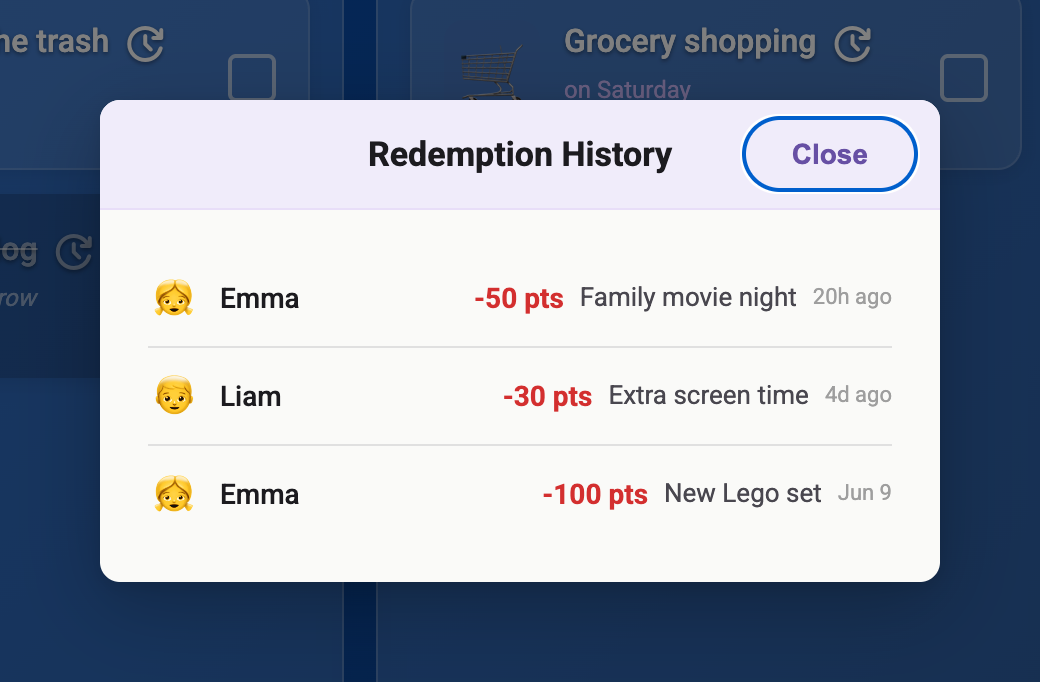
Open the leaderboard and tap History for a list of past rewards, newest first, showing who, what, and when. See below:
Turning Points Off:
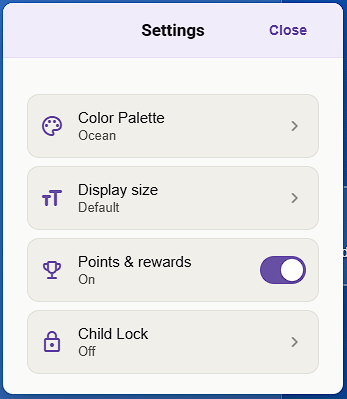
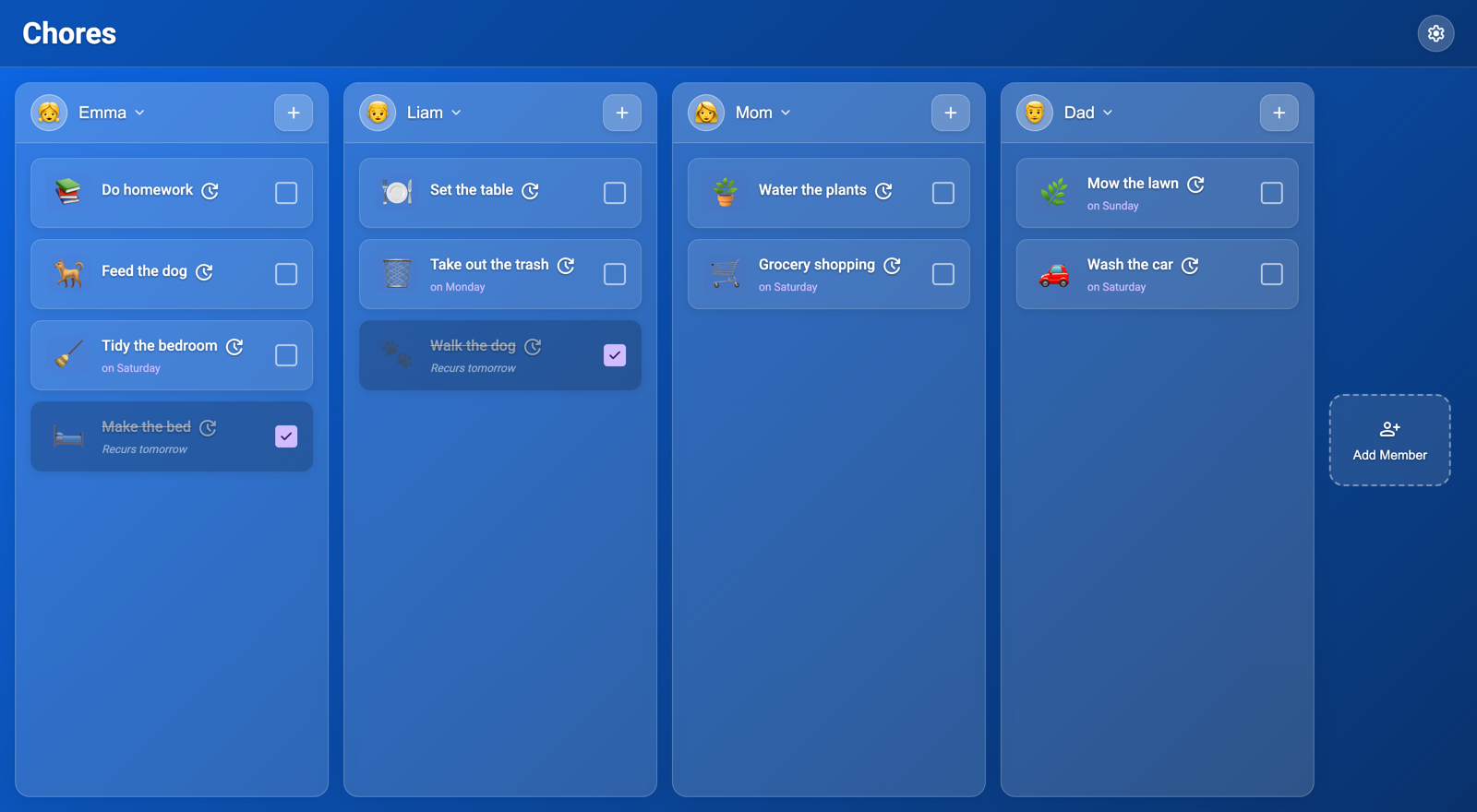
Not every family wants points. If you would rather use the app as a plain shared checklist, switch the whole points system off in Settings. Click the Gear Icon in the upper right corner to open the Settings, then toggle the Points & rewards section to off:
Ticking chores off still works, confetti included; it simply does not count points. Switch it back on any time and every point total returns, untouched. Your main screen will show the columns without the Points as seen below:
Customizing the App:
As with everything DAKboard, customization is the key. You can use the App Settings under the Gear Icon to make these changes.
The Settings Menu:
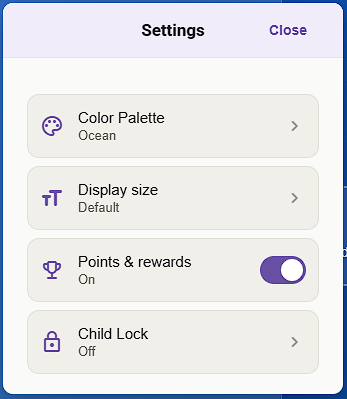
The gear in the top-right opens Settings. It is a short menu where each row is a setting, holding your colour theme, the points switch, the display size, and Child Lock. See below:
Color Themes:
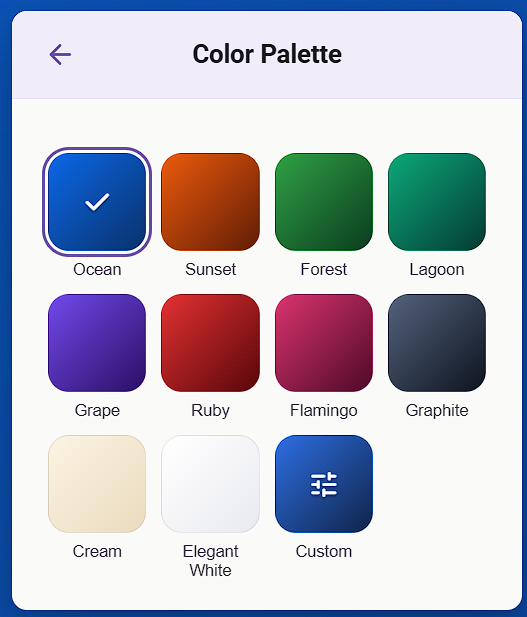
Tap Color Palette in Settings to pick from ten ready-made themes, which are eight rich dark ones plus two light ones (Cream and Elegant White). The app recolors the moment you tap a theme, and Settings deliberately stays see-through, so you can preview each theme against your real board before deciding. See below:
Custom Colors:
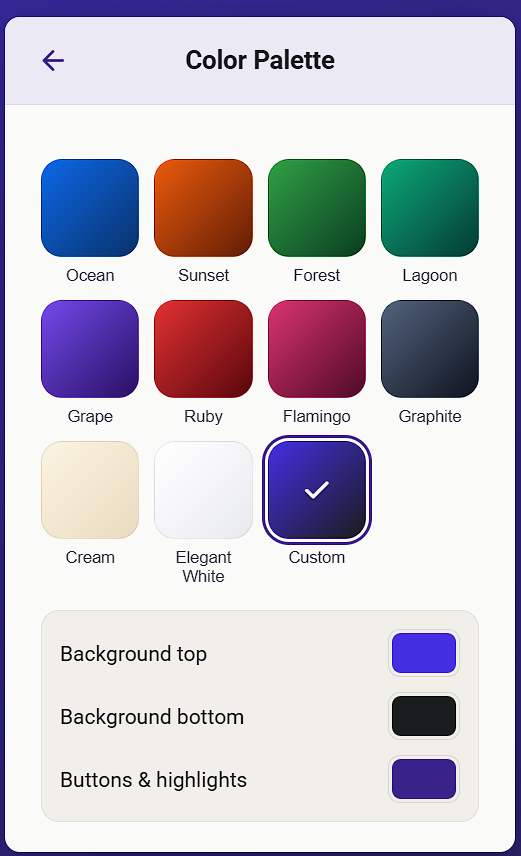
If none of the themes are quite right, tap the Custom tile to mix your own. You get three color pickers:
- Background top: sets the primary Background color and blends it with the Background bottom color
- Background bottom: sets the secondary Background color and blends it with the Background top color
- Buttons & highlights: set one accent color for buttons, points, and selections.
It recolours live as you tinker, and if you choose a light background, the app flips the text dark so everything stays easy to read. See below:
Display Size:
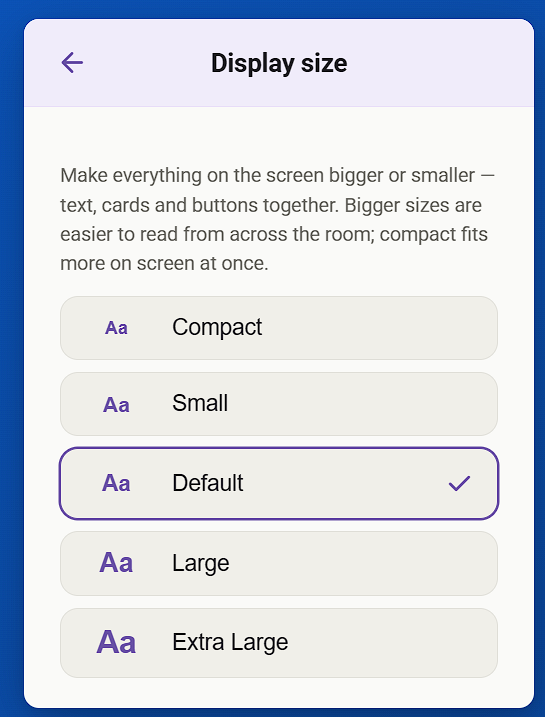
Tap Display size in Settings to scale the whole screen, including text, cards, and buttons, to one of five sizes. Choose a bigger size when the board needs to be read from across the room, or a compact size to fit more chores on screen at once.
Your choice is saved and shared with every device on the same family, so a wall tablet and a phone can each show your chores at a comfortable size. The middle Default size is the original look. See below:
Child Lock:
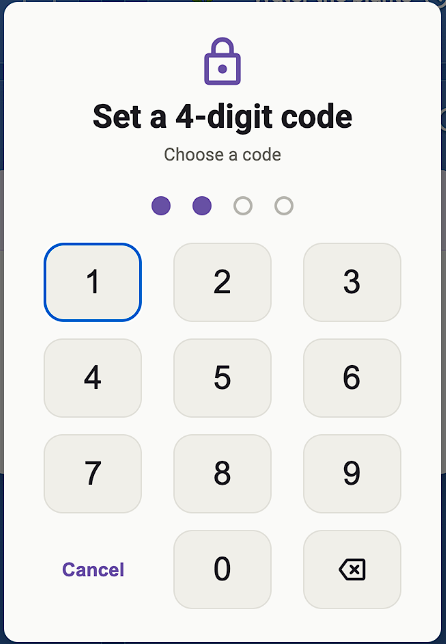
Child Lock limits the screen to ticking chores off only, which is ideal for a shared kitchen tablet so a young child cannot add, delete, or rearrange things by accident. Go to Settings, then Child Lock, then Set up child lock, and enter a 4-digit code twice to confirm. The screen locks straight away. See below:
What a Locked Screen Looks Like:
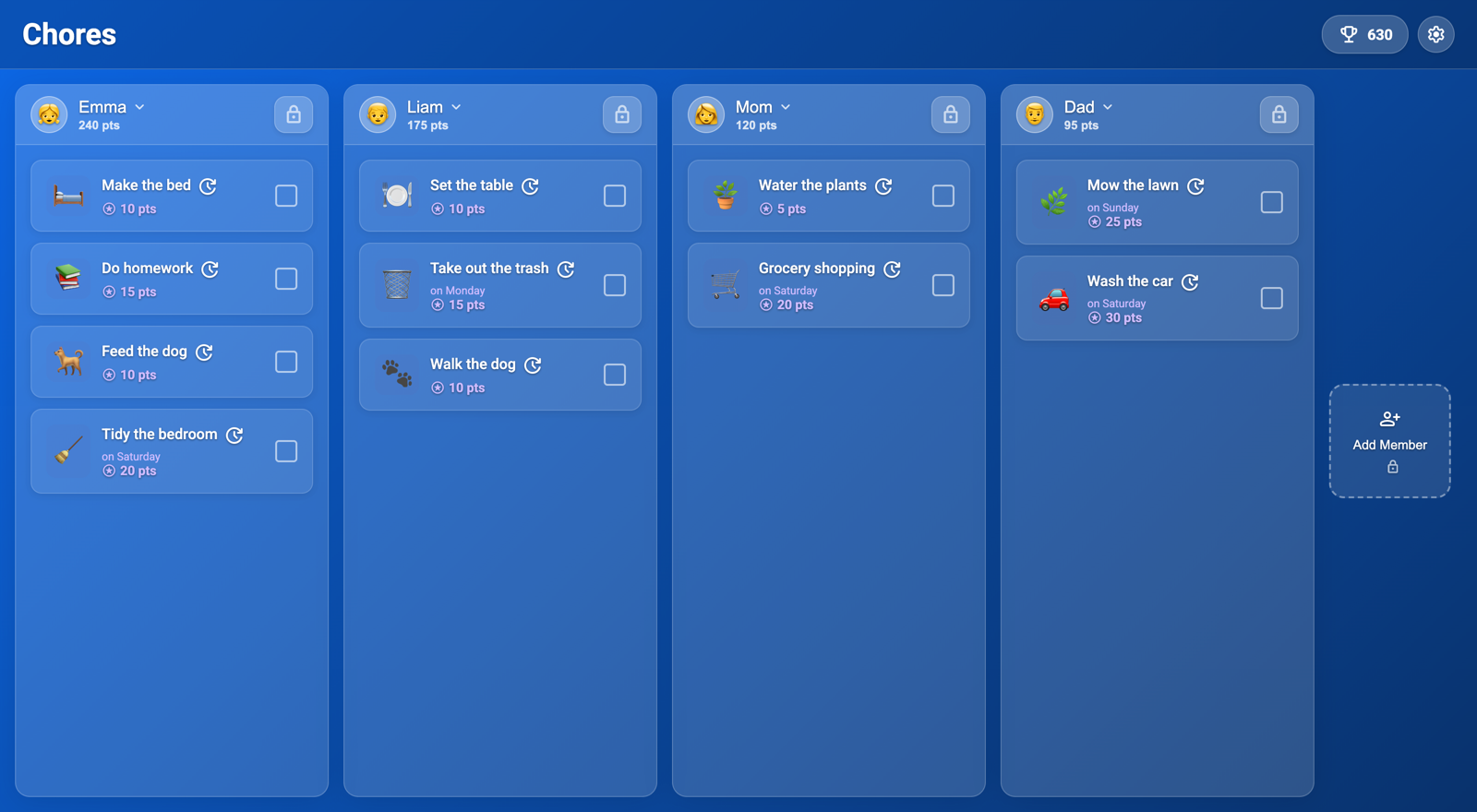
Locking does not hide anything. The board looks completely normal, so nobody thinks it is broken and goes hunting for missing buttons. Tapping a chore still ticks it off or un-ticks it, just like always. Everything else, including the +, the member menu, Add Member, and editing a chore, now has a small lock icon as seen below:
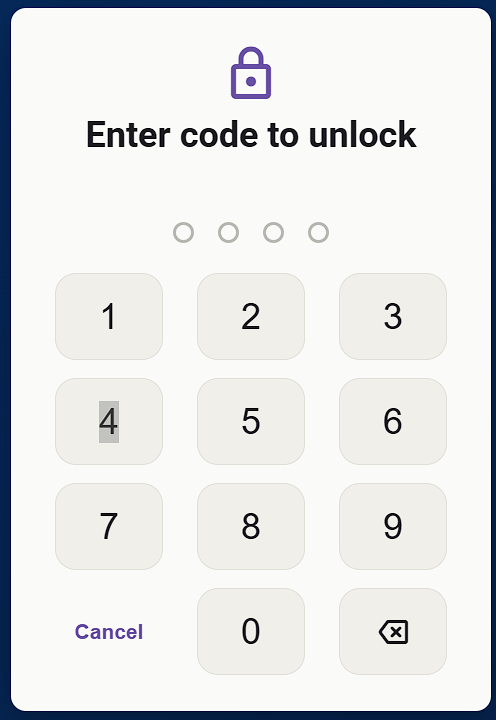
Tapping any of these items brings up the keypad so you can enter your code. See below:
A few helpful touches:
- The + turns into a lock of the same size so the board does not shift around
- The leaderboard still opens so the kids can admire their points
- Swiping a chore to delete opens the usual panel but offers Unlock in place of Delete.
- Settings shows only an Unlock tool.
Enter the code from any of these, and the thing you were reaching for simply carries on like normal.
Unlocking and Managing the Lock:
To unlock, open Settings, then Unlock, and type in your code. Once unlocked, the Child Lock panel lets you Lock now, Change code, or Turn off child lock. See below:
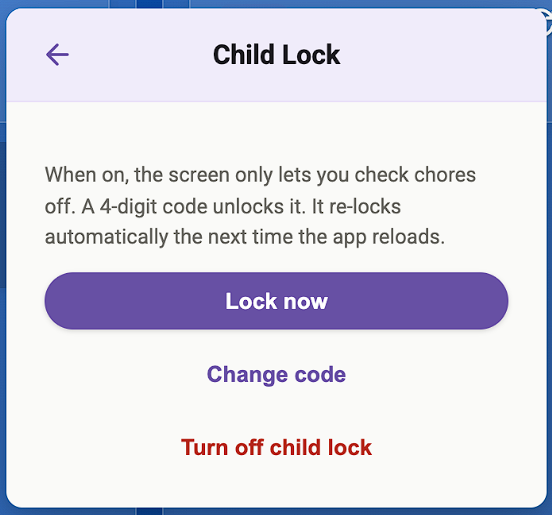
Unlocking only lasts until the next time it reloads, including the nightly refresh. Unlocking is also per-screen, so unlocking one DAKboard screen does not unlock another.
NOTE: This is a child lock, not a security guard. It is designed to stop a young child from making changes to your Chore Manager. Do not rely on it to protect anything important. If you forget the code, there is no in-app reset for safety reasons. Contact DAKboard support, and we will help you clear it so you can set a new one.
Tips for Families:
Using your Family Chore Manager will allow you to track everyone, but there are some things you need to know about the tool. Below are some helpful things to keep in mind when using the Family Chore Manager.
Using It on Several Devices:
If your Family Chore Manager is open on more than one Display, a change made on one shows up on the others by itself. It is not instant, since each screen quietly checks for updates every few minutes, so allow a little time for a chore ticked off in the kitchen to appear on the hallway Display. To see the latest right away, reload your TouchHub on that screen, and it pulls in the very latest straight away. See our article The TouchHub in the section called TouchHub On-Display Settings: > Reload Content: to learn more.
Wall Tablets and Kiosks:
Your DAKboard is built to run all day on an always-on screen, such as a kitchen wall tablet or a TouchHub display, and the Chores app is designed for exactly that. It refreshes itself overnight (around 3 a.m.) to stay fast and tidy, and if someone is in the middle of something at that exact moment, it politely waits and tries again. Performance mode keeps things smooth on small, low-power devices by simplifying some of the frosted-glass effects, and it is on by default. On a powerful phone or computer, you can turn it off in the hidden time controls to enjoy the full glassy look.
For the curious, triple-tap the word "Chores" in the top-left, and a small amber bar appears. This lets you jump the clock forward to see how repeating chores come back, flip Performance mode, and reset the clock again. Triple-tap "Chores" again to hide it.
Frequently Asked Questions:
Below are the most Frequently Asked Questions about the Family Chores Manager.
How do we all see the same chores on each Display?
The Family Chore Manager is a part of your TouchHub. Any display you have added the TouchHub to will have the ability to access the same Family Chore Manager. Simply click the Chore Manager Icon in your dock to view it.
I ticked a chore off by mistake. Can I undo it?
Yes. Tap the finished chore again to un-tick it, and any points it earned are removed automatically.
Does the Family Chore Manager keep working without internet?
Your Display needs a connection to load and to save your changes so your other screens stay in sync. Your Family Chore Manager copes with brief hiccups, but you need to keep the device online for everyday use.
Helpful Articles:
Having trouble? See if these articles help.