
TABLE OF CONTENTS
- Using The TouchHub:
- Select Items to Add:
- Dock Configuration:
- Final Dock Preview:
- TouchHub On-Display Settings:
- Frequently Asked Questions:
- Helpful Articles:
The TouchHub is our system for your DAKboard touch screen features and tools. You can use this to quickly navigate to other screens, use the New Home Assistant tools, set up a Chores task list for your family, and much, much more. This article will help you get started using the TouchHub tool.
Using The TouchHub:
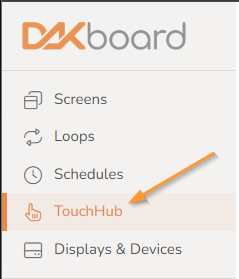
The TouchHub can be used to create a dock that can be loaded at the bottom of your screen, which you can use to navigate to your other Screens or some of our new Touchscreen Tools quickly and easily. To set up your TouchHub, click the TouchHub tab on the left side of your screen:
When you first open your TouchHub, it will look something like this:
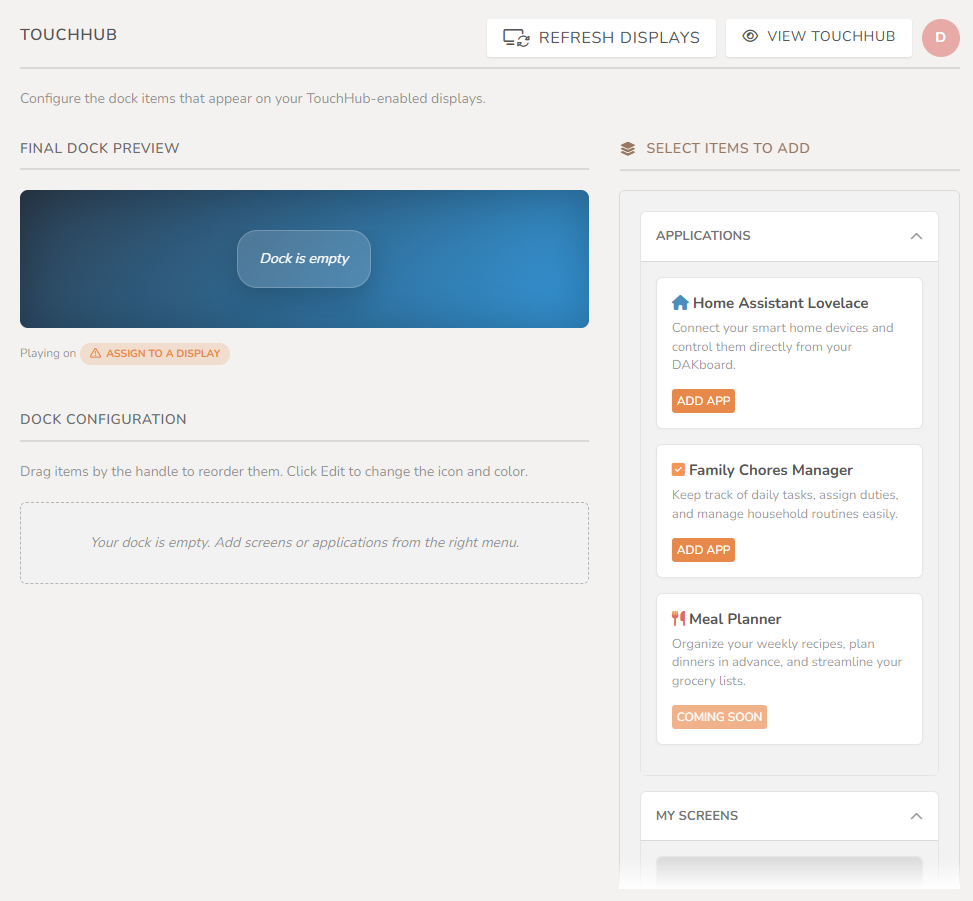
Let's explore each section.
Select Items to Add:
From the Select Items to Add section, you can create your dock and prepare the TouchHub for use. Below are the sections you can create your Hub from:
Applications:
The applications section contains all the TouchHub-Specific apps we have designed for you. Here you can pick and add them to your dock. See below:
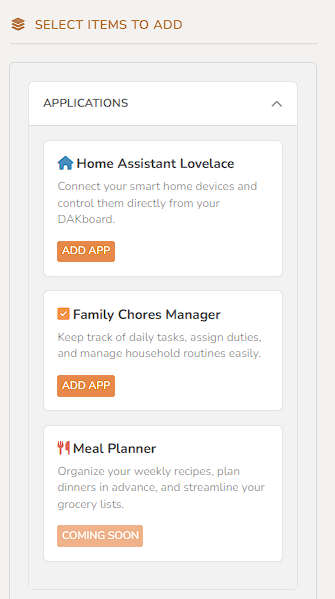
The Apps we currently have are:
- Home Assistant Lovelace: With Home Assistant Lovelace, you can quickly access your Dashboard for all your Home Assistant items. Our article How to Configure Home Assistant for TouchHub will show you how to configure this tool.
- Family Chores Manager: The DAKboard Family Chores Manager can help you set up a Chores list, reward points, and organize your Family in new and fun ways. See our article How to use the Family Chores Manager to learn more.
- Meal Planner: With the DAKboard Meal Planner, you can organize your recipes, plan out your meals, and organize your grocery lists. Coming Soon
My Screens:
This section allows you to link any of your Screens, both Predefined and Custom Screens, to your dock. See below:
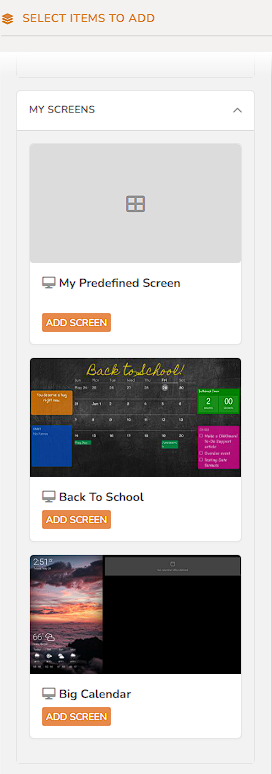
This way, you can seamlessly switch between your Screens at a touch of a button.
Dock Configuration:
The Dock Configuration section allows you to edit the icons of your docked items, relocate the items within your dock, or even remove unwanted screens or apps from your dock. See below:
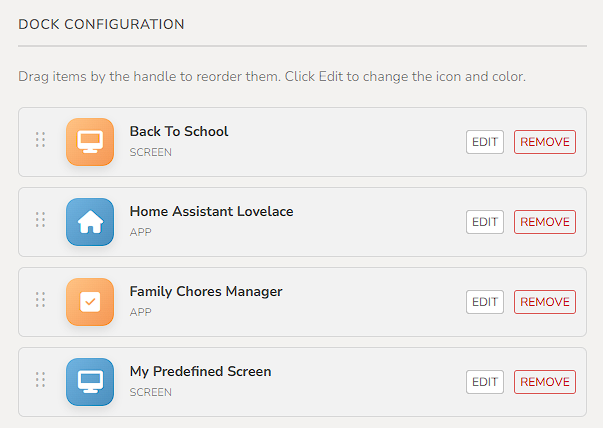
Click the Edit button to open the dock editing tool, as seen below.
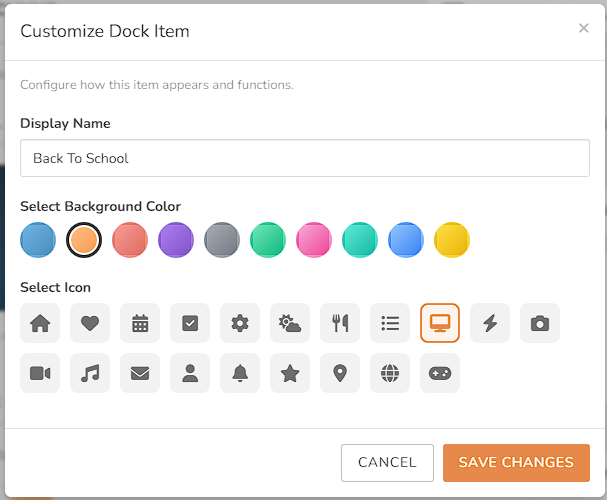
From here, you can rename the dock item, change the Icon background color, or select a new icon for each item in your dock. Save your changes, and your dock appearance will be customized.
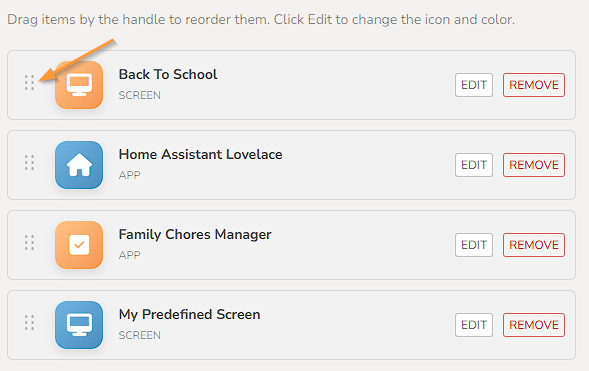
To change the position of an item in your dock, click the Drag and Drop icon on the left of the item you want to move, then relocate it as you desire. See below:
Finally, you can click the Remove button to delete the item from your dock.
Final Dock Preview:
The Final Dock Preview section will show you what your dock will look like on your screen as you add items to it. See below:
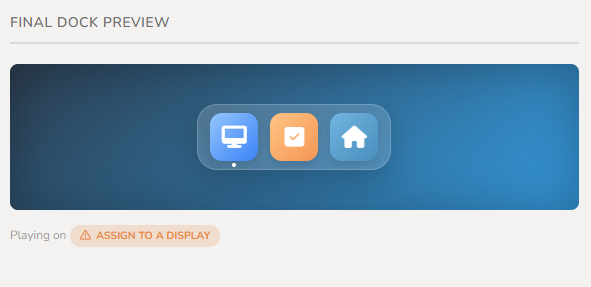
It will also show you a list of all the Displays you have assigned the Dock to in the Playing on section. You can click the Assign to Display button next to the Playing on section to open the Displays list. See below:
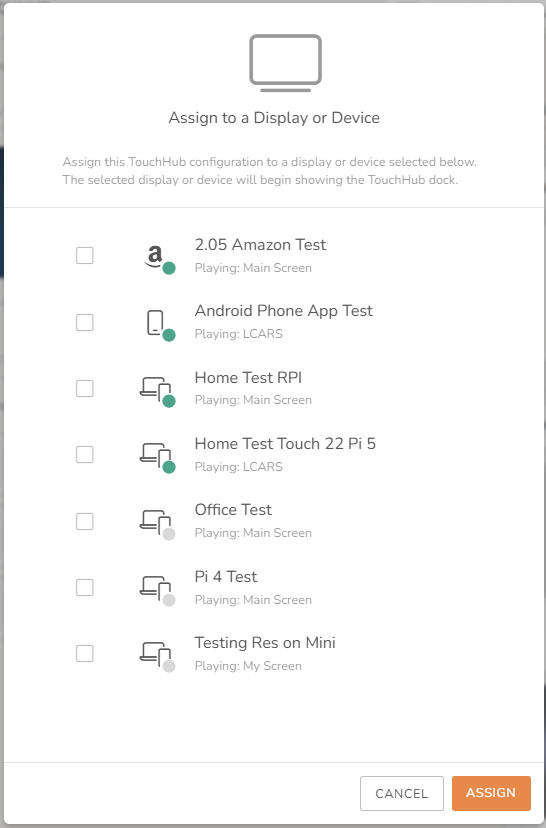
Place a check next to each display you want to load the dock on and click the Assign button. As with the Screens, Loops, and Screen Scheduler, your display will update momentarily with your dock installed.
TouchHub On-Display Settings:
On your display, your TouchHub dock can be used to quickly switch between apps and Screens. Clicking the dock ICONs on a touchscreen or with a connected USB mouse will allow you to access these items. However, your dock will also include a Gear Icon to access the TouchHub Settings window. See below:
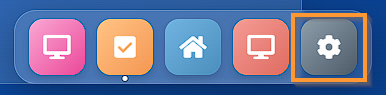
Clicking this will open the on-display TouchHub Settings. The settings are configured per-device and can be seen below:
Device Configuration:
The Device Configuration option works with your DAKOS display. This allows you to open the DAKOS settings so you can adjust your displays. This will not work with your Bring Your Own Device (BYOD) Displays. See our article DAKOS Display Settings for more details.
Dock Placement:
This can be used to relocate where your dock will be on your Display. You can use this to move your dock to the right, center, or left side of your Display.
Dock Settings:
This opens the Dock Settings menu. In here, you have several items you can change. These items are display-specific. This means that what you set on one Display will be independent of what you set on other displays. Please note that these settings do not persist past a hard reboot of the CPU or power failure. They are listed below:
- Animation: This allows you to select if you want your Dock Item Change animation to Slide to the selected item or Fade between selections.
- Performance Mode: This allows you to adjust the performance of your TouchHub based on your Display's performance. You can choose between the following options:
- Auto: This will automatically detect the device's speed and set performance accordingly.
- Always Reduced: This will reduce motion to lighten visuals and improve performance.
- Always Full: This will always run at full speed visuals and animations.
- Auto-Return: When enabled, this will automatically return you to your selected dock item. You can set this to happen when inactivity has been detected for a set time period. This cannot be used when Slideshow is enabled. The following setting options are used when setting up this tool:
- Inactivity Delay: Use this to set how long before you return to your selected dock item. You can set this for several intervals between 10 seconds and 30 minutes. It is set to 1 minute by default
- When idle, go to: Use this to select which dock item your display will revert to when the Inactivity Delay is reached
- Slideshow: This allows you to automatically switch between all your dock items, similar to our Loops feature in our Plus Subscription (see our article How to Create and Use a Loop to learn more about that feature). This can not be used when Auto-Return is enabled. The following setting options are used when setting up this tool:
- Inactivity Delay: Use this to set how long before your slideshow starts to your selected dock item. You can set this for several intervals between 10 seconds and 30 minutes. It is set to 1 minute by default
- Dwell Times: Use this to set how long you will remain on each dock item. You can set this for several intervals between 5 seconds and 1 hour. It is set to 1 minute by default. You can make it so each display uses the same dwell time, or you can set it per dock item to vary the times your slideshow will remain on a specific item
- Auto-Hide Dock: This allows your dock to automatically hide after the set time is reached. It is enabled by default. The following setting option is used when setting up this tool:
- Inactivity Delay: Use this to set how long before your dock is auto-hidden. You can set this for several intervals between 10 seconds and 30 minutes. It is set to 10 seconds by default
Reload Content:
The Reload Content option allows you to refresh your dock Items or the entire device from your Touchscreen. This way, you do not have to access your DAKboard account, open a Screen Editor page, and use the Refresh Displays button to push changes to your Screen. Instead, you can open this tool and refresh one or all your dock Items. The Reload Everything option refreshes all your linked screens, apps, and even your TouchHub settings.
This tool can even be used with the Free Accounts. Allowing you to now have the ability to refresh your Predefined Screen on command.
Frequently Asked Questions:
Below are the most Frequently Asked Questions about the TouchHub:
Is the TouchHub available on all subscription levels?
Yes, all three subscription plans will support the TouchHub. The Free Subscription will still be limited to the Predefined Screen, plus the Home Assistant (HA) app. With the Essential Plan, you can add any/all of your Screens to your dock and can have up to two of the TouchHub apps added to the dock at the same time. With the Plus plan can add any/all of your screens to your dock and have up to three TouchHub apps added to the dock at the same time.
Helpful Articles:
Having trouble? See if these articles help.
How to Configure Home Assistant for TouchHub
How to use the Family Chores Manager