
TABLE OF CONTENTS
- IMPORTANT:
- Preparing your Fire TV devices to use as a DAKboard:
- Amazon's DAKboard App:
- Create A Custom Screen Or Set up Your Predefined Screen:
- For Older Fire TV or Fire TV Stick:
- Rotate the Fire TV or Fire TV Stick Screen:
- Frequently Asked Questions:
- Why does the URL bar show on the Silk Browser?
- Why won't my Videos Autoplay?
- Why won't my Loops Work?
- Why am I seeing the message "A secure connection is recommended to use this app"?
- Why does the Amazon DAKboard App keep turning off?
- What do I do when it says the CAPTCHA failed on login?
- Will the Screen Loop keep my Fire TV Stick from turning on its Screensaver?
- Helpful Articles:
IMPORTANT:
DAKboard cannot change the Maximum resolution of your Fire TV's browser. To get the best performance out of DAKboard on your Smart TV, see our article How to Get Your Screen to Fit Your Browser to learn how to adjust your Screen to fit your TV or use the new Auto Scaling feature.
The following instructions are set up to explain how you can use your Fire TV or Fire TV Stick running Fire OS versions 6.0 and older as a DAKboard Display. Please note that these steps and the old App are not officially supported by DAKboard. We have only made this article to help those who want to use a Fire TV device as a DAKboard.
The only officially supported DAKboard App for Fire TV is for Fire OS version 7.0 and higher. See our article The New DAKboard Fire TV App for more details.
Preparing your Fire TV devices to use as a DAKboard:
Before using a Fire TV device as a DAKboard, you will need to modify some controls, as they are hardcoded by Amazon to work this way. Without these modifications, the Fire TV will have issues running it as a Display.
Configure Fire TV or Fire TV Stick Sleep Timer & Screen Saver:
If you plan to use your Fire TV or Fire TV Stick as a full-time display, you will need to adjust the default settings so the screen does not time out or run the screen saver. The default sleep timer cannot be configured via the GUI as it is hardcoded to 20 minutes. This may need to be done even if you are using a DAKOS device with your Fire TV. To change this, you will need to do some additional steps outlined below.
First, you will need to download the adbLink software so we can change the hardcoded settings on the Fire TV or Fire TV Stick. The software can be found here:
http://jocala.com/adblink.html
For Windows, Mac, or Linux. Unfortunately, this method will not work using a phone or tablet.
MAC computers will not automatically allow you to install adbLink; however, you can get around this. To install adbLink, follow the following steps:
- Download the macOS version of adbLink
- Open your Downloads folder on your Mac
- Right-click the adbLink package and choose Open With > Installer as seen below:
- Once the installer opens, you will be guided through the steps to install the software
- Follow the steps, and you will be asked to enter your password to proceed, as seen below:
- Once you have completed this, you can continue with the remaining steps.
IMPORTANT:
For these steps, you will need to ensure your Fire TV or Fire TV Stick is on the same network as your computer or accessible on the same network via IP for the adbLink software to work properly.
If you are using the latest version of Fire TV software, you will need to initiate Developer Options. To do this, navigate to Settings > My Fire TV > About > Fire TV (or Firestick) and click this 7 times. A countdown of the number of clicks will appear after the third click to let you know how many clicks are left. In the end, a message will pop up telling you that you have enabled Developer mode, or that you are currently in Developer mode.
Next, we need to turn on ADB debugging on your Fire TV or Fire TV Stick. Navigate to Settings > My Fire TV > Developer Options. Click on ADB debugging to turn it ON:

You need to determine the IP of your Fire TV or Fire TV Stick. To find this on the device, navigate to Settings > My Fire TV > About. Click on Network to see the IP of the device. Take note of this for the next steps.

Open adbLink on your computer (from the first step in this section). Click the New button:

Give the Fire TV or Fire TV Stick a name in the Description Field. In the Address field, add the IP of the device, and then click Save:

Click the Connect button. You will have a screen pop up on the Fire TV or Fire TV Stick asking for approval for your computer to connect to it. Check the box and click Yes. You should see the name of your device in the Connected Devices box, and under Connection status, you should see the IP connection if successful.
NOTE: If you do not see your device IP in the Connected Devices box, there is an issue with the network connection to the device, or the path between the computer and the device, which will require additional troubleshooting of your network

Next, click Utility in the toolbar, and select Set Timers from the dropdown, or if you are using the latest version of the software, click Edit Timers:


A new screen will pop up. Sometimes this screen can take a moment to open as adbLink communicates to the Fire TV or Firestick, so you may need to give it a moment. Once the screen opens, click on Sleep Off, Screensaver off, and then click OK:

Amazon's DAKboard App:
Amazon developed an APP for us that works on Fire TV devices running Fire OS version 5.0. This app is no longer available in the App Store, as we released a newer version that works with most Fire TV devices running Fire OS version 7.0 and higher. The New APP works by turning your Fire TV into a linkable Display rather than needing a logged-in session. See our article The New DAKboard Fire TV App to learn more about this.
However, if you have already downloaded the older Amazon App, you can still use it on your older Fire TV devices. If you remove the app, it should still be available in your Amazon account to reload on your older devices. If you go to your Amazon account, click the All dropdown in the upper left corner of the Amazon landing page:
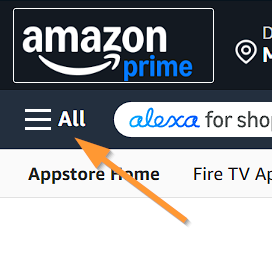
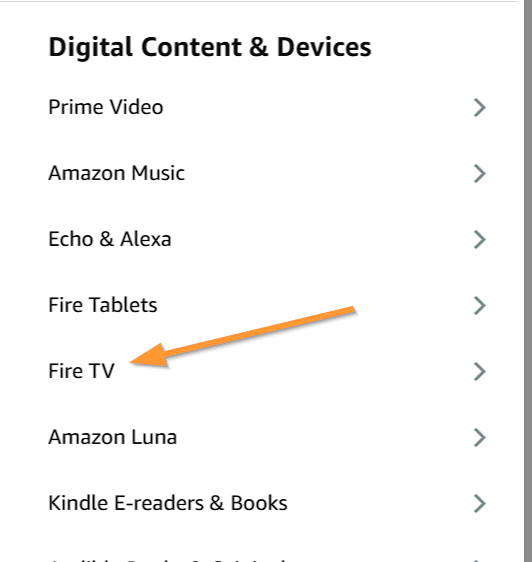
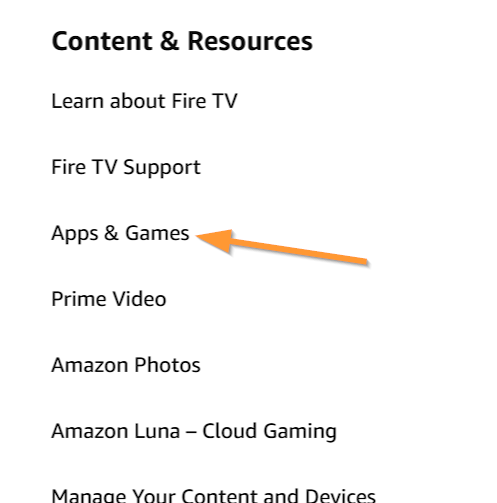

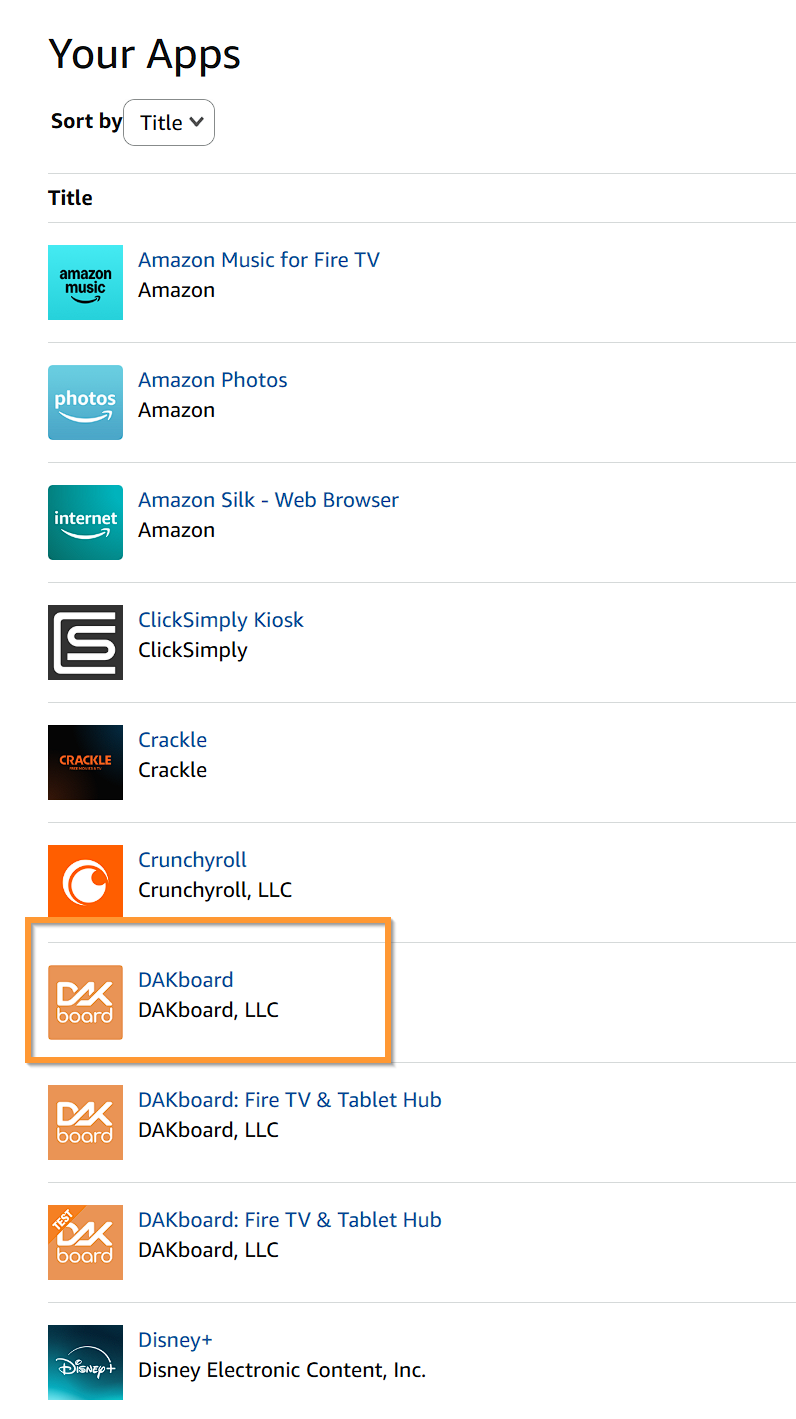
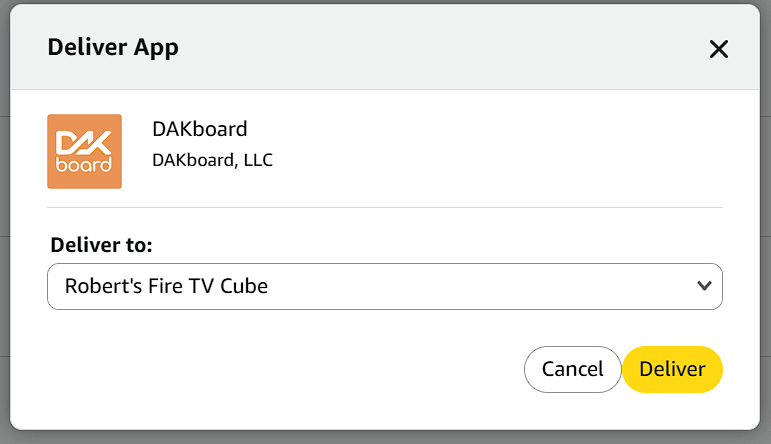
This older APP is simply a WebView that allows you to access your DAKboard account from the Fire TV devices. You will need to log in to your DAKboard account from the APP. This will occasionally log you out based on Amazon's security policies, so if you go to use the APP and see a login screen or the DAKboard.com/site page, follow the steps below to get back to the correct login page:
- Press the Back Button on your Fire TV remote until you exit the APP
- Reopen the APP to be taken to the login Page
- Log back into your account.
- Once logged in, use the Back Button again until you exit the APP
- Then reopen the APP to go to your Selected Screen
The old APP uses the default Screen associated with your account. This is automatically set to your Predefined Screen; however, you can change this to any Custom Screen you design if you prefer. To change this, you will need to set your Default Screen from another device, as this cannot be accessed from the Fire TV App. See our article How to Access and Update the Account Defaults to see how to update your Default Screen. Once you have successfully logged into your DAKboard App and have your Default Screen set, use the Back button on your remote until it exits the app, then restart it to see your Default Screen.
If this App is not available on your device, you can continue with the steps in the section called For Older Fire TV or Fire TV Stick.
Create A Custom Screen Or Set up Your Predefined Screen:
Access the Screens Page and click the Green ADD button in the top right to create a custom screen. See our Screen Configuration Article Group for help creating your screen.

For Older Fire TV or Fire TV Stick:
The following steps are for older Fire TVs or Fire TV Stick devices. All of these steps need to be completed for this service to work.
Link Your Fire TV or Fire TV Stick to Your DAKboard Account:
In your DAKboard account, go to Displays & Devices, click the "Add" button, and give the device a name. Select the Screen you would like to use in the Assigned Screen section. Give the Display a name and click SAVE:

Next, on your Fire TV or Fire TV Stick, open the Internet app (the Silk web browser):

Type in https://dakboard.com/link. This will generate a code on the Display, as in our example below:

Navigate back to Displays & Devices and click on the three dots to the right of the name of the device you added earlier for the Fire TV or Fire TV Stick, then select Link with Device or TV:

Enter the Code from the Fire TV or Fire TV Stick in the block under Step 3, as seen below, and then click Link Device:

Make sure to bookmark your DAKboard page in your Browser on your Fire TV or Fire TV Stick to make it easier to get back to it. If you don't bookmark it, you can relink the page using the steps above to the same device.
Rotate the Fire TV or Fire TV Stick Screen:
If you would like to change your Fire TV or Fire TV Stick to portrait/vertical orientation, you can follow the steps we have documented here: Screen Rotation for non-DAKboard OS Devices. This works with the Amazon DAKboard App and may not work with the Silk Browser method. If you have to use the older method, try side-loading a different browser.
Frequently Asked Questions:
Below are some Frequently Asked Questions about using DAKboard on a Fire TV or Fire TV Stick.
Why does the URL bar show on the Silk Browser?
Amazon made it so that the URL bar is visible at all times; however, you can hide it if you need to. To hide the Silk toolbar, scroll to the bottom of the screen, and both the cursor and toolbar will hide. When your screen fully refreshes every 6 hours, this URL will reappear, and you will need to hide it again.
Why won't my Videos Autoplay?
The Silk browser will display video, but will not automatically play. You will need to use the remote to start the video on the DAKboard screens. If an autoplay video is necessary for your installation, we suggest a DAKboard CPU/Wall Display/DIY Raspberry Pi device.
Why won't my Loops Work?
Loops, unfortunately, will not work with the Silk Browser at this time. You can only use them in sideloaded browsers running at the native resolution of 960x540 for all Screen resolutions. If you are looking to use Loops to their fullest, we suggest a DAKboard CPU/Wall Display/DIY Raspberry Pi device.
Loops will ONLY work with the browser built into the Downloader app. The Downloader app has the advantage of being able to go full screen without a URL bar, but its cursor remains on the screen as a large red circle. If this is ok visually for you, to use the Downloader app to display DAKboard, use the following steps:
- Install the Downloader app from the Amazon App Store (Make sure it is the app called Downloader)
- Once installed, click on Browser on the left side of the screen.
- Type dakboard.com/link into the browser URL and follow steps 3-5 of the section Link Your Fire TV or Firestick to your DAKboard Account, as seen earlier in this document
- Click on the three bars to the right of the URL bar to save this page to your favorites to access it easily next time
- To make the screen full screen, click on the three bars again and select Fullscreen Mode to expand the image
- Move the point to somewhere you don't mind seeing it and enjoy.
Why am I seeing the message "A secure connection is recommended to use this app"?
A recent change with Fire TV and Firestick now requires a Secure Internet connection when using apps that can send sensitive data. Below is what Amazon has to say about this error:
When you see the error "A secure connection is recommended to use this app" on your Amazon Fire TV, it means the app is trying to access sensitive information and is warning you that your current network connection might not be secure enough, usually because you're not connected to a Wi-Fi network that uses encryption (like WPA2 or WPA3).
If you are using WEP or an open network to connect your Fire TV or Fire TV Stick, this may be the cause of the issue you are having. Switching your device over to an encrypted network protocol should resolve the issue for you.
Why does the Amazon DAKboard App keep turning off?
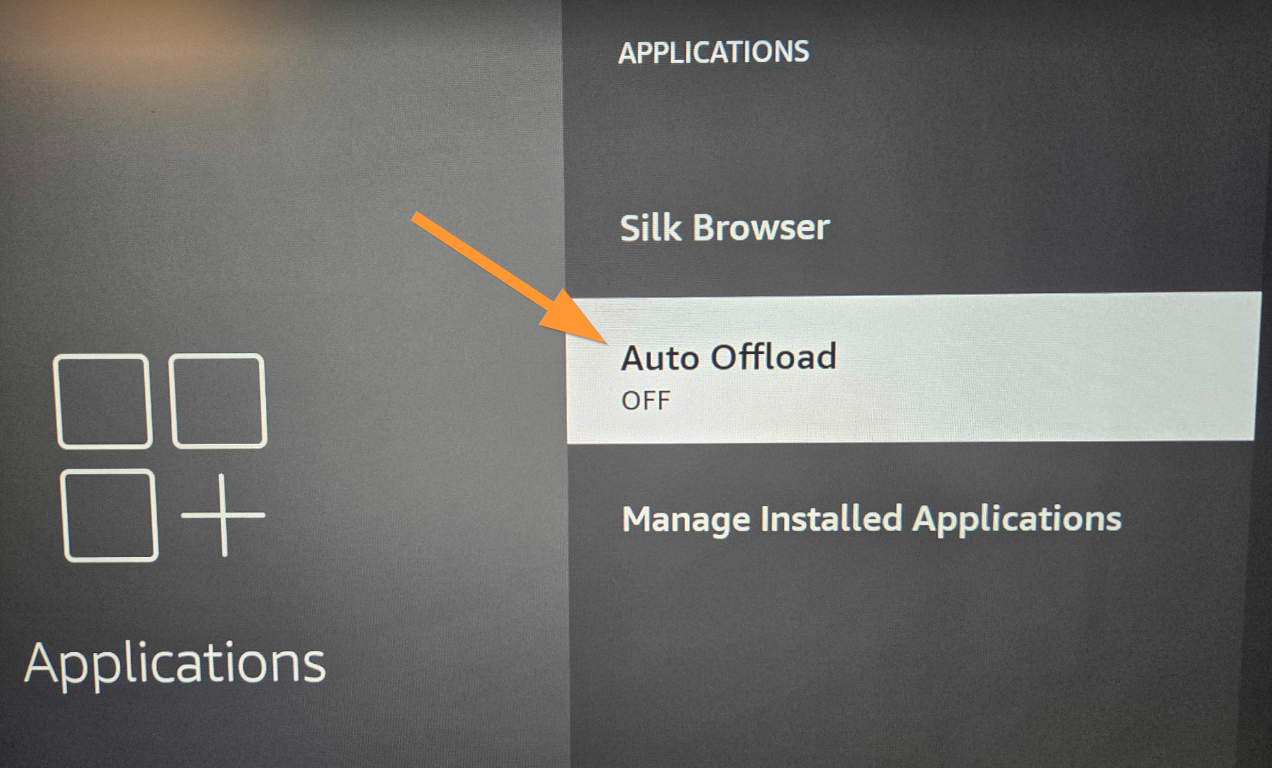
Amazon controls how apps work on its Fire TV Stick and Fire TV Stick. Sometimes they add tools meant to improve performance, but they can cause issues with existing apps. The latest update included a feature called Auto Offload. What this does is disable and offload any app that has been on your Fire TV Stick or Fire TV for at least 60 days. It moves your app to Cloud Storage to free up space on Firestick and Fire TV Stick. This will save your current settings and allow you to reopen them later; however, this can and will close your app. To prevent this, you can turn off the Auto Offload feature. Open your Settings and select Applications:
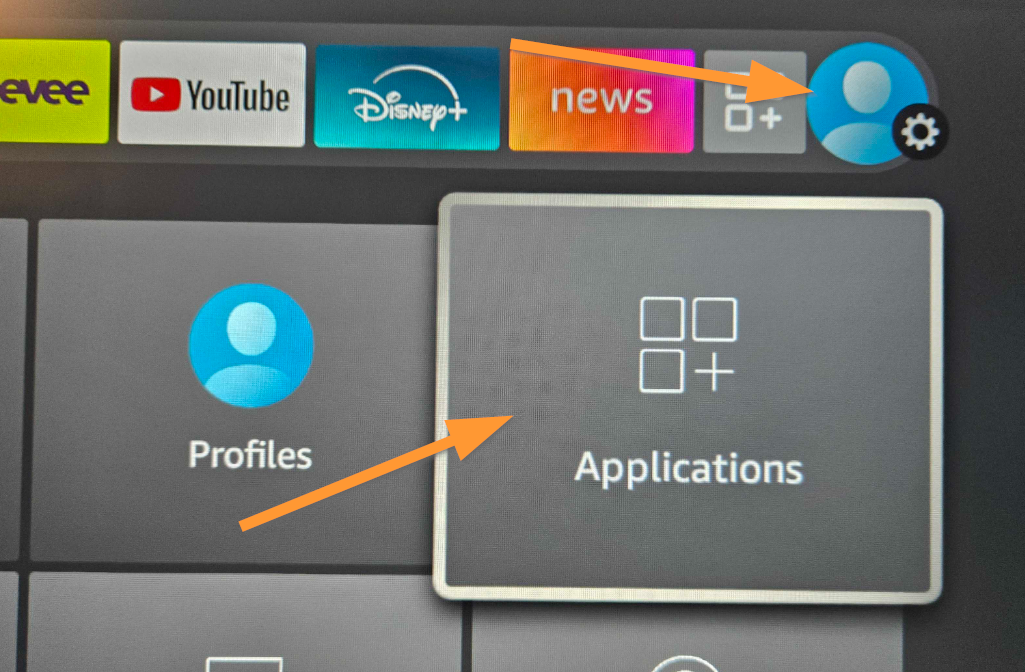
Then scroll down to Auto Offload and turn it off:
Unfortunately, DAKboard cannot control when or if Amazon adds these new features. This means that this could happen again if they make further changes to their systems. If your app starts behaving funny, try searching online if anything new was added to the Fire TV Stick or Fire TV that could affect Application performance, as you may be able to find a solution for it there. If these constant changes are problematic, we suggest a DAKboard CPU/Wall Display/DIY Raspberry Pi device as an alternative solution.
What do I do when it says the CAPTCHA failed on login?
DAKboard recently improved our Security by using an automatic CAPTCHA system so that you do not have to interact with the CAPTCHA. The way it works is that it builds a footprint when you first try to log in to compare it to the next login attempt. If your first login is good enough to pass, you may not see this error; however, if it fails, simply close the app, reopen it, and attempt to log in again. If you are continuing to receive this error, try upgrading your Fire TV or Fire TV Stick, as its software may be out of date.
With some versions of the Fire TV, you may have the option to scan a QR code with a Smartphone to allow you to enter your Username and Password this way. If you are using this method and use Autofill to enter the password, it may add extra spaces or fail to send your Password to the display. We recommend manually typing the Username and Password, and confirming it was transferred to your Screen before hitting the submit buttons to ensure your Credentials are entered and avoid the CAPTCHA failure.
If you are still experiencing issues with CAPTCHA, see our article CAPTCHA with DAKboard for more troubleshooting steps.
Will the Screen Loop keep my Fire TV Stick from turning on its Screensaver?
No. Generally speaking, Loops may not work with your Fire TV Stick, but if you can get them functional using the steps provided above, it still will not stop the Fire TV Stick Screensaver from enabling. The only way to disable this is with the steps in the section called Configure Fire TV or Firestick Sleep Timer & Screen Saver above.
Helpful Articles:
Having trouble? See if these articles help.
How to Get Your Screen to Fit Your Display
How to Access and Update the Account Defaults
DIY CPU with Orange and Raspberry Pi