
TABLE OF CONTENTS
- For the DAKboard CPUs:
- For DAKboard Wall Displays Models V2, V2 Plus, or 27:
- For the Touch 22 and Touch 27 Wall Displays:
- Frequently Asked Questions:
- Helpful Articles:
Occasionally, you may see a No Signal or No Input message when powering up your DAKboard Display. This message comes from the Monitor and not the DAKOS. It usually indicates that the wrong HDMI input has been selected or that there is an issue with the HDMI cable. Below is how to address this for the various DAKOS devices.
For the DAKboard CPUs:
If you see the No Signal or No Input message from your CPU, this can happen for a few reasons. Below is a list of reasons and how to confirm them.
- The wrong HDMI input is selected on your Monitor/TV: Check your Monitor or TV's settings and make sure you have the correct HDMI input selected.
- The HDMI connection is loose: Make sure that the HDMI connections to both the CPU and the Monitor are snug. Once you confirm you have the connections correct and snug, reboot the CPU to allow it to connect to your device.
- Converted input from HDMI: If you convert the HDMI signal to another input type, such as DVI, Analog or DisplayPort, your signal may not work. DAKOS must use an HDMI signal. Make sure you are using an HDMI input on your TV and not converting it to a different signal type.
- The HDMI cable is damaged or bad: In this case, the signal is not reaching the monitor. You can test this by switching the CPU to a different Monitor or TV. If it is still failing to connect, try replacing the HDMI cable.
- The HMDI inputs/outputs are bad: Depending on the devices involved, you may have multiple inputs or outputs. Try switching between them and see if any work. If none of them work, try a new HDMI cable and test again. If all are still failing, you can assume a failure of the CPU's outputs. If any of them succeed, but you still have a failure on the first Monitor/TV's input(s), then you can assume the input is bad.
- Not enough power to send the HDMI signal: Sometimes, if a power supply is failing, you cannot push the HDMI signal to the Monitor/TV. You can test this by using a different power supply. A Smartphone charger can be used to produce enough power. If this works, replacing the supply will resolve the issue.
For DAKboard Wall Displays Models V2, V2 Plus, or 27:
If you're seeing a "No Signal" message on your DAKboard Wall Display (v2, v2 Plus, or 27), the Wall Display may be set to the wrong input. Follow the steps below to correct this.

You normally see this "NO SIGNAL" message when the display is set on the wrong input source. This is fairly easy to correct.
NOTE: For the steps below, you will need to perform the 3rd step quickly.
1. Plug in your DAKboard. If the power indicator light does not turn blue, press the power button momentarily. The power indicator light will turn blue, then the “No Signal” message will appear for about 1.5 seconds, and the power indicator light will turn orange.

2. Now, press the button labeled '2,' and the Input Source menu will appear. This menu only stays on for roughly 3 seconds if no selection is made.

3. As soon as you see the Input Source menu, press either the up arrow or down arrow button immediately. Once you press one of these buttons, you will have about 5 seconds before the menu disappears, and you have to start all over.
4. Use the 'Up' or 'Down' arrow to select either HDMI or Auto. Either option should work. As the connection to the DAKboard is HDMI, we recommend you set it to that.
5. Finally, press the '2' button to select the correct option (HDMI or Auto).
You can wait a few more seconds for the menu to disappear on its own, or you can press the '1' button to exit the Input Source Menu. It may take a couple of tries to get through this, as the timing needs to be relatively fast.
Unfortunately, DAKboard has no control over this process since it is a function of the monitor and not the DAKboard CPU.
For the Touch 22 and Touch 27 Wall Displays:
For our latest displays, the Touch 22 and Touch 27, you have an external HDMI port that can be used to connect other HDMI devices to your Display. This section will show you how to switch between these ports.
First, locate the buttons on the back of the display. These buttons will be the same between the Touch 22 and the Touch 27 models. They will look like this:
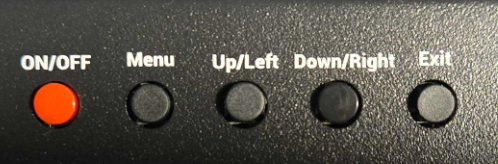
These buttons' functions are detailed below:
- ON/OFF button: This button can be used to turn the Monitor portion of the Display on and off. This does not power down or reboot the CPU. To reboot the CPU, you will need to unplug the power and plug it back in
- Menu button: This button opens the Menu window for the Monitor's settings. This does not access the CPU settings. To see how to access them, see our article How to Access Your DAKOS Settings Page.
- Up/Left and Down/Right buttons: These buttons are used to navigate the Monitor Settings Menu.
- Exit button: This is used to exit your menu and apply your changes
To access your HDMI ports, complete the following steps:
- Press the Up/Left and Down/Right buttons to open the Input selector, as seen below:

- By Default, Auto Select should be selected. This will work if you have no external devices connected. When you connect an external device, you will need to select the D3: HDMI port. If you leave the cable connected, to switch back to your DAKboard Display, you will need to choose the D1: HDMI port.
- Use the Up/Left and Down/Right buttons to select the port you need.
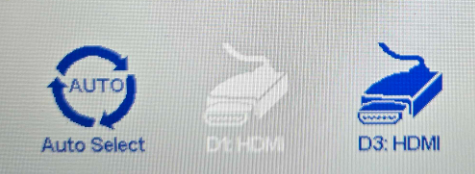
- Once you have selected the port, press the Menu button to complete your selection.
- Press the Exit button to return to the menus and close the Monitor Settings.
Frequently Asked Questions:
Here are some of the most Frequently Asked Questions about the No Signal message.
What do I do if I receive an Orange indicator light when it is powered on?
This is similar to the No Signal message. It could indicate that the display is set to the wrong input. Use the steps above and see if it resolves the problem.
Why is my Touch 22/Touch 27 no longer using the On/Off (Sleep) Scheduler?
If you accessed the display's settings and made a change, you might have shut off the CEC controls accidentally. To correct this, follow the steps below:
- Press the Menu button on the back of the display to open the Monitor's settings. See below:
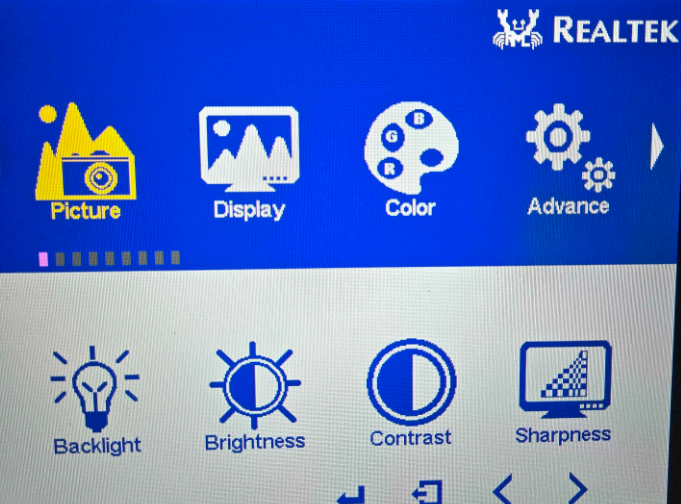
- Use the Up/Left and Down/Right buttons to navigate to the Other selector, as seen below:
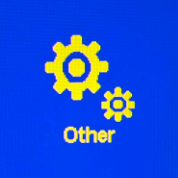
- Press the Menu button to switch to the Selection options and choose the Reset option:
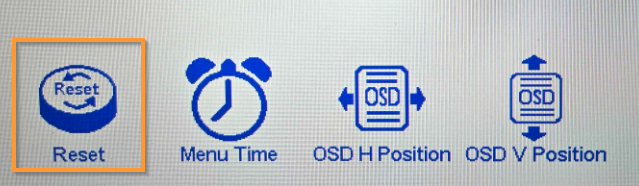
- Once you have selected Reset, press Menu to run the reset.
- Press the Exit button to return to the menus and close the Monitor Settings.
This will restore your monitor factory settings and should resolve the issue.
Helpful Articles:
Having trouble? See if these articles help.