
TABLE OF CONTENTS
- IMPORTANT:
- What Is Immich?
- Generate your API key to grant access in Immich:
- Creating your Immich Block in DAKboard:
- Frequently Asked Questions:
- Helpful Articles:
DAKboard is proud to announce that you can use Immich Photos to randomly Display Photos on your Custom Screens and your Displays. This is our first integration with a self-hosted photo service. This article will help show you how to add this service.
IMPORTANT:
Currently, Immich Photos can only be used with the Custom Screens on the Paid Subscription. We are in the process of adding this to the Predefined Screen for the Free plans, but it is not ready for use yet. Unfortunately, an issue with the release of the product has put the controls into the Predefined Screen, even though you cannot use them yet. Please check back here for the release of the Predefined Screen Version when it is ready.
What Is Immich?
Immich is a fast, open-source, self-hosted photo and video backup solution designed to replace services like Google Photos. It offers automatic mobile uploads, facial recognition, smart search, and mapping, providing complete data privacy and control. It can be run from a separate Pi computer or a Docker on your home server. To learn more about this and how to set it up, visit the Immich Website.
DAKboard supports connection to Immich via the internet. A reverse proxy configuration will accomplish this as described in Immich’s remote access documentation:
The rest of this article assumes you have already set up your Immich Server and added Photos to it. It will show you how to link your Immich Account to DAKboard and set it up on your screen.
Generate your API key to grant access in Immich:
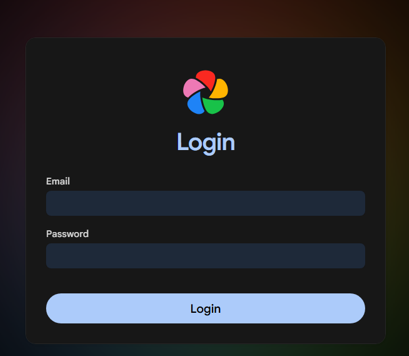
To add Photos from Immich Photos to DAKboard, you'll first need to set up an API key on your Immich Account. Start by Logging into your Immich Server:
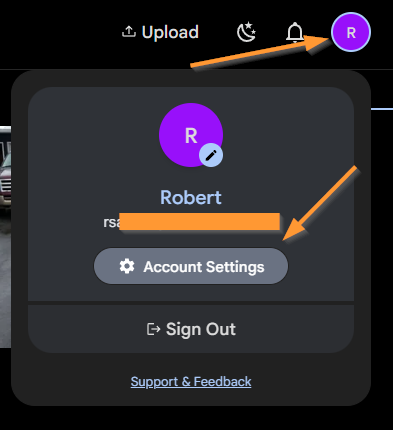
Once in your account, click on the User Icon in the upper right corner, and select Account Settings from the pop-up window:
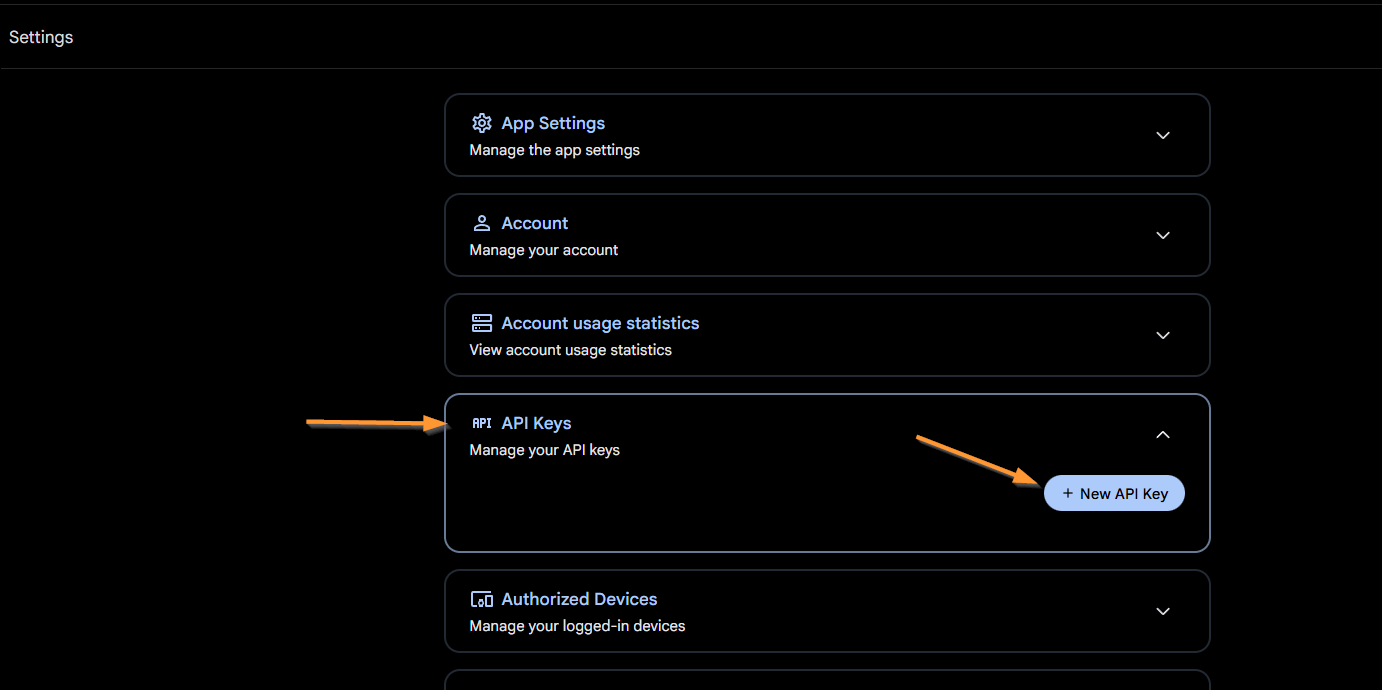
On the Settings page, click on the API Key section and select + New API Key to create the key:
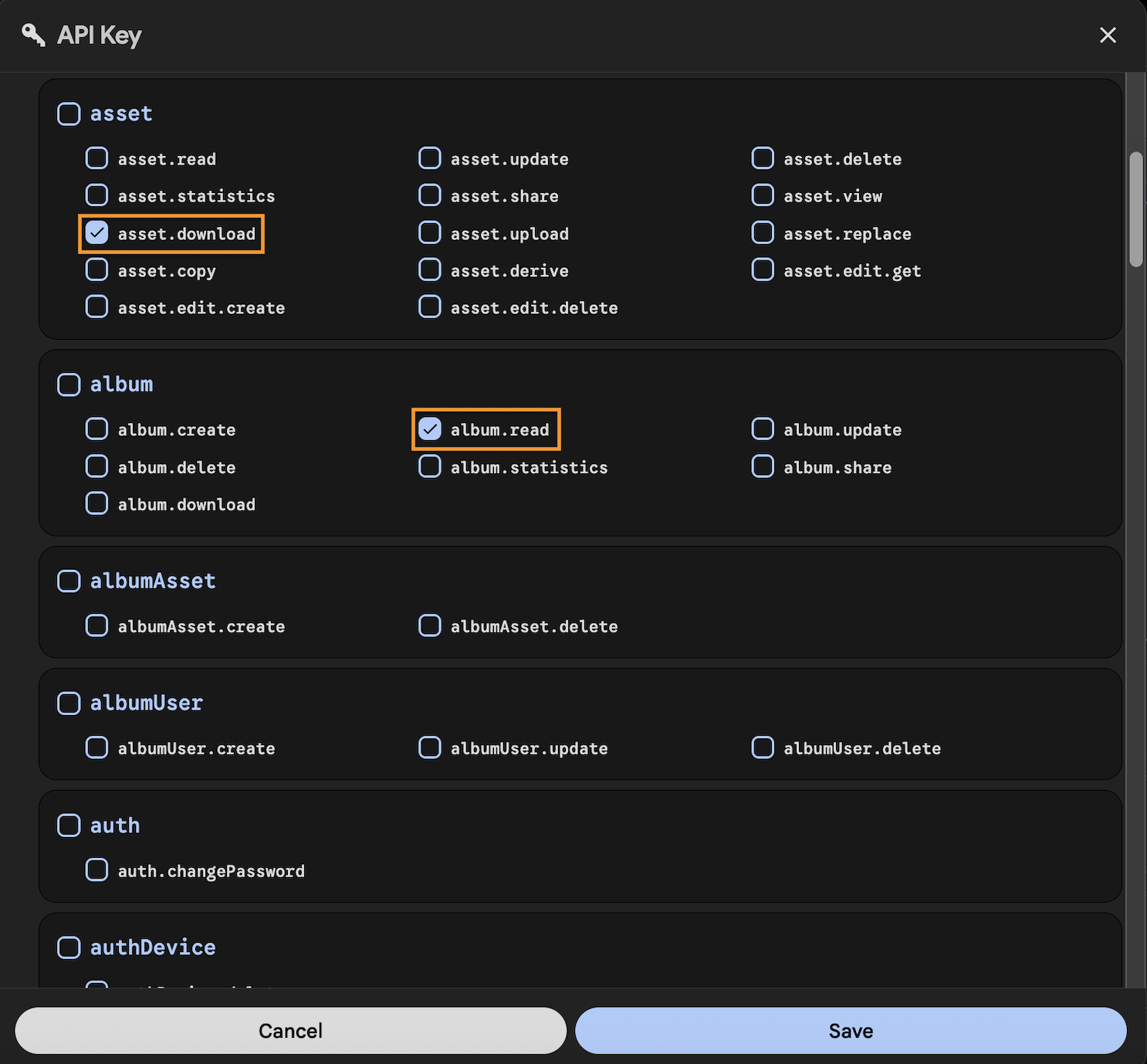
Scroll down the Key page to the Asset and Album section. Make sure you check the following items when creating your Key.
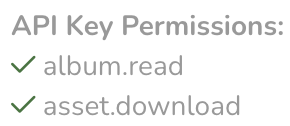
- album.read: This allows us to access your Photo Albums
- asset.download: This is required if you need full-res images.
Once these are selected, click the Create button to make your Key. See below:
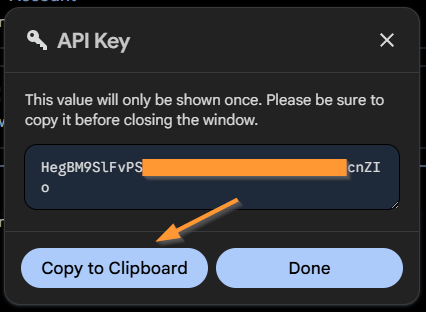
Make sure to copy your API key, as it will only be shown once. See below:
Creating your Immich Block in DAKboard:
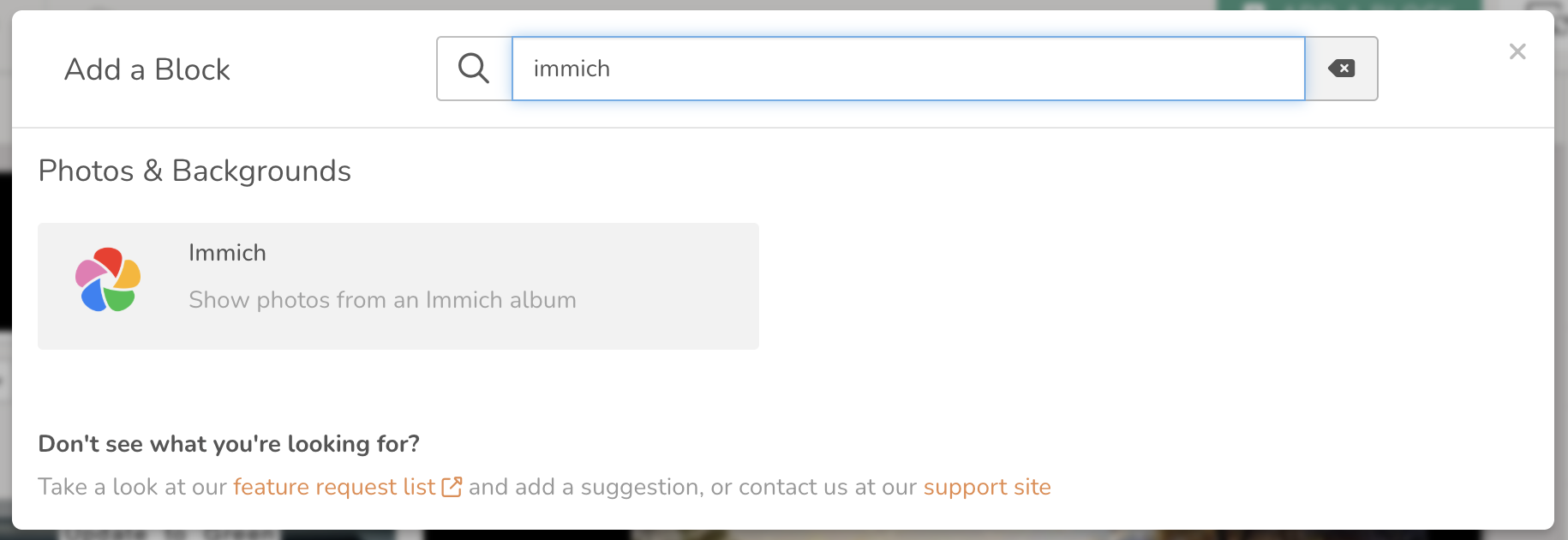
With your API key ready, return to your DAKboard account, open the Custom Screen Editor where you want to add your Photo Block, and add the block to the Screen. Make sure you select the Immich Photo source.
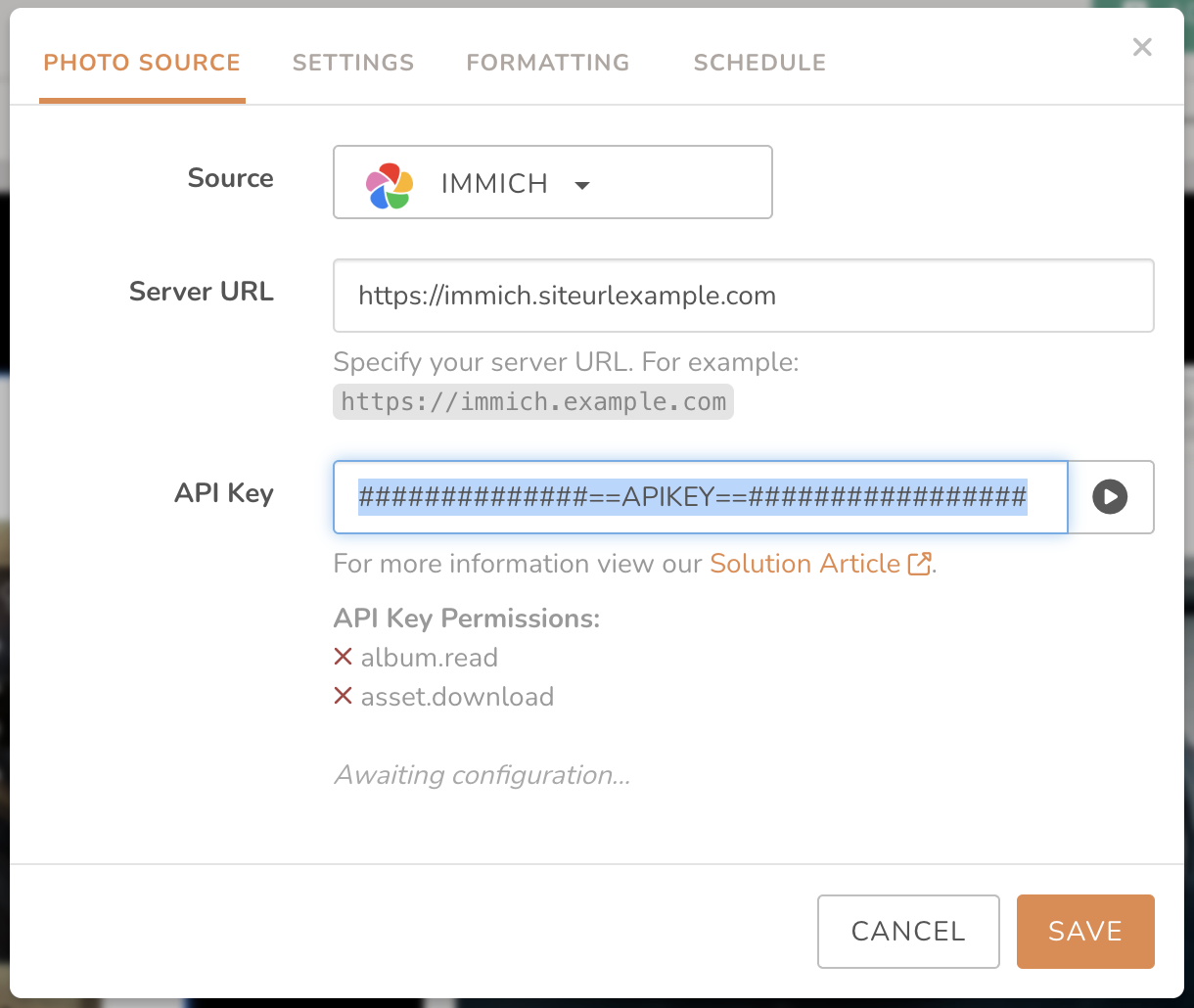
Add your API Key and the URL to your Immich server here and click the Play Button:
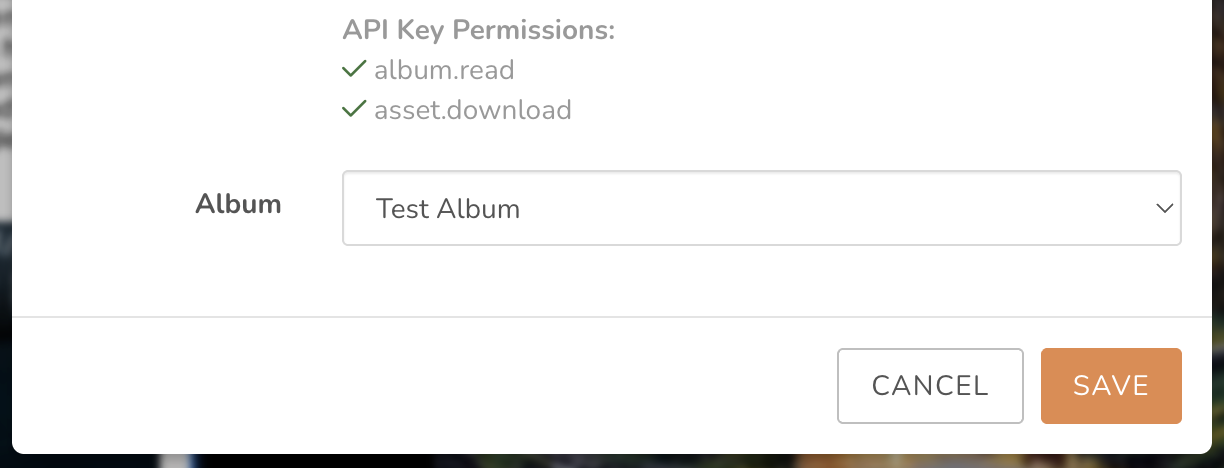
The block will immediately test the URL and key, and provide green checkmarks to indicate the permissions are correct:
Select your desired Album to view, then click save:
As with all our integrated sources, photos will be selected and displayed at random. See our article How to Add Photos to Your DAKboard Screen to learn more about Photo Limits and Randomization.
Frequently Asked Questions:
Below are the most Frequently Asked Questions about the Immich Photos block:
Will DAKboard see new images when they are added?
Yes, our integration will automatically detect and add new images from your selected Album. The Cache on the Immich server lasts for 1 hour. This means new items may not show in the Cache for at least one hour.
How many Albums can I view at a time?
The integration only allows you to pull one Album per block at a time. You can switch Albums anytime you like within that block editor.
Helpful Articles:
Having trouble? See if these articles help
How To Add Photos To Your DAKboard Screen
How to Use the Predefined Screen Editor
How to Use the Custom Screen Live Editor