
TABLE OF CONTENTS
- The Screens Page
- Adding a Screen
- Screen Limits and Your Plan
- The Three Dots (More) Menu
- The Devices Panel
- Frequently Asked Questions
- Why Does My Screen Say Unassigned?
- Why Does My Screen Say DISABLED or Disabled?
- Why Can't I Add Another Screen?
- How Long Until My Display Shows a Newly Assigned Screen?
- Why Is My Screen's Thumbnail Out of Date?
- Why Do Some Blocks Need Setting Up Again After an Import?
- Why Do I Get an Import Signature Authentication Failure?
- Helpful Articles
The Screens page is where you create, organize, and manage your DAKboard Screens and see which Display each one is showing on. This article explains each part of the page and what you can do from it.
The Screens Page:
Log in to your DAKboard account and click Screens in the menu on the left. The page has two parts: your Screens on the left and the Devices panel on the right.
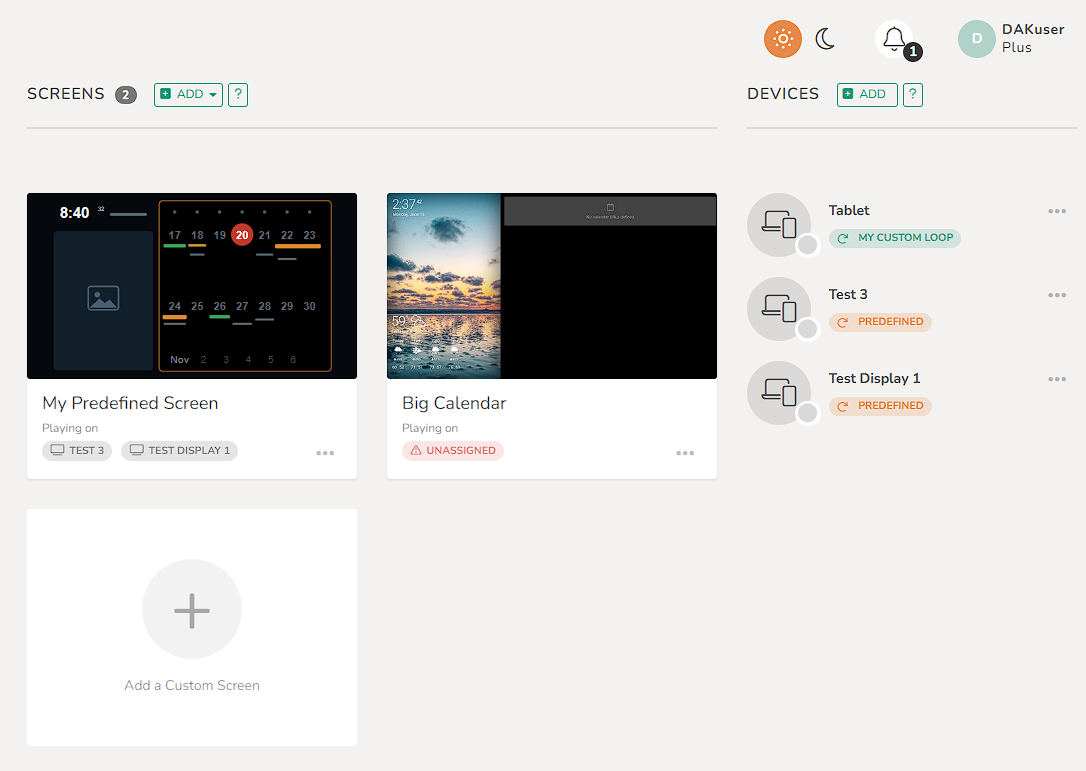
- Your Screens: your Predefined Screen and your Custom Screens, each with a thumbnail and its name. Click a thumbnail or name to open the Screen in its editor (see How to Use the Predefined Screen Editor and How to Use the Custom Screen Live Editor).
- Assigned Displays: grey labels under each Screen show which Displays it is assigned to ("+ more" when there are more than three).
- Unassigned: a red Unassigned label means the Screen is not showing on any Display. Click it to assign the Screen.
- DISABLED: a red DISABLED label means the Screen has been turned off, usually because of high usage (see High Screen Usage or Disabled Screen (error 429)).
- Sort: once you have more than four Screens, a Sort button lets you sort by Name or Created Timestamp. Choose the same option again to reverse the order.
- ? button: opens a short help window explaining Predefined and Custom Screens (see also Predefined vs Custom Screens: Why Can't I…?).
Adding a Screen:
Click ADD at the top of the Screens page and choose one of these options:
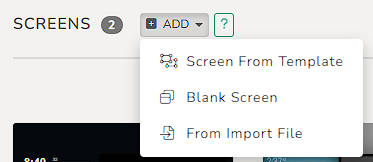
- Screen From Template: opens the Templates page so you can start from one of our Official or Community Templates.
- Blank Screen: enter a name and click Add Screen. The editor opens so you can add your Blocks.
- From Import File: choose a screen file you exported earlier (it ends in .dakexport), and optionally give it a new name, then click Import Screen.
You can also click the Add a Custom Screen tile at the end of your Screens list to add a Blank Screen.
Screen Limits and Your Plan:
- Custom Screens need an Essential or Plus plan. Free accounts use the Predefined Screen. A Free account can create one Custom Screen to try the editor, but it shows as Disabled and cannot be viewed on a Display until you upgrade.
- Each plan includes a set number of Custom Screens (see DAKboard Subscription Comparison). When you reach the limit on a paid plan, the Add Screen button changes to Purchase, and the extra Screen is billed according to your plan.
- If you are in a free trial, adding a Screen beyond your plan's limit ends the trial and starts your subscription. You are asked to agree before this happens.
- To free up a slot without losing a Screen, Export it first and then delete it. You can import it again later.
The Three Dots (More) Menu:
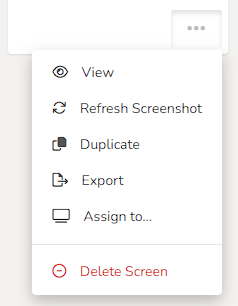
Click the three dots under a Screen's thumbnail to see more options:
| Option | What it does |
|---|---|
| View | Opens the Screen in your browser so you can see how it will look on a Display. Not available for Custom Screens on the Free plan. |
| Refresh Screenshot | Updates the thumbnail to show your latest changes. |
| Duplicate | Makes a copy of the Screen under a new name. The copy uses a Custom Screen slot, with the same limits and billing as adding a Screen. Very large Screens may not copy every Block if the copy would go over the Block limit. |
| Export | Saves the Screen as a file. Shareable keeps the layout and basic Block settings but leaves out your connected accounts and personal details such as locations, so it is safe to share with others. Full Backup keeps your Block settings and the links to your connected accounts (such as Google or Microsoft), so the Screen comes back almost ready to use; do not share it. See What a Full Backup Keeps and Leaves Out below. |
| Assign to... | Choose one or more Displays to show this Screen. Displays already showing it are not listed. This only adds the Screen to Displays; to change what a Display shows, use the Devices panel or see How to Assign a Screen to Your Display. |
| Delete Screen | Permanently deletes the Screen and its settings and frees up its slot. Export it first if you may want it back. |
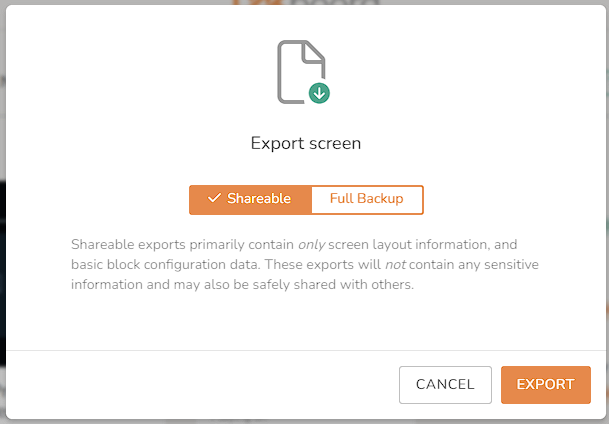
What a Full Backup Keeps and Leaves Out
A Full Backup keeps:
- The layout and the settings of every Block.
- The links to your connected accounts (for example Google, Microsoft, or Dropbox). When you import the backup into the same DAKboard account, these Blocks reconnect on their own as long as the account is still connected under Manage authorized accounts. If you import it into a different DAKboard account, or the connection was removed, connect the account again in the Block.
For your security, a Full Backup leaves out the following. Set these up again after importing:
- Remote Updates on Text, Scheduled Text, and Package Tracking Blocks (turn it on again; the update link changes).
- The links between Linked Blocks.
- The URL, username, password, token, and custom header of External Data/JSON and Gauge Blocks that use authentication.
- The Home Assistant connection and the entities you selected.
- The WiFi name, password, and security type, phone number, and location in QR Code Blocks (and the code itself for those types).
- The Google API key in Traffic & Transit Times Blocks.
The Predefined Screen has only View and Assign to.... Click it to open the Predefined Screen Editor.
The Devices Panel:
The Devices panel on the right lists your Displays and devices. A green dot means the device has checked in recently; grey means it is offline or does not report its status. A colored label shows what each device is showing, and a red Unassigned label means it is not showing anything yet. Click the label to choose what it shows.
To add a Display, click ADD in the Devices panel to open Add a Display or Device:
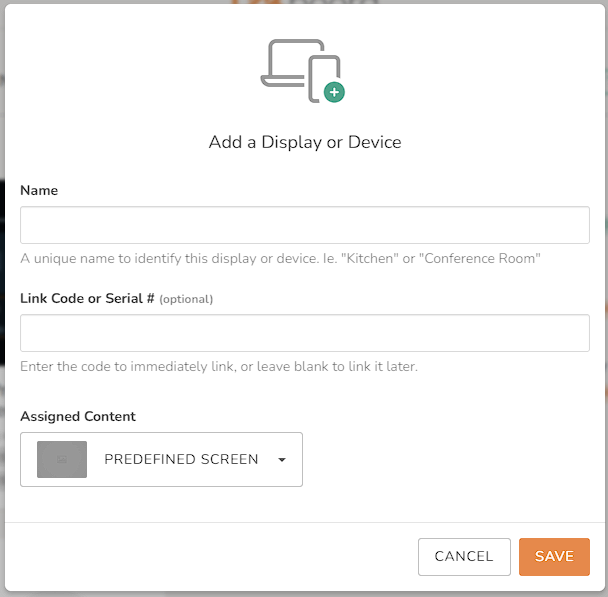
- Enter a name for the Display, for example "Kitchen".
- Enter the Link Code shown on your device, or leave it blank to link it later. Link codes expire after one hour; if yours has expired, refresh the device to get a new one.
- Under Assigned Content, choose the Screen it should show.
- Click Save.
Each device also has a three-dots menu with Settings (details such as its name, Display URL, and last connection), Link with Device or TV (to link a device to this Display using the code it shows), and Remove Device. To set up a Display, see Setup - DAKboard Wall/Mirror Display, Setup - DAKboard CPU/Micro SD Card, Setup - DAKboard Touch Wall Displays, or How to use a non-DAKOS Device as a Display.
Frequently Asked Questions:
Below are the most Frequently Asked Questions about the Screens page:
Why Does My Screen Say Unassigned?
The Screen is not showing on any Display. Click the Unassigned label, or use Assign to... in the three-dots menu, and choose a Display.
Why Does My Screen Say DISABLED or Disabled?
A red DISABLED badge means the Screen was turned off because of high usage; see High Screen Usage or Disabled Screen (error 429). A Disabled label on the Free plan means Custom Screens need an Essential subscription or higher; you can still edit the Screen, but it cannot be viewed until you upgrade.
Why Can't I Add Another Screen?
You have reached the number of Custom Screens your plan includes. You can purchase an additional Screen (the button changes to Purchase), export and delete a Screen you are not using, or change your plan (see DAKboard Subscription Comparison).
How Long Until My Display Shows a Newly Assigned Screen?
On the Plus plan, connected Displays update almost immediately. On the Essential plan, they update within 1 to 2 minutes. See Content and Display Refresh Rates for how often content inside your Blocks updates.
Why Is My Screen's Thumbnail Out of Date?
Thumbnails are not updated every time you save. Click the three dots under the Screen and choose Refresh Screenshot.
Why Do Some Blocks Need Setting Up Again After an Import?
A Shareable export leaves out your connected accounts and most Block settings. A Full Backup keeps them, but connected accounts only reconnect when you import into the same DAKboard account and the account is still connected, and some sensitive settings are always left out (see What a Full Backup Keeps and Leaves Out above). After importing, open those Blocks and connect or set them up again.
Why Do I Get an Import Signature Authentication Failure?
Every exported file is protected so it cannot be changed. If the file is edited or damaged after it was exported, it can no longer be imported, and you will need to export the Screen again from the original account.
Helpful Articles:
Having trouble? See if these articles help.
How to Use the Custom Screen Live Editor
How to Use the Predefined Screen Editor
Advanced Features of the Custom Screen Editor
Predefined vs Custom Screens: Why Can't I…?
How to Assign a Screen to Your Display
Screen Security with Password-Protected Screens
High Screen Usage or Disabled Screen (error 429)