
TABLE OF CONTENTS
With the Paid Subscription plans and the Custom Screens, DAKboard supports Widget Blocks for adding HTML and JavaScript code for third-party content. These widgets can be found on the site of your choosing. This article will show you how to add them to your DAKboard Screens and Displays.
Add a Widget Block:
To add a Widget Block to your Display, select the Custom Screen Editor you want it to appear on, click the Add a Block button, and search for the Widget Block as seen below:
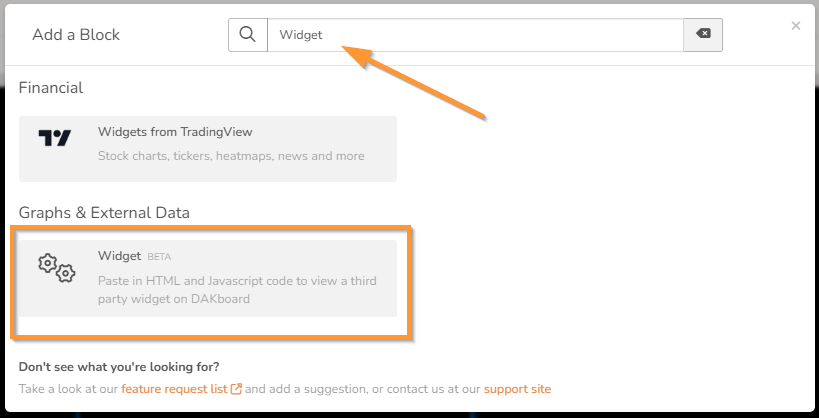
The Widget Blocks are for adding JavaScript that is sandboxed, meaning they will be unable to create pop-ups for example. Below are some definitions of what should be possible in this block type:
<iframe>: The Inline Frame element
Once your Widget has been created or you have found the one you would like to use, you can place the code into the Settings Tab of your Widget Block in the space provided. See below:
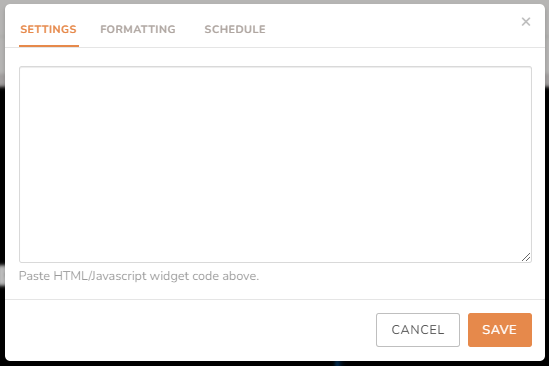
You should be able to create your CSS style tags inside, but you may find it easier to add them via the Settings & Defaults page, like in the article Applying Custom Styles to Screens.
Frequently Asked Questions:
Below are the most commonly asked questions about the Widget Block:
Does any Widget Work with this Block?
Most Widgets will work with the DAKboard Widget Block. As long as they do not try to exit the Sandbox, open pop-up messages or ads, or they do not redirect you to a different page, they should work.
How do I Increase the Refresh Rate of the Widget?
The DAKboard Widget Block will automatically refresh during the 6-hour refresh; however, if you need the data to refresh quicker, you will have to add this to your code. Be aware that using high refresh rates for pulling data from sites can lead to the site responding with Too Many Requests errors for the site in question. This can also lead to your DAKboard Screen exceeding its usage rates and may result in it being disabled. See our article High Screen Usage or Disabled Screen (error 429) for more details on this.
Why can I no longer see my Content in the Custom Screen Editor?
You may have noticed that your block now shows the message below when you set it up:
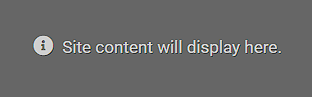
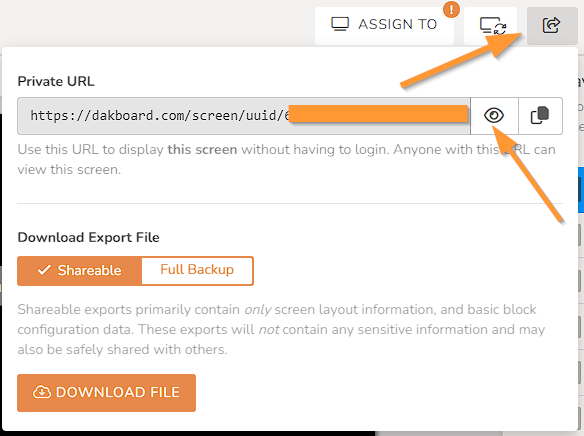
For security reasons, we had to update this block to prevent the data from loading in your editor. This was done to keep your account and our systems secure. To see what your Screen will look like while editing it, you can use the View Screen option to open your Screen in another browser tab or window. You can find the View Screen button under the Share and Export Screen Configuration button on your Screen editor page. See below:
You can also select this from the Screens Page by clicking on the three dots below your Custom Screen's Thumbnail and selecting View. See below:
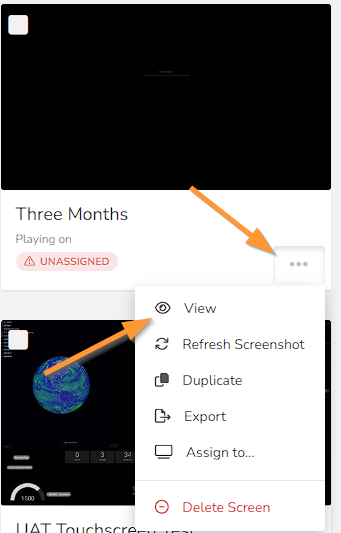
Once open, you can see what your screen will look like. You can also use the Refresh Displays button, located to the right of the Assign To button, to push your changes to this screen while you design it.