
TABLE OF CONTENTS
- DAKOS Device Updates:
- Home Assistant (HA) Updates:
- Adding your HA Lovelace Dashboard to TouchHub:
- Frequently Asked Questions:
- Helpful Articles:
The TouchHub now supports embedding a Home Assistant (HA) Lovelace Dashboard. See the HA article, Configure a HA Dashboard, to set up your Lovelace Dashboard. Once this is completed, the following simple steps will allow you to add it to your DAKboard TouchHub.
DAKOS Device Updates:
We recommend using our latest DAKOS with TouchHub. On DAKOS older than 4.14, you will need a USB keyboard and mouse attached to your DAKOS device to enter your login information into HA. Upgrading to 4.14 or later, you can use our updated onscreen keyboard to log in. See our article Upgrading your DAKOS Device to learn which device you have and how to upgrade it.
Home Assistant (HA) Updates:
In order to embed the HA blocks into the TouchHub, you will need to make a small change in your HA installation to permit embedding. Embedding, for security reasons, is normally disabled by default. To allow embedding your Lovelace Dashboard in an iframe for our TouchHub you need to adjust Home Assistant’s HTTP configuration in your configuration.yaml file. See HA's article The configuration.yaml file to learn more.
By default, HA sends the header:
X-Frame-Options: SAMEORIGINconfiguration.yaml and modify the http: section to allow embedding as seen below:http:
use_x_frame_options: falseSetting use_x_frame_options: false removes that header so the UI can be loaded in an iframe. After making the change:
- Save
configuration.yaml - Restart Home Assistant (full restart, not just reload)
- Add the Lovelace dashboard URL to your TouchHub
Security Considerations:
Disabling X-Frame-Options does allow your Lovelace Dashboard to be embedded anywhere. Techniques to keep HA safe are available on the HA community and the HA FAQ sites.
Adding your HA Lovelace Dashboard to TouchHub:
To start, see our article, The TouchHub, in the Select Items To Add > Applications section to learn how to add the HA app. Once the app is in your dock, go to the Dock Configuration section, click the Edit button, and open the App Editor panel. Here, simply paste your HA Lovelace Dashboard URL in the space provided. See the example below:
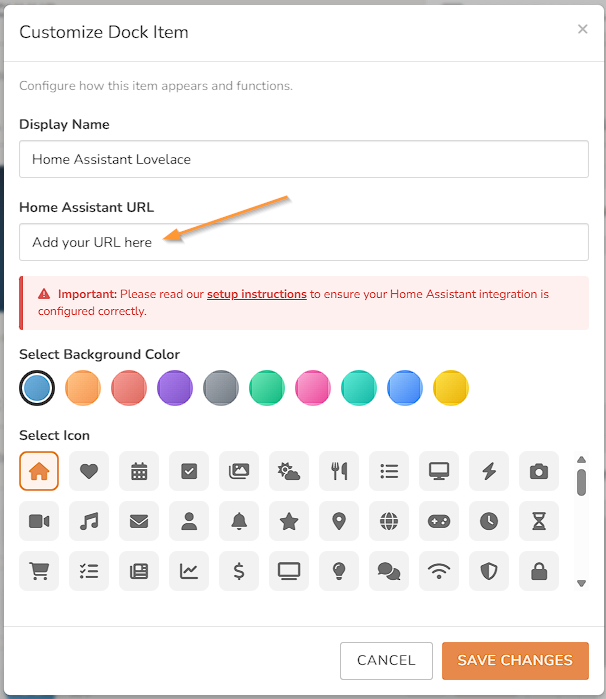
You can also add a Display name, choose an ICON, and a color to represent your dock entry for your Dashboard at this time. Make sure to click Save Changes, and you are all set.
Frequently Asked Questions:
Below are the most Frequently Asked Questions about the HA TouchHub App:
Do I still need to use the Home Assistant Blocks on my Custom Screens?
The Home Assistant App will allow you to fully control your Home Assistant without the need for the HA blocks, but to show your information on your Custom Screens, you can still use the HA blocks. See our article How to Add Home Assistant to DAKboard Custom Screen to learn more.
Helpful Articles:
Having trouble? See if these articles help.