
TABLE OF CONTENTS
- How DAKboard Names Your Blocks:
- The Basics: Your First Custom Style:
- Going Further: Targeting Specific Parts:
- Resources:
- Frequently Asked Questions:
Custom CSS gives you the power to change how your Screen looks by changing colors and adding borders to applying unique visual effects like shadows, gradients, and more. If it's a visual detail on your Screen, chances are you can adjust it. It's an optional tool, so your DAKboard works perfectly without it, but it's a great way to add personal touches.
Available with Paid Subscriptions on both your Predefined and Custom Screens, this feature allows you to fine-tune almost any visual element to match your personal style. This guide will walk you through accessing the CSS editor, applying basic styles, and using precise targeting to get your screen looking exactly how you want. It starts with the basics anyone can follow, then moves into more advanced techniques for those who want full control.
How DAKboard Names Your Blocks:
Custom CSS works by targeting blocks with a "selector". Every block in DAKboard has a default class name based on its type, meaning there is nothing you need to set up to get started. Here are some examples:
- Calendar block:
.block-calendar - Photos block:
.block-photos - Weather block:
.block-weather - Text block:
.block-text
These class names will change every block of that kind on your screen at once. If you want to style just one specific block on its own, give it a Block Title in its block Editor under the Formatting tab.
When you rename a block, DAKboard creates a second, unique class built specifically from that name. The rule for this named version is simple: start with .block-- (two dashes), then add the name. Be aware that when you add a block title, the custom CSS will remove special characters used in the block title that are not letters, numbers, dashes, or underscores. We recommend using single-word names.
For example, if you name a specific weather block "MyWeather" in its settings, it also gets the class .block--MyWeather. This allows you to isolate your changes to just that single block.
The Basics: Your First Custom Style:
Follow these steps to access your custom screen editor and apply your first style:
- Log in to your DAKboard account and navigate to the Screens setup.
- Select the Screen you want to customize.
- Click the Styles button in the upper-left corner.
- Select the ADD CUSTOM CSS RULES button.
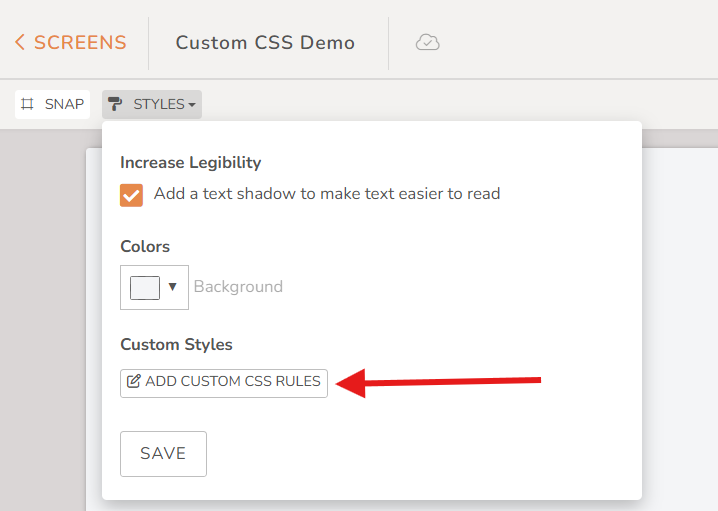
- A text box will appear where you can type your custom styles.
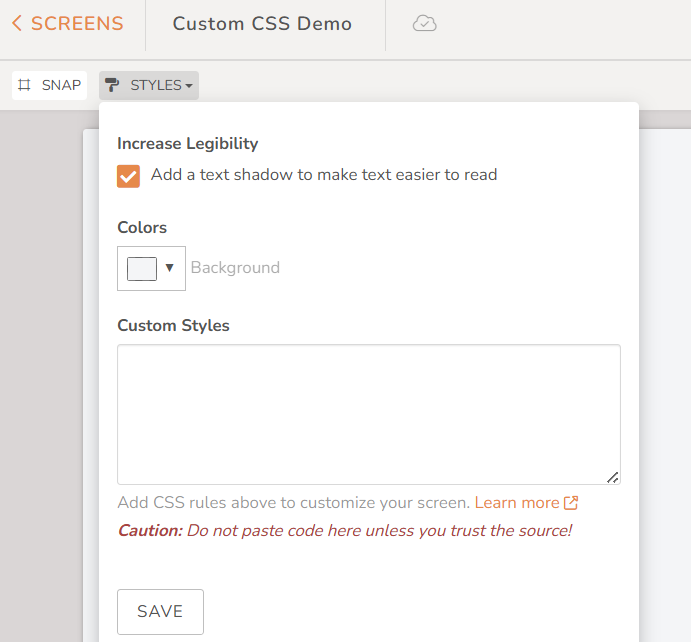
- When you're done, click Save, then Preview or reload the Screen to see the changes take effect.
Here is a ready-to-use example that gives every weather block on your screen a rounded blue border:
.block-weather{
   border: 12px solid #2b5cc4;
   border-radius: 25px;
}
Here's how the weather blocks look before and after the change:
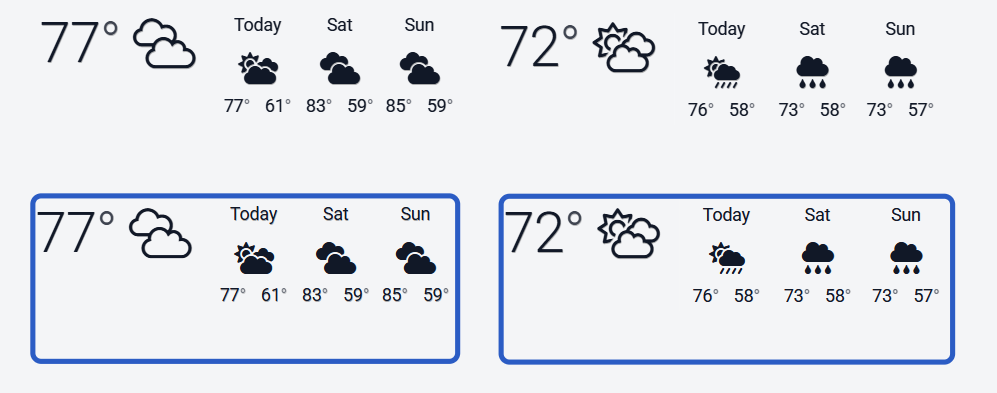
If you have more than one weather block but only want to change a specific one, make sure you have named that block in its settings, then target the custom-named version instead:
.block--MyWeather {
      border: 12px solid #2b5cc4;
      border-radius: 25px;
}
Going Further: Targeting Specific Parts:
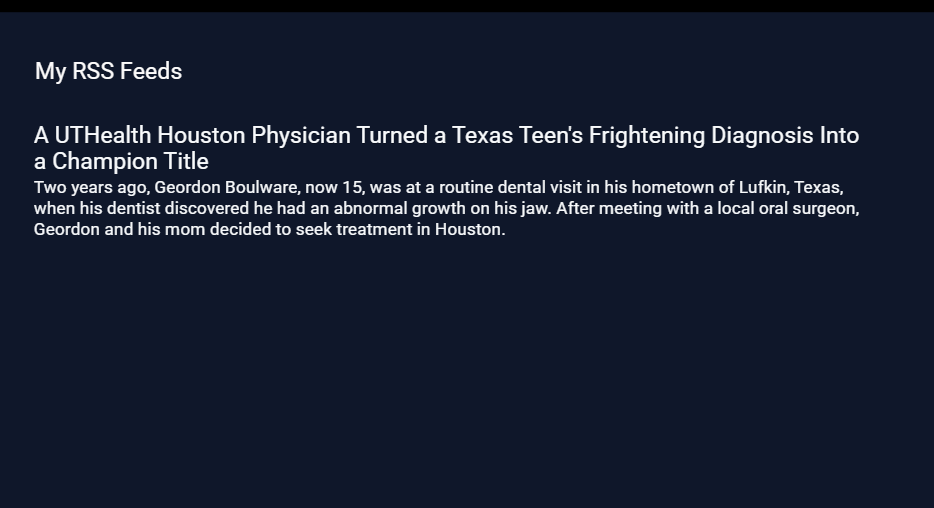
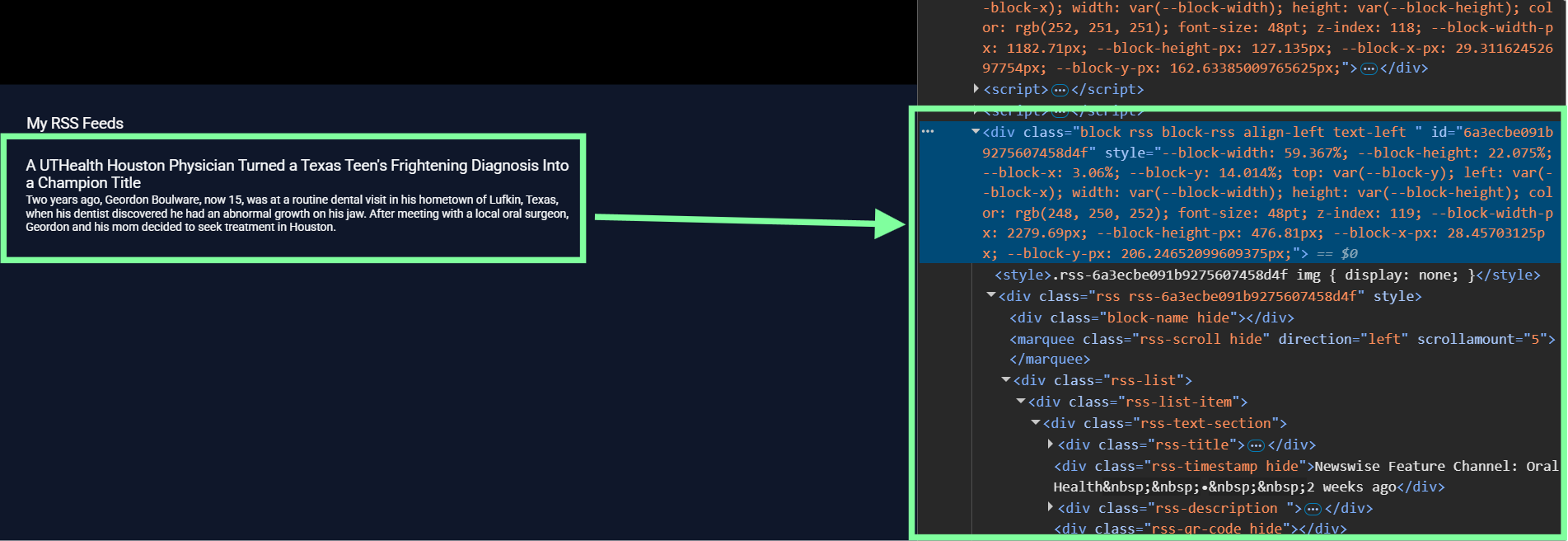
To fine-tune specific elements inside a block, for example, just the headline of a news (RSS) feed, you will need to look at the Screen's underlying code structure to write more specific selectors. This method is perfect for users who feel comfortable working with some HTML and CSS. For example, here is a simple "News" (RSS) Screen:
Inspect Your Screen:
- Go to the Screens tab.
- Click the three dots on the Screen you want to customize, then choose View.
- With the Screen displayed, open your browser's Page Inspector (also called Debugger) by right-clicking an element and selecting Inspect.
- Inside the Inspector, look through the Screen's HTML. Each block contains nested sections with their own class names.
For example, a news (RSS) feed block includes classes like rss-title, rss-timestamp, and rss-description. These names are the handles you will use to target each specific part.
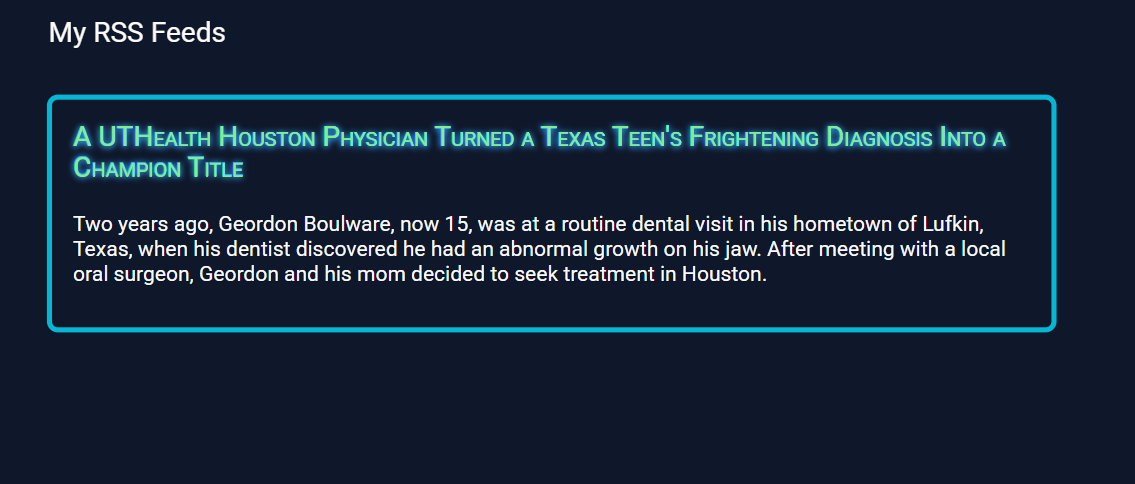
Let's say you want to add a glowing border, some inner spacing, and make the headline brighter. Paste the following custom CSS rules:
.block-rss {
        border: 12px solid #06B6D4;
        border-radius: 25px;
        height: auto !important;
        -webkit-mask-image: none !important;
        mask-image: none !important;
}

.block-rss .rss {
        padding: 48px;
}

.block-rss .rss-title {
        padding-bottom: 64px !important;
        color: #85ed88;
        font-variant: small-caps;
        text-shadow: -1px 1px 15px #33aaff, 1px 1px 15px #33aaff, 1px -1px 0 #33aaff, -1px -1px 0 #33aaff;
}
How this code works:
- The first rule styles the entire block container.
- The second rule adds space between the border and the text inside.
- The third rule changes just the headline.
Quick Tips:
- Be specific with your selectors: The broader a selector is, the harder your browser has to work to find it. This can slow down your Screen's loading performance and might accidentally modify elements you didn't intend to touch. Use a block's custom name whenever possible, and avoid targeting plain HTML tags (like
divorp) on their own. Example guidelines:
- Use an element's #id when you can find one in the Inspector.
- Otherwise, a class selector like .block-weather works well, and narrowing it to a specific tag can help too.
- Test before you save: Experiment directly inside your browser's Page Inspector before copy-pasting rules into your DAKboard Screen settings. It is much faster to test live tweaks there and saves you a lot of back-and-forth editing.
- Using the
!importantRule: If a custom style isn't taking effect, DAKboard's default style settings might be overriding it. Adding!importantto the end of a CSS value (right before the semicolon) can force it to apply, but use this technique sparingly. - Keep your code clean: Regularly delete any old or unused CSS rules from your text box. This makes it easier to troubleshoot issues later on.
Resources:
- CSS
- Browser Page Inspectors / Debuggers:
Frequently Asked Questions:
Why has my Custom CSS suddenly stopped working?
As we update DAKboard over time, the underlying structure of a Screen can occasionally change, which may affect existing custom styles. We work to keep things backward-compatible, but if your Screen's appearance changes unexpectedly, please review your CSS rules to make sure they are still working as intended.