
TABLE OF CONTENTS
NOTE: Videos stored in your Photo sharing source cannot play in the Photo block. To view Videos, you will need to use our Video blocks and one of the supported Video streaming services to play Videos
To add Apple iCloud Photos to DAKboard via a Shared iCloud Album, follow the steps outlined below.
Photos app on an iPhone:
In the Photos app, tap on Albums and then tap the Shared Album button, then select Create:

Give the album a name, add some photos, and you can also add participants to send invitations to join your shared album, though it's not required to share with anyone specifically.
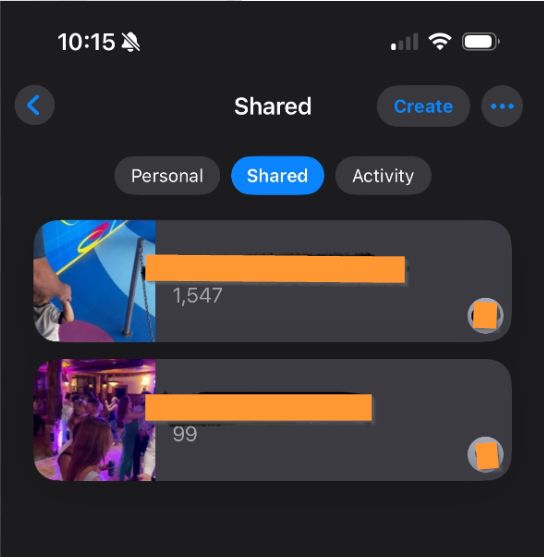
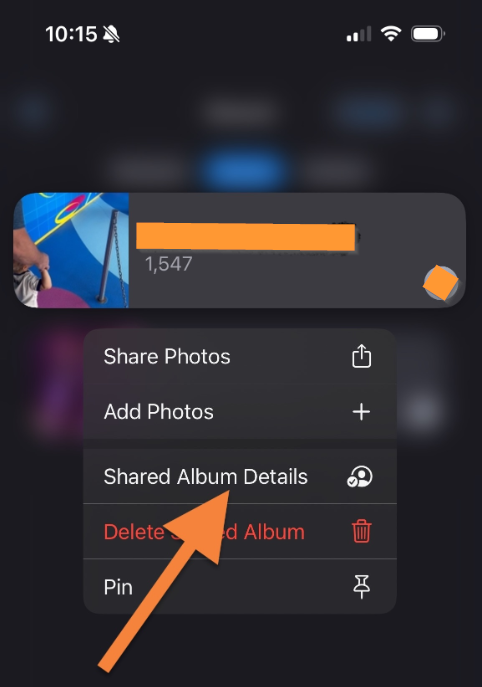
Once your shared album is created, tap and hold the album to open a pop-up and select Shared Album Details.
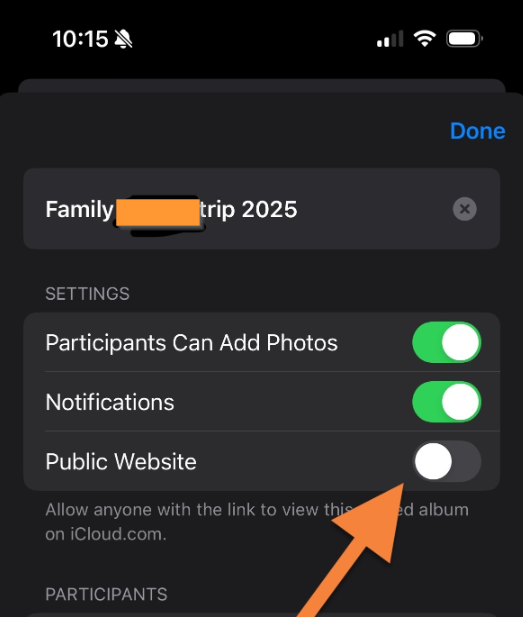
Toggle on the Public Website, creating a public link:
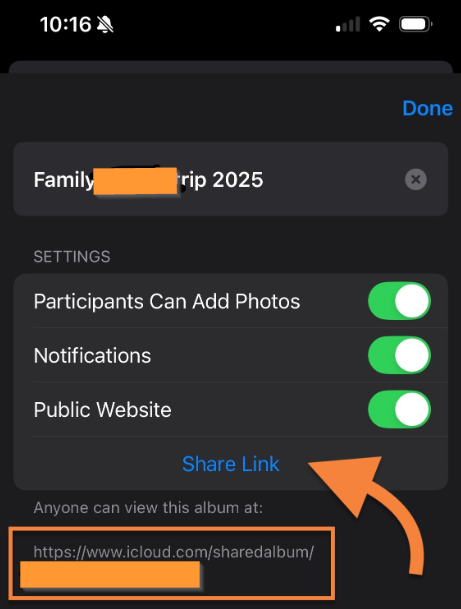
Click Share Link to get a copy of the URL
Now back in your DAKboard account, on the Predefined screen under the background tab, or in a Custom screen by adding/editing a photo block, paste in the copied URL:

Click Save Changes and enjoy your iCloud-shared album on DAKboard.
Photos app on a Mac:
In Apple Photos, click the plus button next to Shared albums in the side menu:

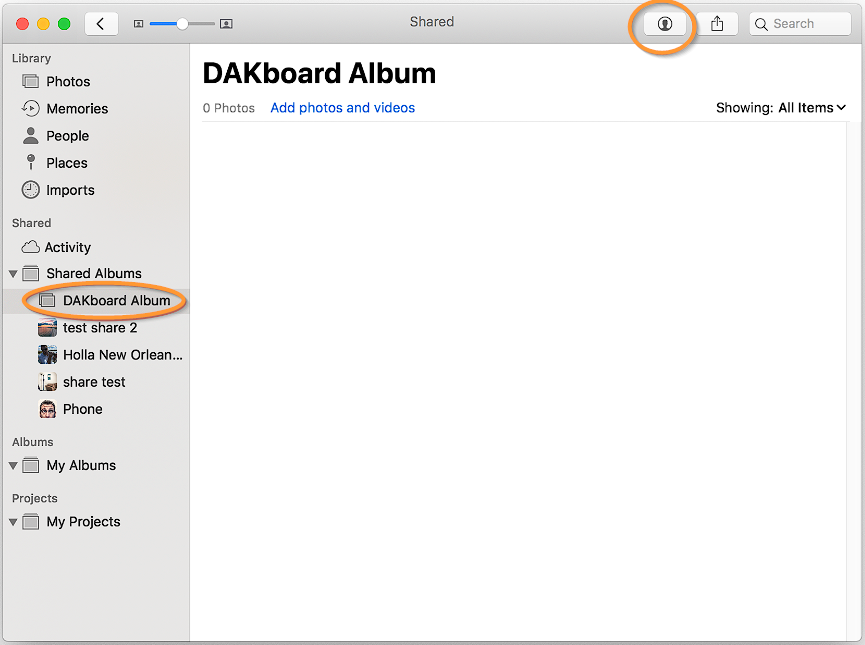
Give the album a name and click the Create button. Next, make sure the new shared album is selected in the side menu and click the sharing icon in the upper right:
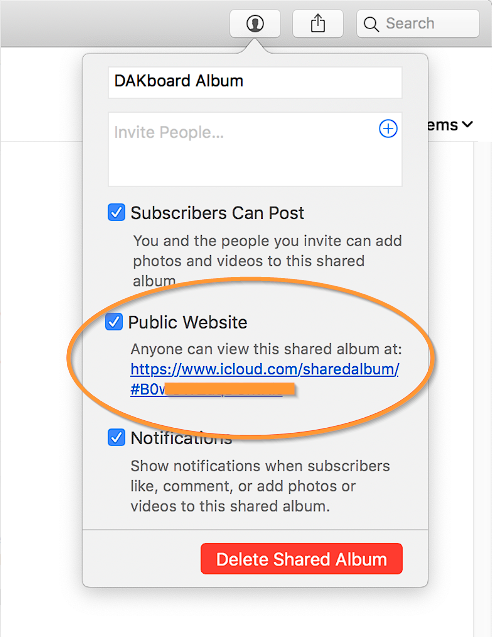
In the menu that pops up, make sure the Public Website option is checked, then highlight and copy the URL that displays:
Now back in your DAKboard account, on the Predefined screen under the background tab, or in a Custom screen by adding/editing a photo block, paste in the copied URL:
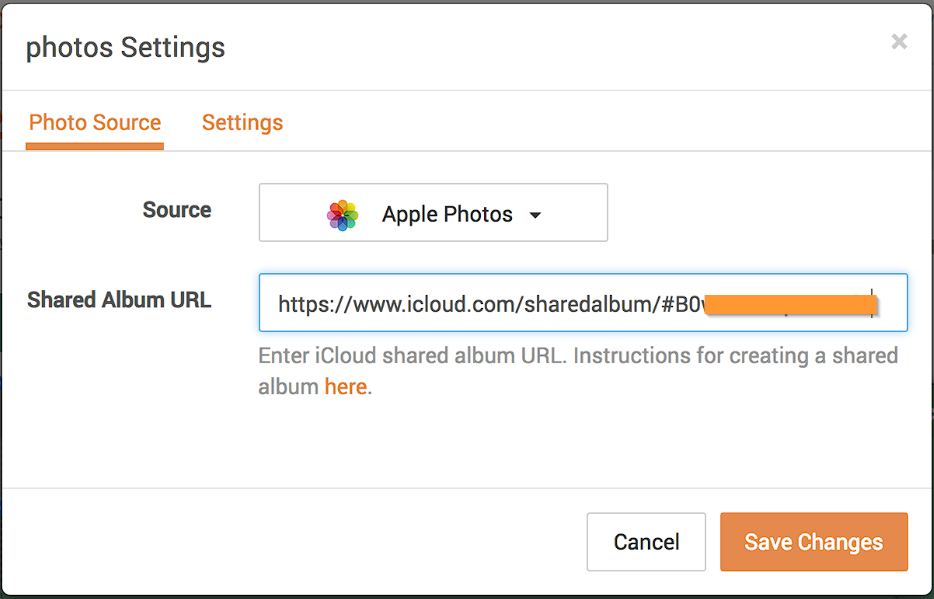
Click Save Changes and enjoy your iCloud-shared album on DAKboard.
Frequently Asked Questions:
Below are the most Frequently Asked Questions about the Apple iCloud Shared Album on DAKboard:
Why does it say Album not Defined?
Sometimes, the authentication of your album may fail or be canceled by Apple. This is usually done to protect your account from being exposed to people you do not want to see your album, or when upgrades are made to their Photo Sharing system. In these cases, you will normally see the message Album not Defined, or sometimes your photos will simply stop working.
When this happens, you can use the steps above to either recreate your Album or copy the URL over. Once you do this, return to your DAKboard account and paste the new URL into your Photo Block. Even if the URL is the same, it may contain updated information to allow you to access it again.
Why does it say No Photos Found?
A message of No Photos Found usually means that the URL timed out before it could load to your Screen or Display. Most photo-sharing services will load their URLs in under 10 seconds. We have the time out for Apple Photos set for 30 seconds to compensate for issues that may occur on their end. Any album that takes longer than 30 seconds to load will time out. You can test how long your album is taking to load by running your URL in a browser. If it takes longer than the 30 seconds we have set, then there may be an issue with the Album or Apple preventing it from loading properly.
Unfortunately, there is not much we can do to correct this because extending the timeout further will affect other services. However, you can try recreating your album, reducing the size or resolution of the Photos, reducing the number of Photos in the albums, or reaching out to Apple to request that they correct the issues causing the extended loading times, as each of these methods may help.
Why are some images not in the Rotation, and what is the Photo Limit?
A lot of our customers are confused as to the way our Photo Rotation works and if there are any limits to the number of Photos they can have in their albums. Our article How To Add Photos To Your DAKboard Screen covers these details and has additional information you may find helpful when troubleshooting issues.
Why can I only view my HEIC Photos through Apple iCloud Shared Album?
The HEIC photo format was created by Apple for the iPhone. Currently, most services will not support viewing these images without converting them to another Photo format first, like JPEG or PNG. The Apple iCloud Shared Album does this for you automatically, which allows these images to be viewed in our service. No other supported integration can do this for you. If you wish to use these images in another integrated service, like the Media Library, OneDrive, Dropbox, etc., you will need to convert the image first.