
TABLE OF CONTENTS
- Getting the Right YouTube Link
- YouTube Video Settings
- Playing a Playlist
- Starting at a Set Time
- Playing a Live Stream
- On-Screen Controls
- Watching Your Video While You Edit
- Frequently Asked Questions
- Why Is There No Sound?
- Why Are Captions Showing When Closed-Captioning Is Off?
- Why Does My Block Say Video Unavailable?
- Why Is My Old Playlist Still Playing?
- Why Does My Video Start at the Beginning Instead of My Start Time?
- Do Playlists and Start Times Work on the Predefined Screen?
- Why does the Video Block not play in my Custom Screen Editor?
- Helpful Articles
With the YouTube option of the Video block, you can play YouTube videos, playlists, and live streams on your Custom Screens. This article covers what is different about YouTube. To add a Video block to your Screen, see How to Add a Video Block to your DAKboard Screen.
Getting the Right YouTube Link:
- Open the video on YouTube.
- Click Share, then Copy. You can also copy the address from your browser's address bar.
- In your YouTube block, open the Video Settings tab, paste the link into the Video URL field, and click Save.
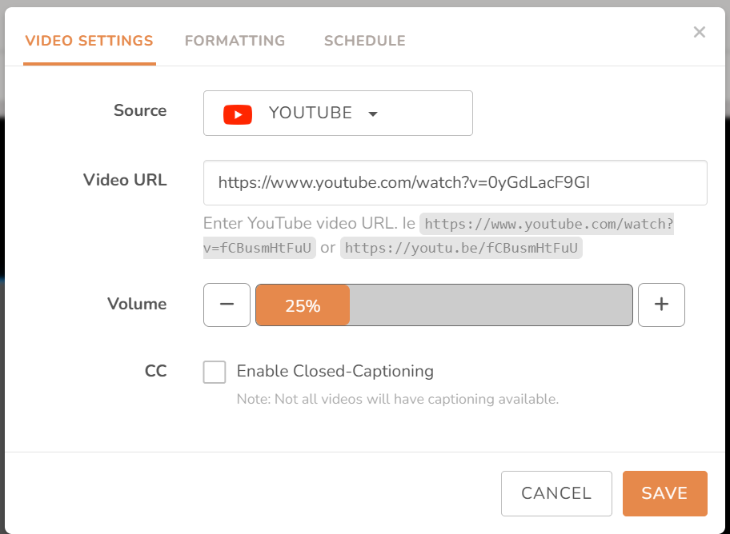
These kinds of YouTube links all work:
| Link | Example |
|---|---|
| A video from the address bar | https://www.youtube.com/watch?v=VIDEO |
| The Share button link | https://youtu.be/VIDEO |
| A Short | https://www.youtube.com/shorts/VIDEO |
| A live stream | https://www.youtube.com/live/VIDEO |
| A video from the YouTube app or mobile site | https://m.youtube.com/watch?v=VIDEO |
| A playlist | https://www.youtube.com/playlist?list=PLAYLIST |
Always paste the full link, starting with https://.
YouTube Video Settings:
These settings control what your YouTube block plays: which video, how loud it is, and whether captions show. They are on the Video Settings tab of the block's settings window.
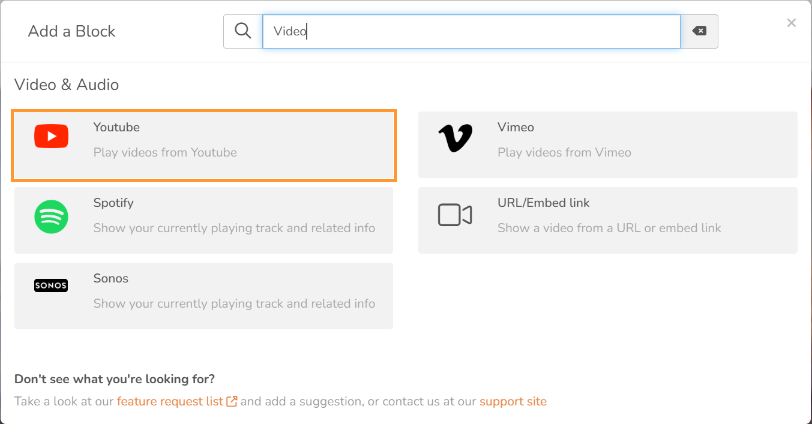
Adding a new block: In your Custom Screen, click Add A Block, search for Video (or open the Video & Audio category), and select Youtube. The Video Settings tab opens as soon as the block is added. See below:
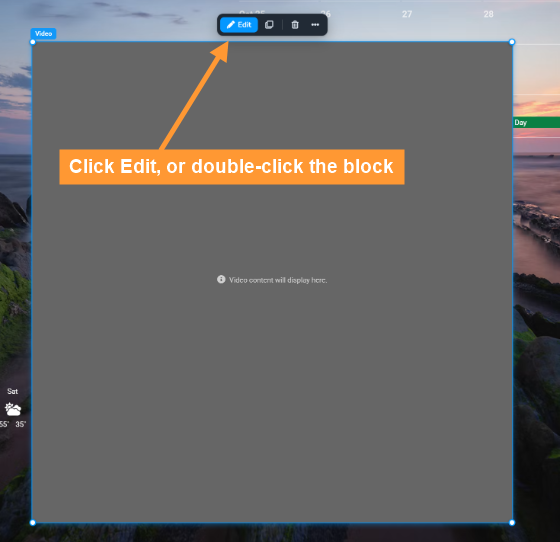
Changing an existing block: Click the block to select it, then click Edit in the toolbar that appears, or double-click the block. See below:
Here is what each setting on the Video Settings tab does:
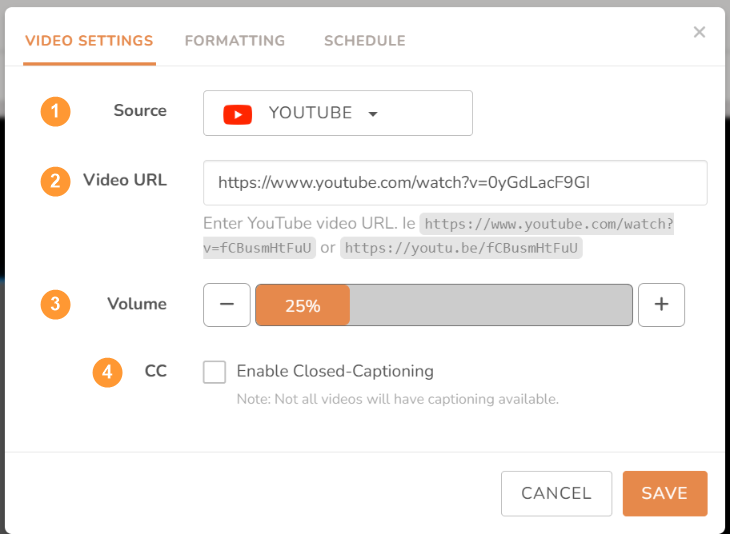
- Source: YouTube is already selected when you add the Youtube block.
- Video URL: the YouTube link (see above).
- Volume: a new block starts at 0%, so it is silent until you raise the volume with the + button or the slider.
- CC: tick Enable Closed-Captioning to show captions. Not all videos have captions.
YouTube videos start playing on their own and repeat when they reach the end.
Playing a Playlist:
To play a whole playlist, use the playlist's Share link, or open any video in the playlist and copy the address from your browser. That address includes &list= followed by the playlist ID. Paste the link into Video URL and save.
- The playlist plays in order and starts again at the end. Shuffle is not kept.
- The playlist must be Public.
- To go back to a single video, paste the full address of that video from your browser (it starts with https://www.youtube.com/watch?v=).
To learn how to make a playlist, see YouTube's help on creating playlists.
Starting at a Set Time:
To start a video at a set time, add &t= and the number of seconds to the end of the link. For example, https://www.youtube.com/watch?v=VIDEO&t=90 starts 1 minute and 30 seconds in. You can also click Share on YouTube, tick Start at, and copy that link.
Playing a Live Stream:
To show a live stream, open the stream on YouTube and copy its own link (for example, https://www.youtube.com/live/VIDEO or the Share link). A channel's general live page, such as youtube.com/@channel/live, will not play. Live streams play only while they are live.
On-Screen Controls:
On a touchscreen or with a mouse, tap or move over the video to show the controls:
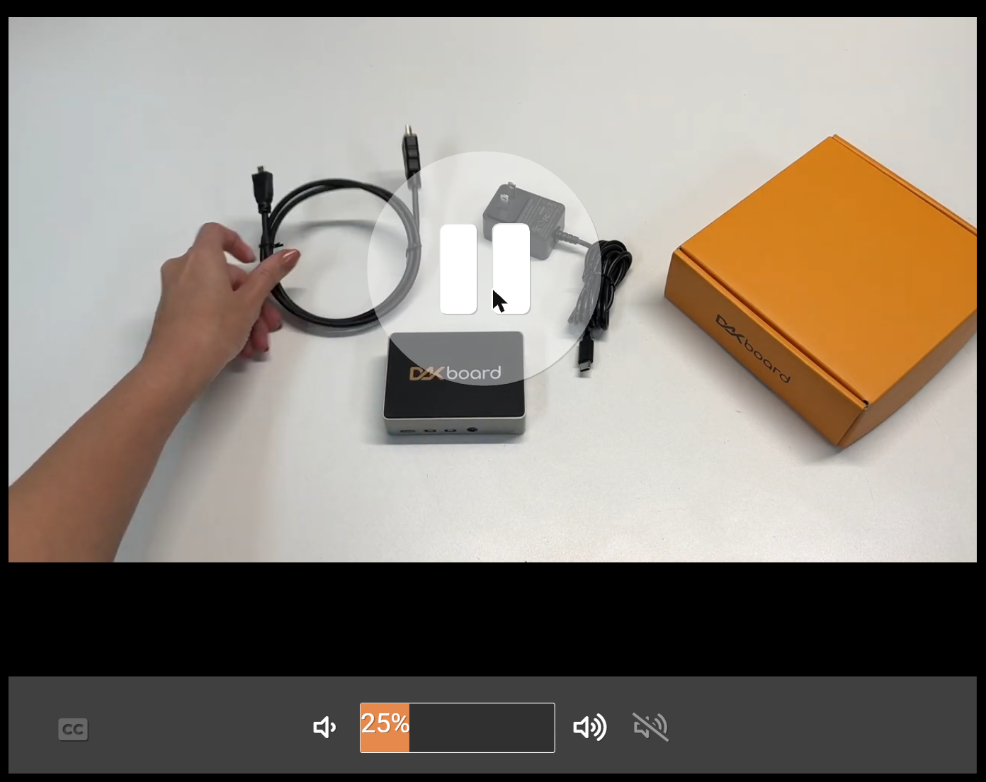
- Play or pause: tap the middle of the video.
- CC: turn captions on or off.
- Volume: the speaker buttons turn the volume down or up, and the last button mutes it.
Watching Your Video While You Edit:
The Custom Screen editor shows Video content will display here. in place of the video. To watch it, use View (see the last question below).
Frequently Asked Questions:
Below are the most Frequently Asked Questions about YouTube videos on DAKboard:
Why Is There No Sound?
A new YouTube block starts at 0% volume. Open the block, raise the Volume, and save. Also check the device or TV volume.
Why Are Captions Showing When Closed-Captioning Is Off?
Some YouTube videos currently show captions even when Enable Closed-Captioning is off. This comes from YouTube. Tap the CC button on the screen once to turn captions on and once more to turn them off. Captions may come back when the video starts over.
Why Does My Block Say Video Unavailable?
YouTube shows this when the video is private, age-restricted, or its owner does not allow it to be played on other sites, or when a live stream has ended. Try the video on YouTube while signed out, or choose another video.
Why Is My Old Playlist Still Playing?
If you change a playlist link to a short link such as https://youtu.be/VIDEO, the playlist may keep playing. Paste the full address of the video from your browser instead (https://www.youtube.com/watch?v=VIDEO) and save.
Why Does My Video Start at the Beginning Instead of My Start Time?
Start times must be in seconds, such as &t=90. Times written as 1m30s start at the beginning. The Share button's Start at option gives you the right format.
Do Playlists and Start Times Work on the Predefined Screen?
No. The Predefined Screen plays single videos only. Use the full video address (https://www.youtube.com/watch?v=VIDEO). For playlists and start times, use a Custom Screen.
Why does the Video Block not play in my Custom Screen Editor?
You may have noticed that your block shows the message below when you set it up:
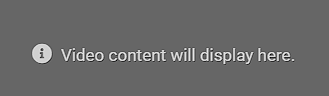
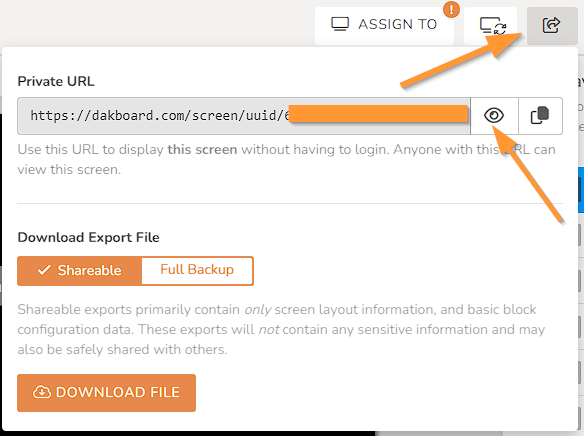
This happens because the Custom Screen Editor does not contain the Embedded Video Players, so it can never play a Video. To see what your Screen will look like while editing it, you can use the View Screen option to open your Screen in another browser tab or window. You can find the View Screen button under the Share and Export Screen Configuration button on your Screen editor page. See below:
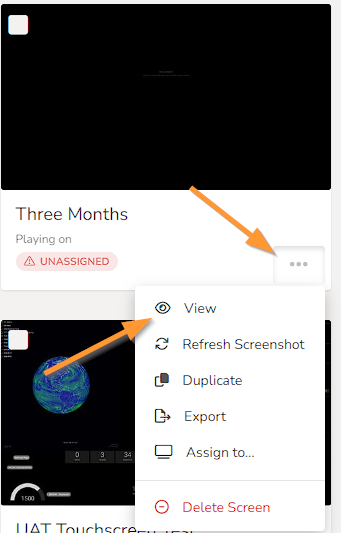
You can also select this from the Screens Page by clicking on the three dots below your Custom Screen's Thumbnail and selecting View. See below:
Once open, you can see what your screen will look like. You can also use the Refresh Displays button, located to the right of the Assign To button, to push your changes to this screen while you design it.
Helpful Articles:
Having trouble? See if these articles help.
How to Add a Video Block to your DAKboard Screen